

How to Group Worksheets in Microsoft Excel
You can use Excel’s greater functionality by grouping your worksheets. Essentially, you’re merging two sheets into one, simplifying data pulling and referring between them. Additionally, you can work on several worksheets simultaneously, increasing your efficiency. In essence, this ability raises your productivity in Excel.
What transpires when a group of two or more Excel worksheets is present? It’s straightforward. When working in a group, any modifications you make to one worksheet automatically update all the other worksheets in the same spot. If the spreadsheets already have the same data structures, that works well.
Let’s begin by becoming fully knowledgeable about
Worksheet groups in Microsoft Excel.
Worksheets chosen by the group
The steps for creating groups using the worksheets you choose are outlined in the tutorials below. This prevents changes made to one worksheet from being mirrored in other worksheets while you edit it.
How to use Excel to group two or more worksheets
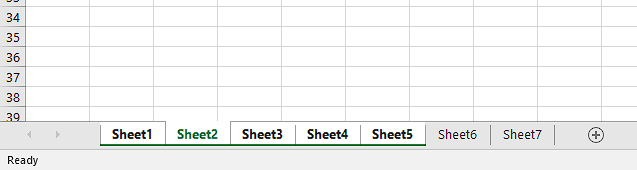
The steps for grouping sheets in Excel for Windows are listed below. We utilized Excel 2019 for this example, but the procedures are identical to previous versions.
- To group the worksheets, open the workbook you wish to work with.
- To group the worksheet tabs, click on each one after holding down the Ctrl key.

- Alternatively, you can group consecutive worksheets by clicking the first worksheet tab, holding down the Shift key, and then clicking the last worksheet tab.

- Now, feel free to alter any of the group’s worksheets. Even if you only made edits to one worksheet, you should still be able to see this update in all of the others. This is how groups in Excel work.
Remember that you must ungroup your worksheets to turn off the group feature. Use the instructions below to accomplish this.
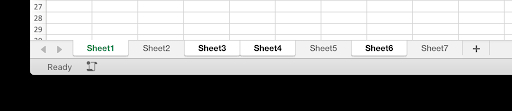
How to use Excel for Mac to group worksheets
Excel grouping on macOS is the same as on other platforms. This quick and easy technique can help you become more productive when dealing with several sheets in a single worksheet. Now, let’s look at how to group worksheets in Mac Excel.
- To group the worksheets, open the workbook you wish to work with.
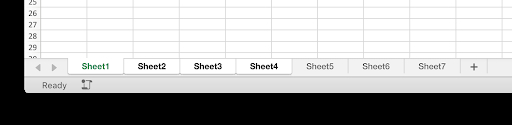
- You can group the worksheet tabs by clicking on each one after holding down the ⌘ (command) key.

- Alternatively, you can group consecutive worksheets by clicking the first worksheet tab, holding down the Shift key, and then clicking the last worksheet tab.

- Now, feel free to alter any of the group’s worksheets. Even if you only made edits to one worksheet, you should still be able to see this update in all of the others.
Remember that you must ungroup your worksheets to turn off the group feature. Use the instructions below to accomplish this.
How to separate Excel worksheets into groups.
The methods below simplify unregulating the chosen worksheets if you no longer wish to use the group functionality. You may always gather them again later, so don’t worry!
- Use the keyboard and hold down the Ctrl key.
- To ungroup any worksheet in your group, simply click on it. This enables you to delete certain worksheets while maintaining the group.
By reading on, learn how to group and ungroup all worksheets in Excel at once.
Put all the worksheets in a group.
There is a way to easily group (and ungroup) every worksheet in a workbook to save time picking out each worksheet individually. This streamlines your workflow if you need to add something to, delete something from, or alter something on every sheet.
How to organize all of Excel’s worksheets
- To group the worksheets, open the workbook you wish to work with.
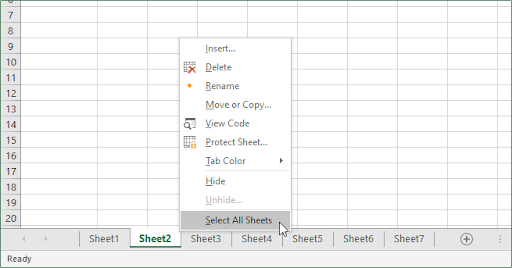
- To choose all currently open sheets, right-click on any of them and select All Sheets from the context menu.

- It should be evident that every sheet has been promptly chosen and grouped.
Remember that when your sheets are all together, you won’t be able to look through them. To re-create the group, you must follow the previous steps, as doing so will instantly ungroup them.
How to ungroup all of Excel’s spreadsheets
- Select any sheet that is part of a group by right-clicking. This might be a collection of all the worksheets in the document, or it can be a group that is chosen at random.
- From the context menu, choose Ungroup Sheets.
- Now, all groups ought to be disabled.
Alternatively, you can ungroup all the worksheets by selecting any worksheet tab outside of the group. This only functions if there is an individual worksheet!
Concluding remarks
Please do not hesitate to message our customer support team, who is here to help you around the clock, if you require additional assistance with Excel. Visit us for more educational blogs about productivity and contemporary technologies!
To purchase our products at the most incredible price, would you like to get discounts, deals, and promotions? Remember to provide your email address below to subscribe to our newsletter! Get the newest tech news delivered to your inbox, and be the first to see our productivity hacks.