How to Upgrade to Outlook 2021 on Mac: A Step-by-Step Guide
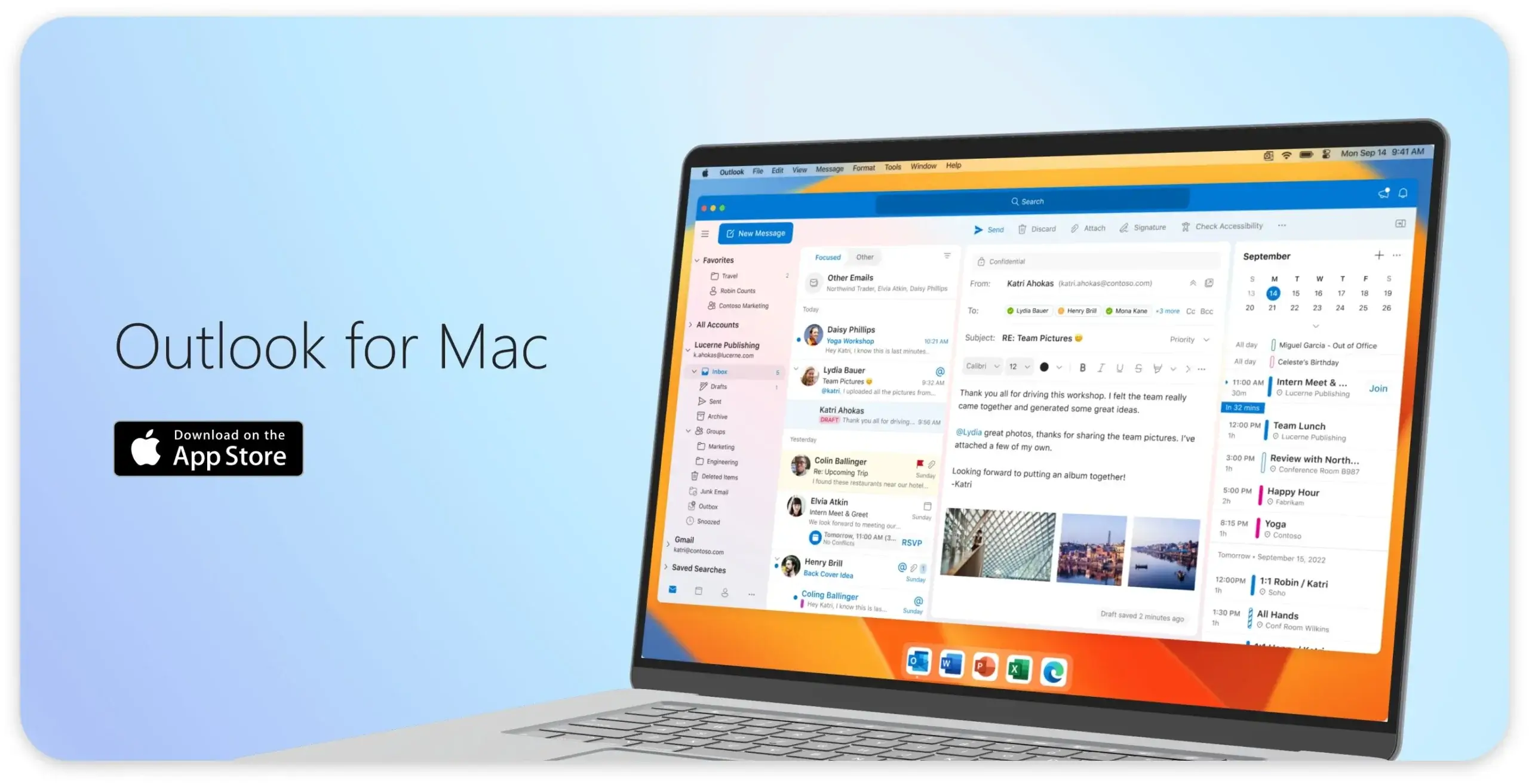
Microsoft Outlook is a powerful email client that offers easy access to emails, files, calendar events, and contacts across multiple accounts, including Microsoft 365, Gmail, Yahoo, and iCloud.
The Outlook app is optimized for Apple Silicon, providing fast load times, quick syncing, and a smooth, native Mac experience.
With Microsoft Office 2021, users can enjoy world-class productivity and the latest version of Outlook.
Outlook for Mac is available in FastSoftwares, making it easy to install and update. The app offers a range of features, including a customizable toolbar, enhanced search capabilities, and an integrated calendar with meeting planning and RSVP tracking functionality.
In this article, you will get a step-by-step guide to upgrade to Outlook 2021 on Mac.
Let’s dive in.
Microsoft Outlook for Mac
Microsoft Outlook is a personal information manager software system from Microsoft. Ms Outlook is available as a standalone app or as a part of the Microsoft Office and Microsoft 365 software suites.
Primarily popular as an email client for businesses, Outlook also includes functions such as calendaring, task managing, contact managing, note-taking, journal logging, web browsing, and RSS news aggregation.
People can use Outlook as a stand-alone application. Organizations can deploy it as multi-user software (through Microsoft Exchange Server or SharePoint) for shared functions such as mailboxes, calendars, folders, data aggregation (i.e., SharePoint lists), and as appointment scheduling apps.
Other than the paid Outlook for Windows and Outlook for Mac, the Outlook name also covers several other current software:
- Outlook on the web, formerly Outlook Web App, is a web version of Microsoft Outlook, included in Microsoft 365, Exchange Server, and Exchange Online (domain outlook.office365.com)
- Outlook for Mac and Outlook for Windows, a free Outlook application that is preinstalled with Windows 10 and later
- Outlook Mobile, a mobile app version of Outlook
Note: Outlook.com, formerly Hotmail, is a free personal email service offered by Microsoft alongside a webmail client (domain outlook.live.com)
Checking Your Current Version before you Upgrade to Outlook 2021 on Mac
Before you upgrade to Outlook 2021 on Mac, you need to know your current version on Mac.
Since its release in 2011, Outlook for Mac has had different versions. The key versions include:
- Outlook 2011 for Mac (Included in Office for Mac 2011 Home and Business)
- Outlook for Mac 2014 (Included in Office 365, except for some commercial editions)
- Outlook for Mac 2016 (stand-alone app or included in Office 2016 and Office 365)
- Outlook for Mac 2019 (standalone app or included in Office 2019 and Office 365)
- Outlook for Mac 2021 (included in Office 2021, Microsoft 365, standalone app, or subscription option on Microsoft 365 subscription)
- Outlook for Mac in 2024 (included in Office 2024, Microsoft 365, standalone app, or subscription option on Microsoft 365 subscription)
To check your current version of Outlook, click on the Outlook menu in the upper left corner of the screen and select “About Outlook”.
This will display the current version of Outlook installed on your Mac.
If you’re running an older version, you may need to update to the latest version to access new features and security updates.
You can check the Microsoft website for the newest version of Outlook and update automatically or manually.
Make sure to check the system requirements for the latest version of Outlook to ensure compatibility with your Mac.
Purchasing Outlook 2021 from the Mac App Store
To purchase Outlook 2021, go to Fastsoftwares or the Mac App Store and search for “Microsoft Outlook”.
Download and install the app.
If you already have a Microsoft 365 subscription, you can sign in to your account to access the latest version of Outlook.
The Mac App Store offers a convenient way to purchase and install Outlook, with easy access to updates and support.
You can also check the availability of Outlook 2021 in the Mac App Store and read reviews from other users.
Subscription Options
Microsoft offers a range of subscription options for Outlook, including Microsoft 365 Personal and Business plans.
These plans offer a range of features, including email, calendar, and contacts, as well as access to other Microsoft Office apps.
With a Microsoft 365 subscription, you can install Outlook on up to 5 devices, including Macs, PCs, and mobile devices.
You can choose the plan that best fits your needs and budget, with options for monthly or annual payments.
Microsoft 365 Personal offers 1 TB of cloud storage, while Business plans offer more advanced features and support.
Upgrading to the Latest Version
To upgrade to the latest version of Outlook, open the Mac App Store and click on the “Updates” tab.
If an update is available, click on the “Update” button to download and install the latest version.
You can also update automatically by going to the Outlook menu and selecting “Check for Updates”.
Make sure to restart your Mac after updating to ensure the new version is installed correctly.
You can also check the Microsoft website for more information on the latest version of Outlook and its features.
Installing and Activating Outlook 2021
To install Outlook 2021, open the Mac App Store and click on the “Get” button.
Follow the prompts to download and install the app.
Once installed, open Outlook and sign in to your Microsoft account to activate the app.
You may need to enter a product key or confirm your subscription details to complete the activation process.
Make sure to check the system requirements for Outlook 2021 to ensure compatibility with your Mac.
Setting Up Your Email Account
To set up your email account in Outlook, go to the “File” menu and select “Add Account”.
Enter your email address and password, and then click on the “Next” button.
Outlook will automatically configure your email account settings, including IMAP and SMTP servers.
You can also manually configure your email account settings if needed.
Make sure to check the email account settings to ensure they are correct and working properly.
Exploring New Features
Outlook 2021 offers a range of new features, including a customizable toolbar and enhanced search.
You can also use the “Focus” feature to prioritize important emails and contacts.
The “Calendar” feature allows you to plan meetings and track RSVPs, while the “Contacts” feature allows you to manage your contacts and relationships.
You can also use the “Editor” feature to compose and edit emails, and the “Agenda” feature to view your daily schedule.
Make sure to check the Microsoft website for more information on the new features and how to use them.
Troubleshooting Common Issues
If you encounter any issues with Outlook, you can try troubleshooting by going to the “Help” menu and selecting “Troubleshoot”.
You can also search for solutions online or contact Microsoft support for assistance.
Common issues include problems with email account settings, calendar syncing, and contact management.
Make sure to check the Microsoft website for more information on troubleshooting and resolving common issues.
You can also refer to the user manual or online resources for more information on troubleshooting.
Post-Upgrade Checklist
After upgrading to Outlook 2021, make sure to check the following:
Email account settings are correct and working properly.
Calendar and contacts are syncing correctly.
New features are working as expected.
You have checked for any updates or patches.
You have backed up your data and settings.
Make sure to check the Microsoft website for more information on post-upgrade checks and troubleshooting.
Tips for Using Outlook 2021 Efficiently
To use Outlook 2021 efficiently, make sure to:
- Use the customizable toolbar to prioritize your most-used features.
- Use the “Focus” feature to prioritize important emails and contacts.
- Use the “Calendar” feature to plan meetings and track RSVPs.
- Use the “Contacts” feature to manage your contacts and relationships.
- Use the “Editor” feature to compose and edit emails.
- Make sure to check the Microsoft website for more information on tips and tricks for using Outlook 2021 efficiently.
Staying Up-to-Date with the Latest Features
To stay up-to-date with the latest features and updates, make sure to:
Check the Microsoft website regularly for updates and news.
Follow Microsoft on social media to stay informed.
Sign up for the Microsoft newsletter to receive updates and tips.
Attend Microsoft events and webinars to learn more about the latest features and updates.
Make sure to check the Mac App Store for updates and new features.
Conclusion and Final Recommendations
Upgrading to Outlook 2021 is a great way to improve your productivity and stay connected with your email, calendar, and contacts.
With its range of features and customizable interface, when you upgrade to Outlook 2021 on Mac, you get a powerful tool for anyone looking to manage their digital life.
Make sure to check the Microsoft website for more information on Outlook 2021 and its features.
You can also refer to the user manual or online resources for more information on using Outlook 2021.
Finally, make sure to stay up-to-date with the latest features and updates to get the most out of Outlook 2021.
Get the MS Outlook app or get MS Office from FastSoftwares.