
Unlocking Your Steam Screenshots: A Guide to Accessing and Using the Folder on Windows 10
Even though most gamers may be familiar with Steam, not all know how to open the screenshot folder. Most users have occasionally reported having trouble finding screenshots they took in the Screenshot folder.
How can one get to the folder containing Steam screenshots?
In Windows 10 or 11, if you take screenshots with the Windows+Print Screen keyboard shortcut, Windows will store the picture as a PNG file in your Pictures > Screenshots folder. C:\Users\[User Name]\Pictures\Screenshots are where you can find them.
If you’re among those who are worried about this problem, you’ll be happy that you found this post, which explains how to access Steam’s screenshot folder on Windows 10. Moreover, you will discover how to utilize the Steam screenshot folder.
Why would you screenshot your game?
Do you play games online? Online players understand the value of taking a picture of their screen or of the game they are playing. It can matter for their right to brag.
But more significantly, these screenshots are essential for identifying game flaws and gathering helpful data.
You’ll need to manage the screenshots once you take them, just like with your phone. You may organize your photos into folders on Steam and designate a different folder for each game. Additionally, Steam allows you to store the screenshots on your hard drive or share them with other players in the community. Additionally, you have the choice to keep the photos private if you so want.
On Windows 10/11, where is the screenshot folder located in Steam?
Using the Steam platform to play a game makes taking screenshots simple. All you have to do is hit the F12 key on your keyboard to open the screenshot manager. After that, you can take screenshots within your game and share or store them.
But you’ll find players asking questions like “Where is the screenshot folder in Steam?” in many gaming communities. Or “How do I get to the screenshot folder on Steam?”
The Steam Screenshot folder is accessible in two ways:
Method 1: Use the Steam client to access the Steam screenshot folder
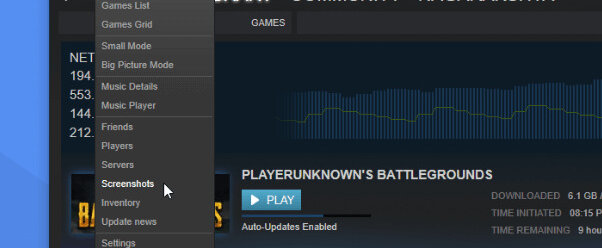
Another name for the Steam client is Steam Screenshot Manager. It’s the most straightforward method for locating the screenshot folder on Steam.
- Click “View” from the menu bar (located in the top-left corner of your screen).
- Choose “Screenshots” from the drop-down menu options.
- It will show the Steam screenshot manager. This is where your screenshots will appear, along with options for handling them.
- We need to recall that the Steam screenshot folder is what we need to find.
- After selecting a screenshot, click the “Show On Disk” button at the bottom of the screenshot manager.
This option will take you to the File Explorer on your computer, where that specific screenshot is kept.
You may now view that screenshot and other screenshots you’ve taken in that folder.
Method #2: Go online to the screenshot folder
You can keep all of your screenshots in Steam’s online store. As long as you can access your Steam account from any device, your screenshots stored online will be secure and easily accessible.
Open Steam and choose the following route to access the online storage:
View > Screenshot > View Online Library in Steam.
According to Steam, “When playing any game that launches Steam Overlay, pressing the hotkey [F12 by default] takes screenshots and posts them automatically on social media, such as Facebook, Twitter, or Reddit, as well as on your Steam community profile.” Steam provides up to 1 GB of personal storage on Steam Cloud to store thousands of screenshots of your greatest moments. Alternatively, you can save screenshots to your computer and turn them private.
Method #3: Use the file system on your PC to access the Steam screenshot folder.
Every screenshot you take gets stored on your computer and can be manually accessed anytime. The location of the Steam screenshot folder is typically the same as that of your installed Steam game.
The first thing you need do is look in the Steam installation directory to get access to the screenshot folder on your computer. On Windows 10, go to C:\Program Files (x86)\Steam, which is the default location, to reach the Steam screenshot folder. However, the precise spot where you installed your Steam game may vary.
Use the following path to open the screenshot folder in Windows 10:
Files (x86)\C:\Program Filesscreenshots in Steam\userdata\AccountID\760\remote\
- To access File Explorer, press Wins Key + E.
- Go to Local Disk C, double-click it, and proceed as above.
Every game you own on Steam has its folder in the Steam screenshot folder. Random numbers are used as the folder titles. You can enter any folder and look at the screenshots to see the pictures you took of the game.
If you have a vast collection of games, it could be difficult to click through each numbered folder to view your screenshot. You may find the game and the folder using your game ID. You can use the game’s title to search this website for the game ID, which you can then use to search for screenshots.
How about your [app-ID] on Steam?
You should know your Steam ID to access the Steam Screenshots. To find your Steam ID if you don’t know it, take a look at the instructions below:
- Open the Steam client.
- Click View > from the top menu to access the options.
- Choose Interface from the options menu’s left pane.
- To display the Steam URL address when available, check the box next to it.
- At the bottom of the window, click OK now.
- Click the view name on your Steam profile now.
- Take note of the number that ends the URL. Your SteamID is that.
As previously said, once you have your Steam ID, you may use it to retrieve your saved screenshots.
How to modify the folder for the Steam screenshot
Having discovered the location of the Steam screenshot folder, you can now move it if you’re worried about losing the screenshots due to a system fault.
You can move the folder to a different disk, like local disk D, as its default placement is typically on Disk C, where the operating system is located. The Steam games folder can likewise be treated in the same way.
To modify the folder for the Steam screenshot.
- Launch the Steam application.
- Navigate to the menu, select View, and finally click Settings.
- Find the panel now, then select In-Game Options.
- Slide open the folder named Screenshot.
- To view all of the Steam screenshots, navigate to an external website.
- Select to make the changes effective.
Concluding remarks
This post on accessing and using the Steam screenshot folder in Windows 1o was instructive and valuable. Please revisit our website if you require any additional assistance. Moreover, you can find more affordable Microsoft Office software and informative articles and recommendations.
To purchase our products at the most excellent price, would you like to get discounts, deals, and promotions? Remember to provide your email address below to subscribe to our newsletter! Get the newest tech news delivered to your inbox, and be the first to see our productivity hacks.