

MS Project Standard vs Professional: Key Differences Explained
Nov 13, 2024 by Denzel D. Salazar
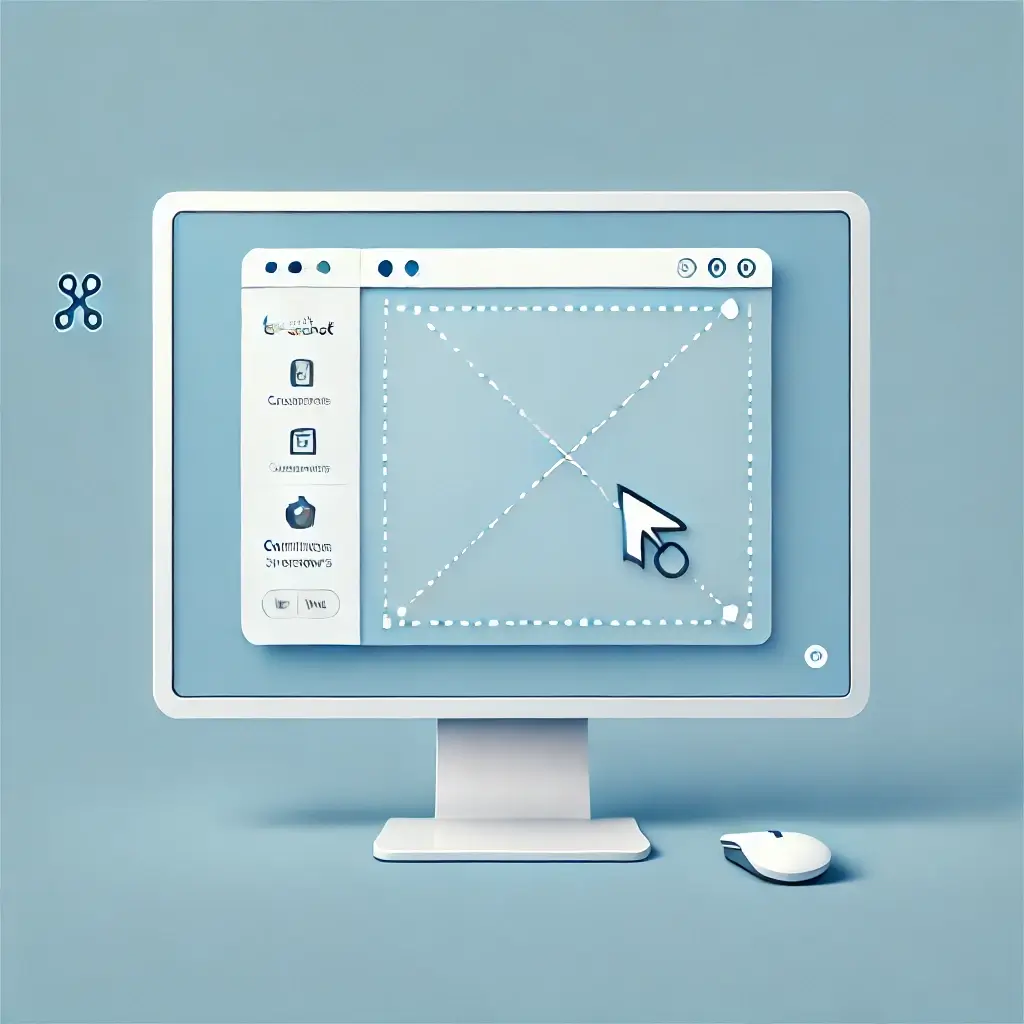
Scrolling Screenshot Snipping Tools
Scrolling screenshot snipping tools are essential for capturing extended content that doesn’t fit in a single screen view. Whether you’re documenting an entire web page, saving a lengthy chat thread, or creating step-by-step tutorials, these tools provide a seamless way to capture everything in one image. In this guide, we’ll share various scrolling screenshot tools and methods across different devices, helping you find and use the best tool for your needs.
Step-by-Step Guide to Using a Scrolling Screenshot Tool
Here’s a simple, step-by-step process that can apply to most scrolling screenshot tools:
- Open the Content: Open the page or document you wish to capture.
- Select the Capture Tool: Open your screenshot tool and select the scrolling capture option (often labelled as “Scroll Capture” or “Full Page”).
- Initiate Capture: Click the capture button. Some tools automatically scroll the page, while others may require manual scrolling.
- Edit (Optional): After capture, use the editing options available in the tool to annotate or crop the image.
- Save and Share: Once edited, save the screenshot in your preferred format (e.g., PNG, JPEG) and share as needed.
Microsoft Edge (Web Pages Only)
- If you need a scrolling screenshot of a web page, open it in Microsoft Edge.
- Press Ctrl + Shift + S to open the Web Capture tool.
- Choose Capture Full Page and save the scrolling screenshot
Third-Party Apps
- Snagit: A paid tool that’s powerful for capturing scrolling screenshots on Windows, both for browsers and other applications.
- ShareX: Free software that can take scrolling screenshots within specific applications.
- PicPick: Another user-friendly tool that offers scrolling capture functionality.
Using Microsoft PowerToys (for Advanced Users)
- Microsoft PowerToys has an experimental feature called Screen Recorder that can record screen content and then extract frames.
- It’s not designed directly for scrolling screenshots but could be an option if you need a longer capture.
When to Use Scrolling Screenshots?
Scrolling screenshots simplifies capturing large amounts of information in a single file, which is especially helpful in professional and educational settings. Let’s look at some key benefits:
- Documentation: Easily capture entire documents or reports for record-keeping.
- Content Sharing: Share complete web pages or chat threads in one convenient screenshot.
- Tutorials: For educators and instructors, scrolling screenshots help present a series of steps or long explanations without breaking continuity.
- Reports and Reviews: When presenting long reviews or reports, scrolling screenshots enable clean and professional captures of extensive data.
These tools save time and enhance clarity by presenting content in a comprehensive, uninterrupted view.
Popular Browser Extensions for Scrolling Screenshots
For those who need to capture entire web pages, browser extensions are quick and convenient. Here are a few popular choices:
- Nimbus Screenshot: Available for Chrome and Firefox, Nimbus offers multiple capture options, including scrolling screenshots, annotations, and easy export formats.
- GoFullPage: This simple Chrome extension captures entire web pages without requiring users to scroll manually. It’s known for reliability but lacks advanced editing features.
- FireShot: Another Chrome and Firefox extension, FireShot provides additional editing options post-capture, allowing users to annotate and save screenshots in various formats.
Browser extensions offer the advantage of direct in-browser use, making them ideal for web-based tasks. Consider compatibility with your browser and whether you need advanced editing features when selecting an extension.
Best Mobile Apps for Scrolling Screenshots on iOS and Android
Mobile devices offer both built-in and third-party options for scrolling screenshots:
Best Apps for Scrolling Screenshots on Android
- LongShot for Long Screenshot
- Features: Capture scrolling screenshots and stitch multiple images together.
- Pros: User-friendly and reliable for websites, chat threads, and app screens.
- Free/Paid: Free, with in-app ads.
- Stitch & Share
- Features: Takes multiple screenshots and stitches them together for a seamless, scrollable image.
- Pros: Easy to use, especially for capturing chats or social media feeds.
- Free/Paid: Free, with ads and a premium option.
- Screen Master
- Features: Offers scrolling screenshots, image annotations, and editing tools.
- Pros: Simple interface and multiple editing features.
- Free/Paid: Free, with a premium upgrade available.
- Firefox Browser (Web Pages Only)
- Features: Take a full-page screenshot directly in the browser.
- Pros: Built-in feature; great for capturing full-length screenshots of websites.
- Free/Paid: Free.
Best Apps for Scrolling Screenshots on iOS
- Tailor – Screenshot Stitching
- Features: Automatically stitches together multiple screenshots into one long image.
- Pros: Perfect for capturing long text threads or lists on social media.
- Free/Paid: Free, with optional in-app purchases.
- Picsew
- Features: Allows both manual and automatic stitching, with the ability to add annotations.
- Pros: High-quality output and very intuitive; supports web page captures.
- Free/Paid: Free, with a pro version for additional features.
- Safari Browser (Built-in, Web Pages Only)
- Features: Take full-page screenshots directly in Safari (iOS 13 and above).
- How-To: Take a screenshot, then tap the preview and choose Full Page.
- Pros: No extra app needed; saves as a PDF.
- Free/Paid: Free.
- StitchPics
- Features: Allows for precise stitching of screenshots and various customization options.
- Pros: Great for social media content and chat captures, with easy editing tools.
Free/Paid: Free, with premium options.
Cross-Platform Alternatives (Both iOS and Android)
- Adobe Acrobat (for Web Pages and Documents):
- Features: PDF creation from web pages and documents with scrolling capture.
- Pros: Very reliable for creating scrollable PDFs of web pages.
- Free/Paid: Free, with premium features.
- Stitch It!
- Features: Customizable screenshot stitching with blur, cropping, and annotation tools.
- Pros: Works well for long conversations and app content.
- Free/Paid: Free, with a pro version.
These apps can help you easily capture long screenshots on both platforms, with some offering additional editing and sharing options for even more customization.
Top Desktop Tools for Scrolling Screenshots on Windows and Mac
As of now, the Windows Snipping Tool itself does not support scrolling screenshots. However, here are some alternatives you can try to capture scrolling screenshots on Windows:
- Snagit: Known for professional-grade screenshot capabilities, Snagit allows scrolling captures on Windows and Mac. It includes a robust editor with options for annotations, highlights, and custom graphics.
- PicPick: Available for Windows, PicPick offers scrolling capture, editing features, and easy sharing options. It’s perfect for professionals needing high-quality captures and quick edits.
- ShareX: This free, open-source tool provides extensive customization and capture options, including scrolling capture. It’s popular among developers and power users.
Desktop tools generally provide the most advanced options and are best suited for users who need high-quality captures and editing flexibility.
How to Capture Dynamic Content with Scrolling Screenshots
Capturing scrolling screenshots of dynamic content, such as animations, videos, and live web pages, presents unique challenges:
- Animations and Videos: Standard scrolling screenshot tools often struggle with animations. For these, consider using screen recording software, such as OBS Studio, to capture video content.
- Auto-Updating Pages: For web pages that refresh frequently, some tools like Snagit allow you to freeze the content before capture, ensuring a consistent image.
- Interactive Elements: Interactive elements may require multiple captures or edits to capture accurately, particularly if certain areas expand or collapse.
For these types of content, be prepared to experiment with video recording or a combination of capture techniques to achieve the best result.
Editing and Annotating Scrolling Screenshots
Editing and annotating screenshots allows you to communicate more effectively. Here are popular editing techniques:
- Annotation: Add text boxes or arrows to highlight specific sections.
- Highlighting: Emphasize key points or information with highlights.
- Cropping and Blurring: Crop to remove unnecessary areas and blur sensitive data.
- Text and Graphics: Insert additional elements for emphasis or explanatory purposes.
These editing capabilities make screenshots more engaging and informative, perfect for tutorials, presentations, and reports.
Choosing the Right Scrolling Screenshot Tool for Your Needs
When selecting a scrolling screenshot tool, consider these factors:
- Ease of Use: Choose a tool with an intuitive interface, especially if you’re using it frequently.
- Platform Compatibility: Ensure compatibility with your device, whether it’s Windows, Mac, Android, or iOS.
- Editing Features: Consider if you need advanced editing tools, or if basic capture is enough.
- Price: Many tools are free, but professional features may require a subscription.
By matching your needs with the right features, you’ll be able to make the most of your scrolling screenshot tool.
Troubleshooting Common Issues with Scrolling Screenshots
Here are solutions to some common scrolling screenshot issues:
- Incomplete Capture: If the capture doesn’t cover the full page, try using a different tool or manually scrolling slower.
- Low Resolution: For a higher quality image, check your tool’s settings or switch to a desktop app like Snagit.
- Compatibility Problems: Some tools don’t work on all devices or with certain web pages. Verify compatibility or try a browser-based extension.
Troubleshooting these issues quickly will help you achieve the best results with minimal hassle.
Written by:
Similar Articles
Sign up for our Newsletter
Enter your email address to subscribe to this blog and receive notifications of new posts by email.

