Microsoft Office 2007 Installation Guide for Your PC: Key Steps
Microsoft Office 2007 Ultimate remains a smart, cost-effective choice for users seeking dependable productivity tools on their Windows PCs in 2025.
This Microsoft Office 2007 Installation Guide is crafted for individuals, students, and teams needing reliable software for word processing, spreadsheets, presentations, and more.
Designed specifically for PC installation, it covers the full installation process, when users may need help—whether during initial software setup or while troubleshooting issues.
Following a proper installation guide is essential to guarantee a smooth setup experience and get full software functionality.
Buying original Microsoft Office 2007 Ultimate licenses from trusted sellers such as Fastsoftwares ensures authenticity and ongoing support.
This Microsoft Office 2007 Installation Guide will help you through every necessary step to successfully install Office 2007 Ultimate on your PC with confidence.
Preparing for Microsoft Office 2007 Installation
Preparing well before installing Microsoft Office 2007 is critical to a smooth process. Understanding system requirements, securing a valid license, and safely obtaining installation files saves time and avoids errors.
This comprehensive preparation section explains each prerequisite in detail.
To install Microsoft Office 2007, you’ll need the installation media (CD or ISO file) and your product key. Insert the CD or mount the ISO, run the setup.exe file, and follow the on-screen prompts. You’ll be asked to enter your product key and accept the license agreement. You can choose a typical installation or customize it to select specific components.
System Requirements and Compatibility
To install Microsoft Office 2007 on your PC, your system must meet certain minimum hardware and operating system specifications to ensure optimal performance.
- At minimum, your PC should have a Pentium III 500 MHz processor or faster to run Office 2007 Ultimate satisfactorily.
- You will need at least 256 MB of RAM; however, 512 MB or more is recommended for smoother multitasking and complex document handling.
- A minimum of 2 GB of available hard disk space is necessary to accommodate the full installation and allow for future updates.
- The operating system supported includes Windows XP with SP2 or later, such as Windows Vista, Windows 7, and newer Windows 10 or 11 editions.
- Office 2007 Ultimate is designed specifically for Windows environments and will not run natively on macOS or Linux without virtualization.
Ensuring your PC meets or exceeds these hardware and OS requirements is the first step toward a successful microsoft office 2007 ultimate for pc installation experience. Compatibility checks also help prevent frustrating installation failures or degraded software performance.
Where to Buy Genuine Licenses
Purchasing a genuine Office 2007 license is paramount for security, software updates, and activation. It’s also a key consideration for this Office 2007 instalation guide.
Fastsoftwares is a highly recommended and trusted seller offering authentic Microsoft Office 2007 licenses.
Unlike unauthorized sellers, Fastsoftwares guarantees licenses that unlock all features and come with customer support. Avoiding counterfeit or pirated software protects your PC from malware, legal issues, and missing updates.
You can purchase licenses directly from Fastsoftwares’ secure website where they provide instant license key delivery.
Their reliable service assures that your investment in this cost-effective productivity suite will be genuine and supported.
Buying from a trusted source like Fastsoftwares enhances peace of mind and ensures your microsoft office 2007 ultimate for pc installation will be valid and trouble-free.
Downloading the Installation Files
Once you have acquired a valid license key, the next crucial step is downloading the official Microsoft Office 2007 Ultimate installation files.
Downloading from trusted sources is vital to avoid corrupted or malicious files that could jeopardize your PC security.
Fastsoftwares provides direct download links for the official Microsoft installation package paired with your purchased license.
Alternatively, official Microsoft servers or licensed distributors can be used to download the exact setup executable.
When downloading, ensure the file integrity by checking file sizes, digital signatures, or using provided checksums if available.
Never download Office 2007 Ultimate installation files from suspicious third-party sites or torrent networks, as these sources may contain malware.
Acquiring your installation files safely ensures your setup will proceed smoothly with no unexpected errors or security risks.
Step-by-Step Microsoft Office 2007 Installation Guide
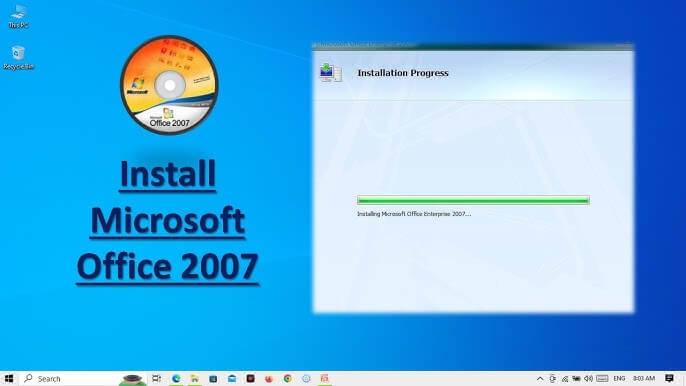
This step-by-step microsoft office 2007 installation guide walks you through every essential phase of the installation. Following this methodical process ensures your software installs correctly and activates fully.
1. Starting the Installation
Begin by locating the downloaded setup executable file, typically named setup.exe, within your Downloads folder or specified directory.
Double-click the setup file to launch the Microsoft Office 2007 Ultimate installation wizard.
The initial screen will offer options such as “Install Now,” “Customize,” or “Cancel.”
Select “Install Now” for the standard recommended setup that includes all default Office programs.
If you prefer to customize which Office applications to install, select “Customize,” and check or uncheck components.
Click “Continue” to proceed; the wizard will copy files and prepare system settings necessary for installation.
During this phase, do not close the installation window or shut down your computer to avoid corruption.
2. Entering the Product Key and Activation
After file setup, you will be prompted to enter your Microsoft Office 2007 product key.
Carefully type the 25-character alphanumeric key you received with your license purchase, without spaces.
Entering a valid product key is necessary to unlock the full functionality of the software and proceed with activation.
Once entered, the installation wizard will validate the key with Microsoft’s licensing servers.
If online activation is available, the system will automatically register your Office 2007 copy.
For offline activation, you may be guided through a phone activation process with a Microsoft representative.
Proper activation ensures that you receive updates and the complete feature set of Office 2007 Ultimate.
3. Completing Installation and Initial Configuration
Once activation completes, the installation wizard will finalize file configuration and registry settings.
You may be asked to configure initial preferences such as default file save locations, user information, and update settings.
After the final setup completes, the wizard will show a success message confirming a successful installation.
Restarting your PC at this time is often recommended to ensure all changes take effect.
After reboot, launch any Office 2007 Ultimate application like Word or Excel to verify it opens and functions as expected.
Your successful installation marks the start of using this powerful, cost-effective productivity suite fully activated.
Troubleshooting Common Installation Issues
Despite careful preparation, users can experience some typical problems during microsoft office 2007 for windows install guide procedures. This section addresses common errors and offers practical solutions to resolve them efficiently.
Installation Errors and Their Fixes
One frequent error is insufficient disk space, which results in an installation halt.
Free up at least 2 GB of hard drive space or more as needed to resolve this.
Another common error is a missing Windows update or incompatible OS version causing setup failures.
Ensure your Windows operating system is fully updated and supported by Office 2007 requirements.
If you encounter error messages about corrupt setup files, re-download the installation package from Fastsoftwares or official sources.
Running the installer as an administrator can also fix permission-related issues preventing installation.
Temporarily disabling antivirus software may help if it interferes with file copying during setup.
Activation Problems and Solutions
Activation failures often stem from incorrect product key entry; double-check the key for typos if activation fails.
If the key has been previously used on another device, it may be invalid for a new installation.
Contact Fastsoftwares customer support if you suspect your product key is invalid or needs reissuance.
For issues with online activation, ensure your PC is connected to the internet and firewall settings allow activation.
Phone activation is an alternative if online activation repeatedly fails.
Where to Find Additional Support
If issues persist, take advantage of multiple support channels.
Fastsoftwares offers dedicated customer service accessible via email or live chat to assist with installation and activation.
Microsoft’s official support site includes troubleshooting articles, community forums, and downloadable fix tools specific to Office 2007.
Searching these resources with your error messages often provides user-tested solutions.
Reliable support ensures you can overcome challenges and complete your microsoft office 2007 ultimate installation smoothly.
Comparing Microsoft Office 2007 with Alternative Office Suites
Understanding how Microsoft Office 2007 Ultimate stacks up against other office software helps users make informed purchasing decisions. In this section, we compare features, costs, and user experience aspects crucial for selection.
Feature Comparison
Microsoft Office 2007 Ultimate offers a wide range of applications including Word, Excel, PowerPoint, Outlook, Publisher, Access, InfoPath, and Groove.
Its integrated Ribbon interface revolutionized productivity with easy-to-navigate tools.
Compared to competitors like LibreOffice or Google Workspace, Office 2007 Ultimate provides advanced collaboration features and premium formatting capabilities.
Unique tools such as SmartArt graphics, enhanced chart options, and extensive template libraries set it apart.
For companies needing database and enterprise forms support, Access and InfoPath inclusion is a significant advantage.
Thus, the breadth and depth of features in Office 2007 Ultimate make it a strong contender for users requiring a comprehensive productivity suite.
Cost and Licensing Differences
Office 2007 is typically sold as a one-time purchase license, unlike subscription-based services like Microsoft 365.
This upfront cost can be more budget-friendly over long periods for users who prefer perpetual ownership.
Licenses purchased from Fastsoftwares are genuine, cost-effective, and come without recurring fees.
Alternative free office suites provide no-cost options but may lack some high-end capabilities or official customer support.
Cost-conscious users who want reliability and a full feature set often find Office 2007 Ultimate a wise investment.
User Experience and Compatibility
Many users appreciate Office 2007 Ultimate’s user interface improvements, especially the intuitive Ribbon feature reducing learning curves.
It supports the wide range of Microsoft document formats ensuring compatibility with colleagues and clients worldwide.
While newer Office versions offer updated aesthetics, Office 2007 remains familiar and stable on older PCs.
Compatibility with older hardware and Windows versions makes it accessible for environments not ready for newer systems.
This balance of modern usability and broad compatibility highlights why buying Office 2007 Ultimate is a smart, cost-effective choice.
Conclusion
Following this comprehensive Office 2007 installation guide is vital to get the most out of Microsoft Office 2007 Ultimate on your PC in 2025.
Preparation steps, purchasing authentic licenses from trusted sellers like Fastsoftwares, and carefully proceeding through the installation ensure a smooth experience.
Addressing common issues promptly helps avoid frustration and maximizes software utility.
Comparing Office 2007 Ultimate’s features and value with alternatives shows why it remains a cost-effective choice for many users.
Purchase your genuine Microsoft Office 2007 license today from Fastsoftwares and start your installation with confidence.