Unbeknownst to You: Insider Features of Windows 11
The most recent and improved version of the Windows operating system is Windows 11. It has a number of features that make using applications and navigating computers easier for users. Similar to earlier iterations, Windows 11 boasts an Insider program that enables users to try out new features and offer suggestions for enhancements.
Microsoft frequently updates its Insider versions, adding new features on a regular basis. These features are improved and modified in response to user feedback in order to deliver the best experience possible in the stable Windows 11 updates. While some characteristics draw a lot of attention, there are some undiscovered hidden treasures as well.
Let us examine a few of the Insider features that come in Windows 11.
Insider Builds of Windows 11: Everything New
Microsoft announced all of the exciting new features included with Windows 11 Insider Preview Build 25267 on the Dev Channel on December 14, 2022. Many system improvements are available with this update for individuals that sign up for their free Insiders program!
In brief
- ISOs of this build are currently being made available for download by Microsoft.
- Attention, Insiders! Rejoice as the latest version introduces numerous enhancements and bug fixes, enriching your overall experience.
- Explore the latest Windows 11 upgrade in detail by delving into the fourth episode of Insider Windows 11 Season 2!
- This is the final Dev Channel flight that will be released over the holidays. Fortunately, Microsoft has updated their Insider builds for January 2023, so they are covered!
Let us explore every one of the fascinating new features included in the most recent Windows 11 Insider Preview Builds. This upgrade is sure to please and impress everyone, whether you are a seasoned Insider or brand-new to the program.
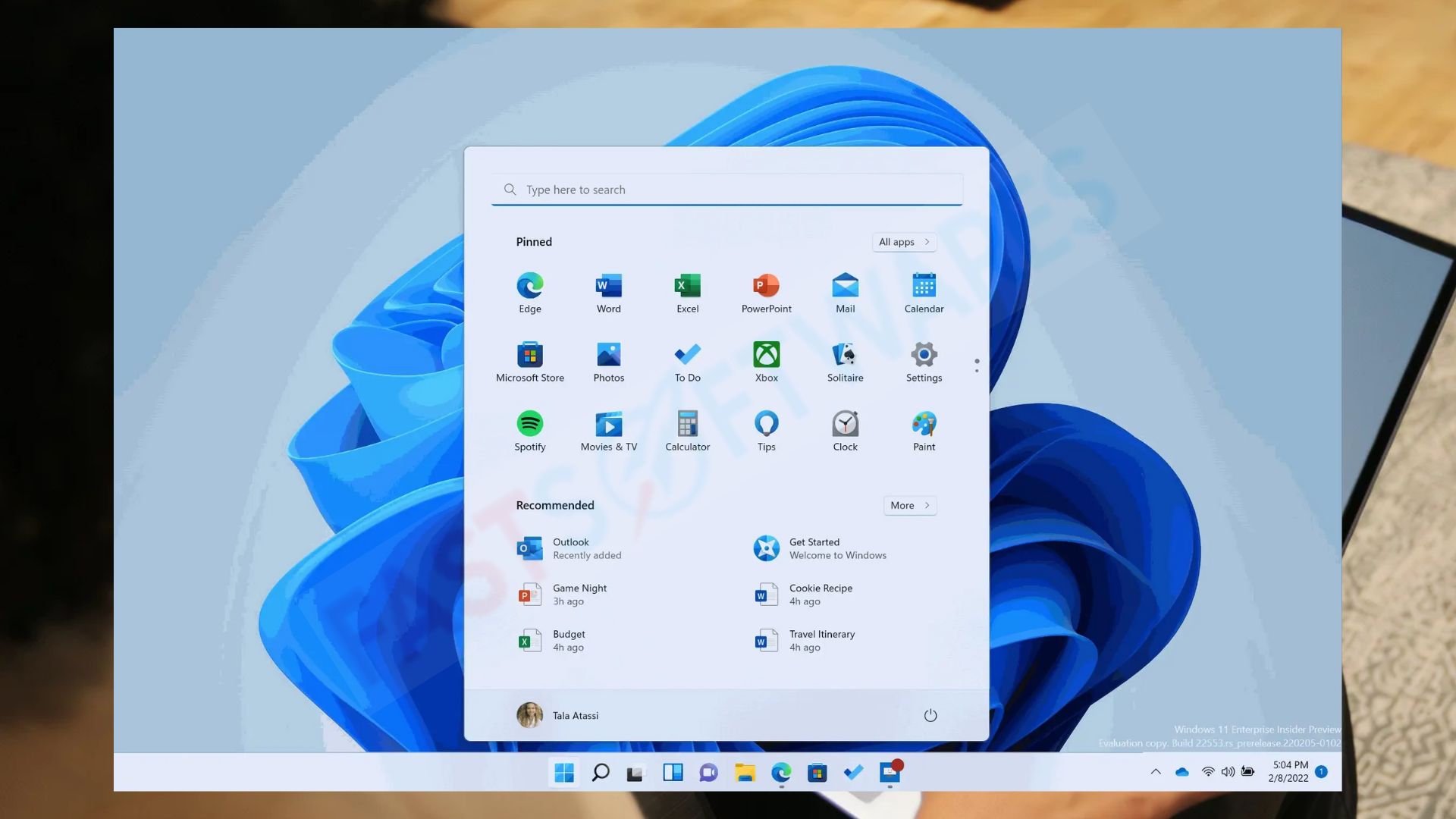
1. The first is the universal search bar.
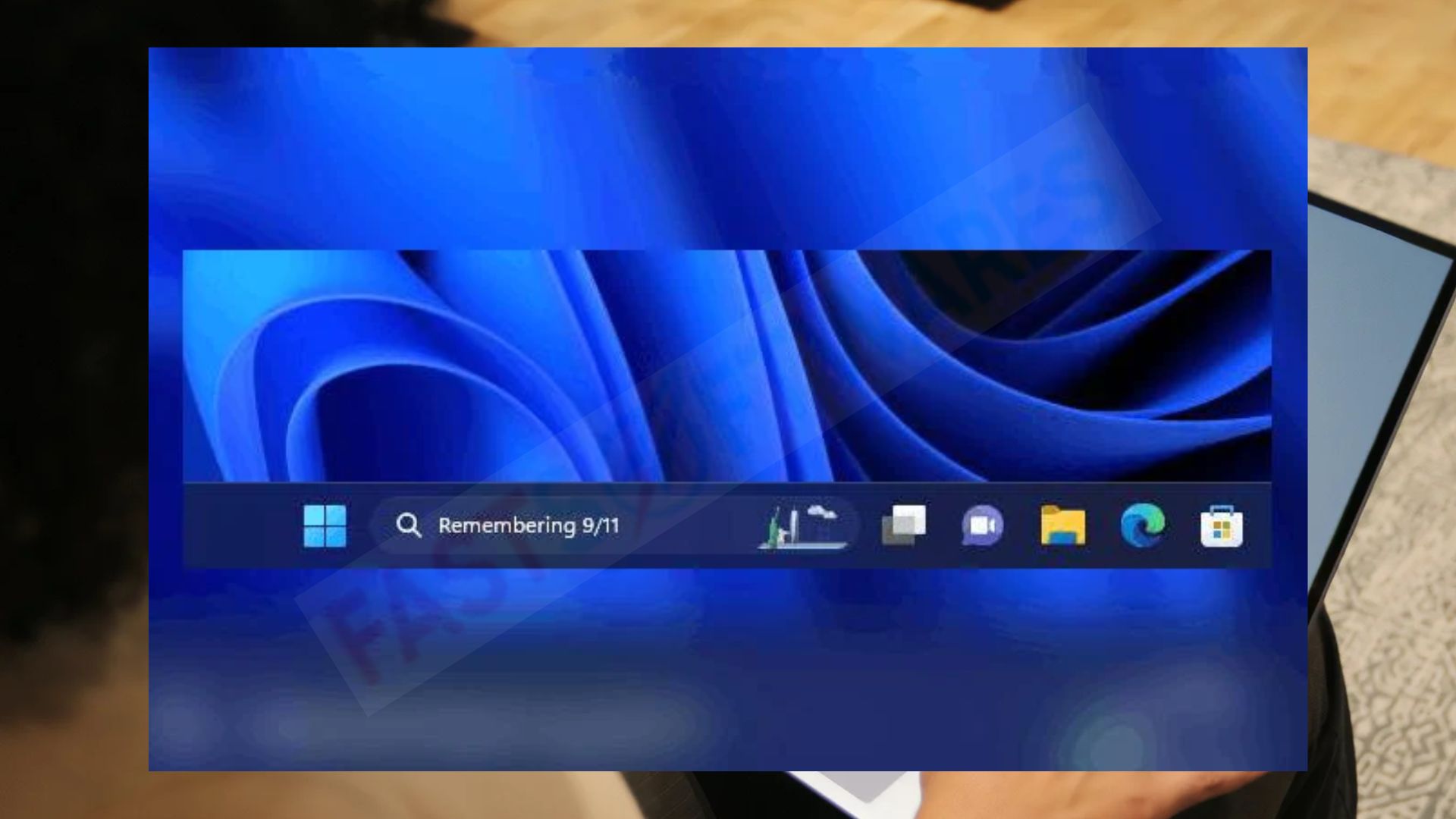
Microsoft has updated the look of their taskbar search bar as part of their ongoing effort to modernize the user experience. The Search bar now has softened borders and is smoother overall thanks to the most recent update. With the next build, users on the Dev Channel will be able to use this enhanced treatment.
If you see a difference, you can simply make more adjustments by right-clicking on the taskbar and going to the taskbar settings. This action advances Microsoft’s ongoing objective of making its products as svelte and innovative as possible.
On your taskbar, select Search. Then, just begin typing what you are looking for. Results from your files, contacts, emails, images, and even the web will be customized for you.
2. Windows Studio Effects
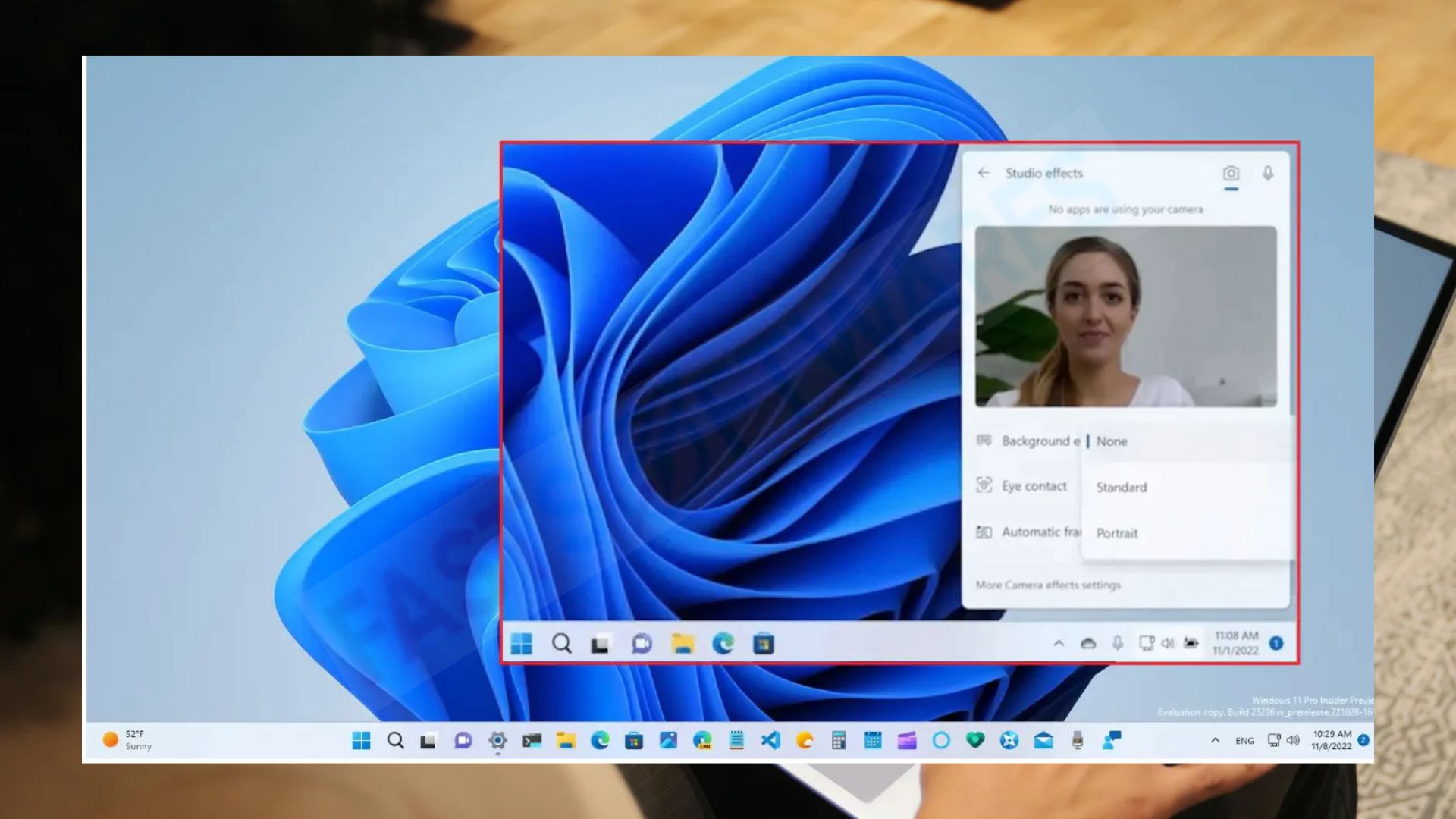
For users with a compatible Neural Processing Unit (NPU) device, Windows Studio effects have been incorporated into Quick Settings on the taskbar, making camera and audio effects faster and easier to reach than before. You may now change settings like Voice Focus, Eye Contact, Background Blur, and automatic framing with a single click from the taskbar.
All of these options are still available in the Settings pages for individuals who would rather locate their effects somewhere else.
3. Energy Suggestions
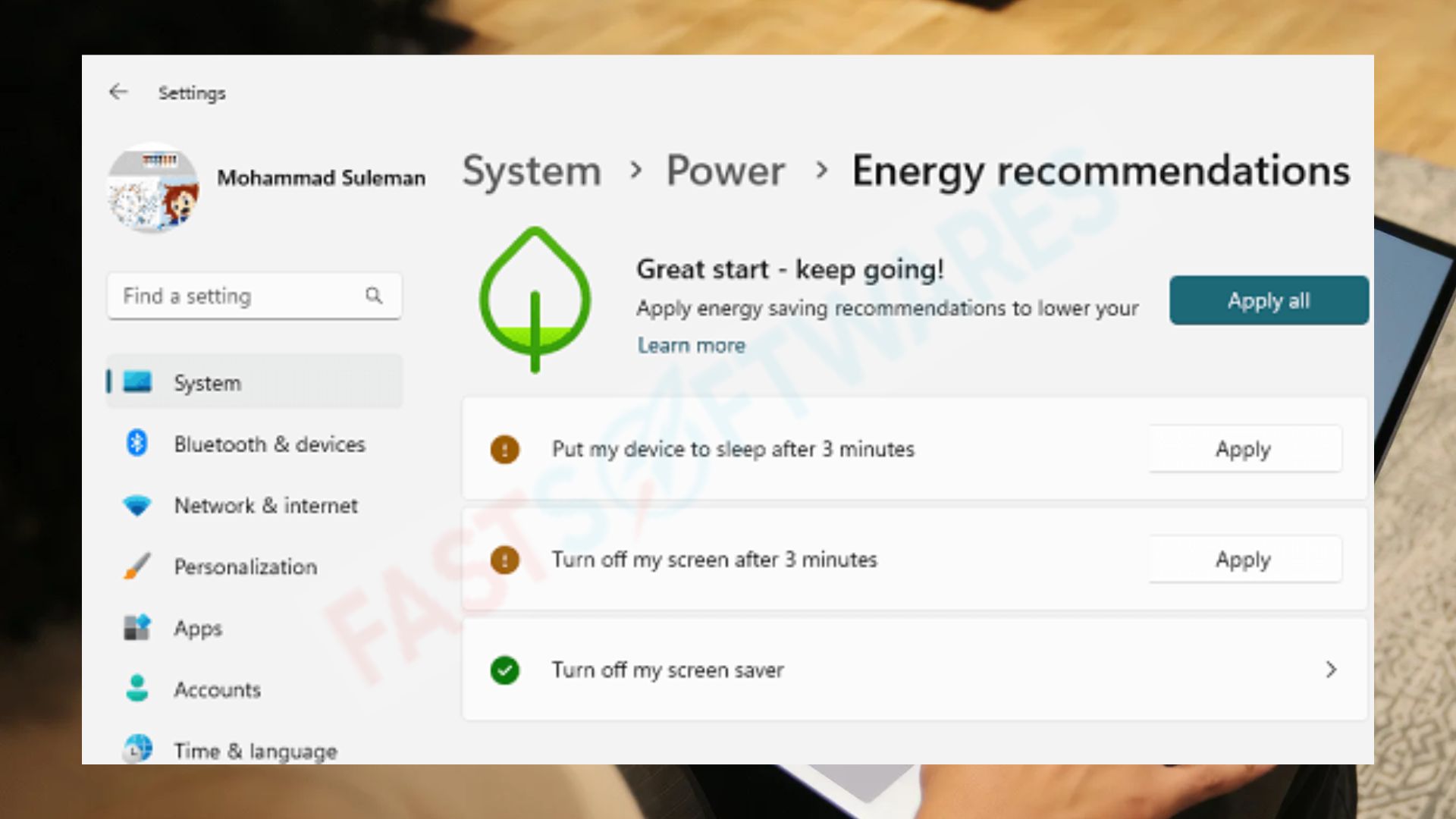
With Microsoft’s new Energy Recommendations, it is time to take action and go green. These suggestions, which are easily found under Settings > System > Power & Battery, are meant to help you lessen your carbon impact and increase the energy efficiency of your PC.
Using dark mode or restricting the number of background apps that run is just one example of how to change the power settings. This is a great approach to improve the atmosphere. Thus, why not dedicate a short period of time to going over the suggestions and realizing their potential for you and the Earth?
Task Manager #4
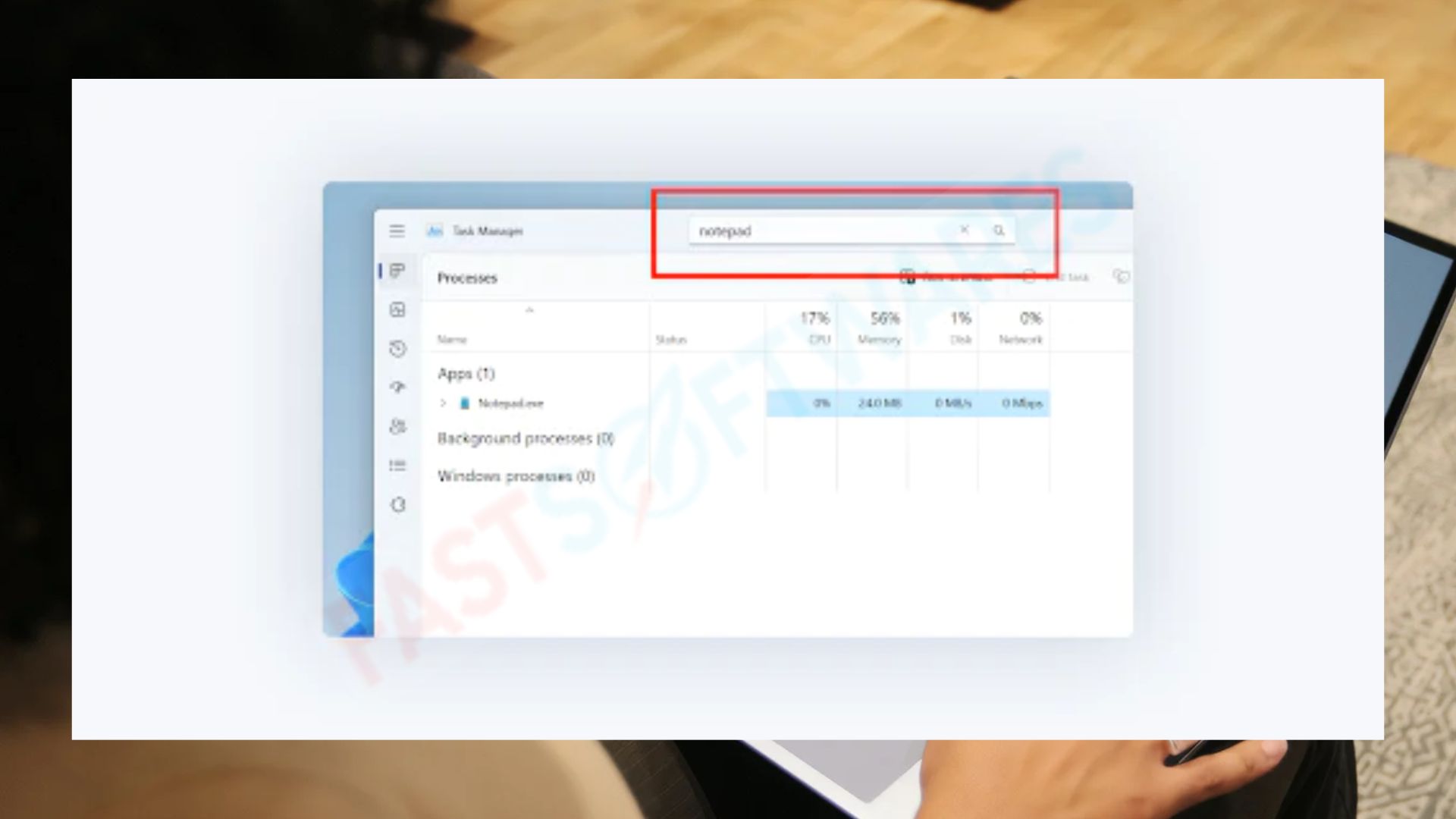
Users rely on the Task Manager as a central tool for device management and monitoring. Microsoft has made improvements to Windows 11 that increase both its functionality and accessibility.
Process filtering, which Microsoft is bringing to Task Manager, will make process tracking more simpler than it has ever been! The algorithm then matches your keyword with all potential matches and presents them on the page you are currently reading. You have the option to filter by binary name, PID, or publisher name. For a more smooth experience, this same filter is also applied as soon as you switch between pages.
Additionally, theme support for the Task Manager has been added, allowing you to switch between Dark and Light modes based on your preferences. We are eager to see what Microsoft comes up with next because this is just one more example of how they are constantly searching for methods to enhance and optimize its products!
#5. Recommended Steps
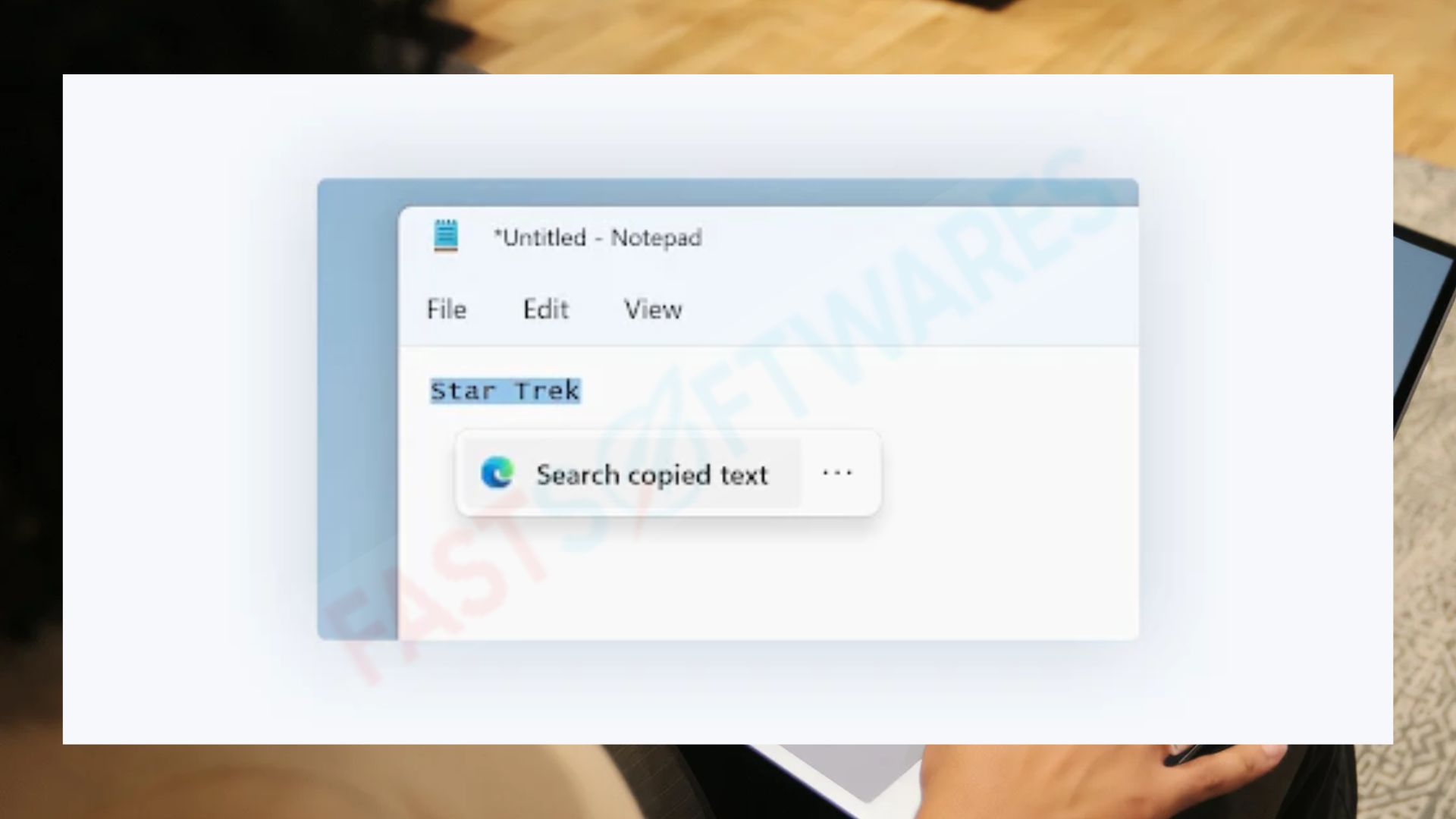
When you copy text that might include searchable content, Windows will present you with a discreet user interface (UI) that makes it easy and quick for you to choose to search this text using Microsoft Edge. If selected, the copied text will open in a new tab in Edge and show the results instantly.
At present, this function is exclusive to Windows Insiders in the United States; nonetheless, Microsoft intends to make it available to users worldwide in upcoming Windows 11 releases.
6. Snap Help
With the help of Snap Assist, you may quickly and simply organize several windows on your screen. A window can be maximized to fill the screen, snapped to the left or right of the screen, or occupy a quarter of the screen. Click and drag together at the same time of the window to the edge your screen to utilize Snap Assist, and Windows will snap it into position for you. Then you can snap a window to occupy a quarter of the screen, or snap a third window to the opposite side of the screen.
7. Document History
One function that lets you maintain a backup of all your crucial files is called File History. With the help of this feature, all of your data are automatically backed up and stored in a specified location. You may access these backups whenever your computer breaks or you inadvertently delete a file. You only need to pick File History from the Control Panel and set it up to backup your files in order to use it.
8. GodMode
GodMode is a Windows hidden feature that lets you access every option in the control panel from one location. Create a new folder on your desktop and rename it “GodMode.{ED7BA470-8E54-465E-825C-99712043E01C}” in order to access GodMode. You may access all of the control panel options from within this folder after renaming it.
#9. Menu with Quick Links
A secret feature that makes it simple and quick to access frequently used files and applications is the Quick Link menu. Right-click on the Windows taskbar and choose “Taskbar Settings” to open the Quick Link menu. The option to “Utilize Peek to preview the desktop by simply hovering your mouse over the Show Desktop button located at the end of the taskbar” can be enabled in the Taskbar Settings. After enabling this feature, you can use the mouse to navigate to the Quick Link menu by selecting the Show Desktop button located at the end of the taskbar.
#10. Online Workstations
You may establish numerous virtual desktops, each with its own set of open windows and applications, thanks to a technology called virtual desktops. If you need to transition between several tasks or want to maintain organization on your desktop, this is helpful. Navigate the Task View button in the taskbar, followed by the “New Desktop” button, to create a virtual desktop. Next, by clicking on the Task View icon and choosing the desired desktop to go to, you can navigate between virtual desktops.
FAQ
How can I access the latest features in Windows 11 Insider?
To use these new features, you must register for the Windows 11 Insider Program.
What is the process for enrolling in the Windows 11 Insider Program?
Visit the Microsoft website and select the “Join” link to begin the Windows 11 Insider Program. Certain basic details about you and your device will be required. You will be able to participate in the beta testing and test out all of the new features as soon as you have submitted this information.
What is the cost of the Windows 11 Insider Program?
Indeed. By signing up for the Windows 11 Insider Program, you can receive all of the most recent features and upgrades at no cost at all.
Does the Windows 11 Insider Program allow me to quit?
Indeed. The Windows 11 Insider Program can be discontinued at any moment. You will lose access to the most recent features and updates if you decide to discontinue the software.
How can I offer my opinions on the recently released Windows 11 Insider features?
Use the Feedback center by using Win + F on your keyboard to send Microsoft comments and recommendations.
In summary
Microsoft’s most recent effort to bring the Windows user experience up to date is Windows 11. The latest Insider releases bring significant enhancements to security, accessibility, performance, and other areas in addition to various new features and upgrades. In the near future, these features most likely will find their way into the stable, official Windows 11 releases.