Excel 2021 Mac Upgrade: Step-by-Step Guide to Upgrade MS Excel on Mac
Stuck on what to do next on your MS Excel 2021 Mac upgrade? You’re not alone.
Upgrading to Excel 2021 on Mac is an important move for users looking to access the latest features and improved performance in Microsoft Excel.
This Excel 2021 Mac upgrade guide is for anyone using Excel 2019 or earlier on a Mac who wants to enhance productivity with the newest version.
Mac users, students, professionals, and teams can benefit from Excel 2021’s advanced tools, better integration with macOS, and overall usability upgrades.
Starting your upgrade in 2025 ensures you stay current with software support and security.
Microsoft has introduced many enhancements in Excel 2021, and upgrading now can transform how you manage data and create reports.
This article will walk you through the benefits and the exact steps needed to complete the upgrade smoothly.
Why Upgrade Excel 2019 to Excel 2021 on Mac?
Understanding why to upgrade Excel 2019 to 2021 on Mac is crucial to realizing how the latest improvements will impact your workflow.
The main reasons focus on new features, enhanced performance, and better compatibility that Excel 2021 brings to Mac users.
New Features in Excel 2021 for Mac
Excel 2021 has many feature improvements. Some of the key ones are:
- Dynamic Arrays: Excel 2021 for Mac introduces dynamic arrays, which let users create formulas that spill over multiple cells automatically. This new feature revolutionizes how you work with lists and complex calculations, letting you build more dynamic spreadsheets.
- XLOOKUP: You also gain access to the XLOOKUP function, which simplifies searching tables more flexibly than previous lookup methods.
- LET function: Another exclusive improvement is the LET function, which allows defining intermediate calculations inside formulas to improve readability and efficiency.
- Enhanced Co-Authoring: The enhanced co-authoring capabilities support real-time collaboration with colleagues using both Windows and Mac.
- Improved stock and geography data types integrate live data directly, aiding users working with financial or location-based information.
- Interface updates make Excel more intuitive on macOS, with updated ribbon designs and easier access to templates.
Together, these features elevate Excel 2021 far beyond what Excel 2019 offers.
Performance and Compatibility Enhancements
There are also key performance improvements on the Excel 2021 Mac Upgrade:
- Excel 2021 runs faster and more smoothly on recent Mac hardware due to optimized code designed for Apple’s latest firmware.
- It offers improved stability, reducing crashes and unexpected shutdowns common in older versions.
- The upgrade also ensures better compatibility with MacOS Big Sur and later releases, which is essential since Microsoft no longer supports older Excel versions on these OS updates.
- Integration with Microsoft 365 apps like Teams, OneDrive, and Outlook is more seamless, accelerating workflows that depend on cloud storage and communication.
- This version also supports better use of Mac trackpad gestures and Retina displays for sharper visuals.
The combination of speed, reliability, and compatibility makes upgrading to Excel 2021 a practical choice for every Mac user serious about productivity.
For details, see Microsoft 365, Office 2021, and Office 2019 support for Apple Silicon and macOS compatibility.
Step-by-Step Guide: Excel 2021 Mac Upgrade
To upgrade your Excel from 2019 to 2021 on Mac, follow this clear, step-by-step Excel Mac upgrade guide.
This will minimize errors and ensure you complete the process with confidence.
1. Preparation Before Starting the Upgrade
As a preparation before any Excel 2021 Mac Upgrade activity, do the following:
- Back up all important Excel files to an external drive or cloud storage. This step prevents data loss in the unlikely event of upgrade issues.
- Check that your Mac meets the minimum system requirements for Excel 2021:
- macOS version 10.14 Mojave or later
- At least 4GB of RAM
- 10GB of available disk space
- Ensure your internet connection is stable for downloading the installation files.
- You may need to uninstall previous standalone Excel versions to avoid conflicts, but if you have Microsoft 365 subscriptions, you can install side-by-side.
- Disable any antivirus software temporarily during installation to prevent interference.
2. Downloading and Installing Excel 2021 on Mac
Net, you need to download the Excel 2021 Mac Upgrade version and install it on your Mac.
There are two ways to get an Excel 2021 Mac Upgrade. You can either:
- Download Microsoft Office 2021 any version and install to get Excel 2021 as part of the apps, same as Word, PPT, Outlook and others, or,
- Download Excel 2021 as a standalone app.
If you decided to download only Excel as a standalone app, here are the steps:
- Visit the official Microsoft website or trusted resellers like Fastsoftwares to purchase or download Excel 2021 for Mac.
- After purchase, download the Microsoft Office installer package specific to Mac.
- Open the downloaded file and follow the on-screen prompts to install Excel 2021.
- The installer will guide you through choosing the installation location and permissions.
- If you encounter errors, common fixes include restarting your Mac, freeing up disk space, or running the installer as an administrator.
- After installation completes, check the Applications folder for the Excel 2021 icon.
- Voila! You’ve completed your Excel 2021 Mac Upgrade.
3. Activating and Verifying Excel 2021 Installation
After installing Excel, the next step is to activate your application to get its full functionality. Follow these steps:
- Launch Excel 2021 for the first time to begin activation.
- Sign in with your Microsoft account linked to your license or Microsoft 365 subscription.
- Enter your product key if required by your purchase method.
- Excel will validate the license through Microsoft’s servers to ensure authenticity.
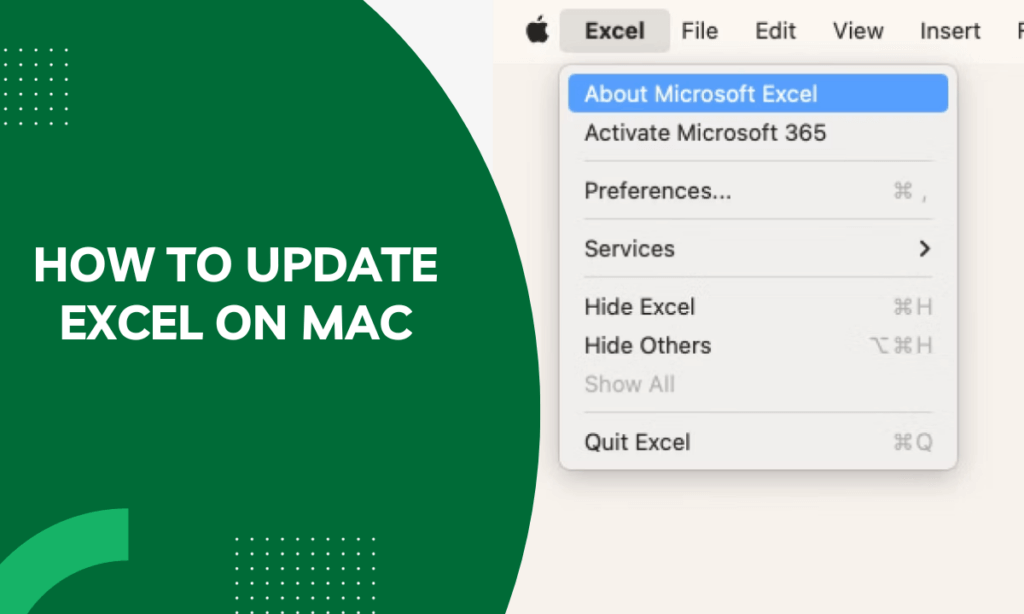
Once activated, verify upgrade success by checking the version number under “Excel > About Excel” in the menu.
You should see “Microsoft Excel 2021” displayed.
Open existing files to confirm all features load without issues.
If you face activation challenges, Microsoft support or Fastsoftwares customer help can assist.
Comparing Microsoft Office Mac Upgrade Options
When upgrading Excel on Mac, comparing Microsoft Office suite options can help you choose the best fit for your needs and budget.
Excel 2021 vs Office 365 on Mac
Excel 2021 as a standalone product offers a one-time purchase, giving perpetual access without monthly fees. This suits users who prefer to avoid subscriptions and want control over software updates.
Office 365, now called Microsoft 365, provides ongoing updates, cloud features, and multiple app access including Word, PowerPoint, and Outlook under a subscription model.
It is best for users who need constant software improvements and collaborative tools.
With Office 365, you get regular feature boosts and cloud integration, but must keep paying to use the software.
Excel 2021 on its own is ideal for those focused on Excel with less need for frequent updates.
Cost and Licensing Differences
Excel 2021’s one-time purchase price is generally higher upfront, but no additional fees are necessary.
Office 365 charges monthly or yearly fees that add up over time, but include broader services and constant enhancements.
Licensing for Excel 2021 is tied to one license per user or device, whereas Microsoft 365 allows installation across several devices per subscription.
For Mac users deciding to upgrade, consider whether long-term subscription benefits outweigh the convenience of a single purchase.
This financial perspective impacts how you budget and plan for software upgrades.
Conclusion
Upgrading to Excel 2021 on Mac unlocks powerful new features, improved speed, and seamless compatibility that greatly enhance the user experience.
This comprehensive step-by-step guide shows you exactly how to prepare, install, and activate Excel 2021 without hassle.
Choosing between Excel 2021 and Office 365 depends on your needs, but upgrading now ensures your Mac stays current and productive.
Upgrade your Excel experience with Fastsoftwares—get your Microsoft Excel 2021 for Mac today!