How to Connect Your Product Key to SLMGR and SLUI
If you’re having trouble activating your Windows 10 copy through the standard method, it can be quite challenging to do so. Additionally, if you’ve purchased a new system to replace your old one, you may need to change your product key. Luckily, the Command Prompt can be of assistance in activating Windows 10 using a product key. In our article, we’ll be discussing the SLMGR and SLUI 4 commands that can help you activate Windows 10 with a functional product key.
Why is Windows 10 activation necessary?
Although Windows 10 can be used without activation, activating it with a product key has several advantages in maximizing your system’s capabilities.
When using a non-activated edition of Windows 10, the annoying Activate Windows watermark in the lower-right corner of your screen will undoubtedly be the first thing you notice. This text appears on top of all active windows and asks you to activate your system.
One of the limitations of a non-activated system is the inability to refuse data collection. By default, Windows 10 collects and sends user data to Microsoft. However, after activating the system, you can disable specific rights to prevent this data collection.
Microsoft has placed restrictions on customers who do not have an activated system, making it impossible for them to create unique wallpapers or colors.
For some people, living with certain restrictions on their system is manageable; however, others might prefer to activate their system immediately by obtaining a Microsoft product key. If you require assistance with either of these tasks, the techniques listed below can help you successfully activate your system and insert a product key.
1. How to use SLUI and SLMGR to insert a product key
One method to force activation with your product key is to use the Command Prompt’s SLMGR command. You may easily accomplish this by following the steps below.
Note: To complete all of the actions listed below, you might need to have access to an administrator account.
Change this in your settings or get in touch with your IT expert if the account you are using does not have administrator capabilities.
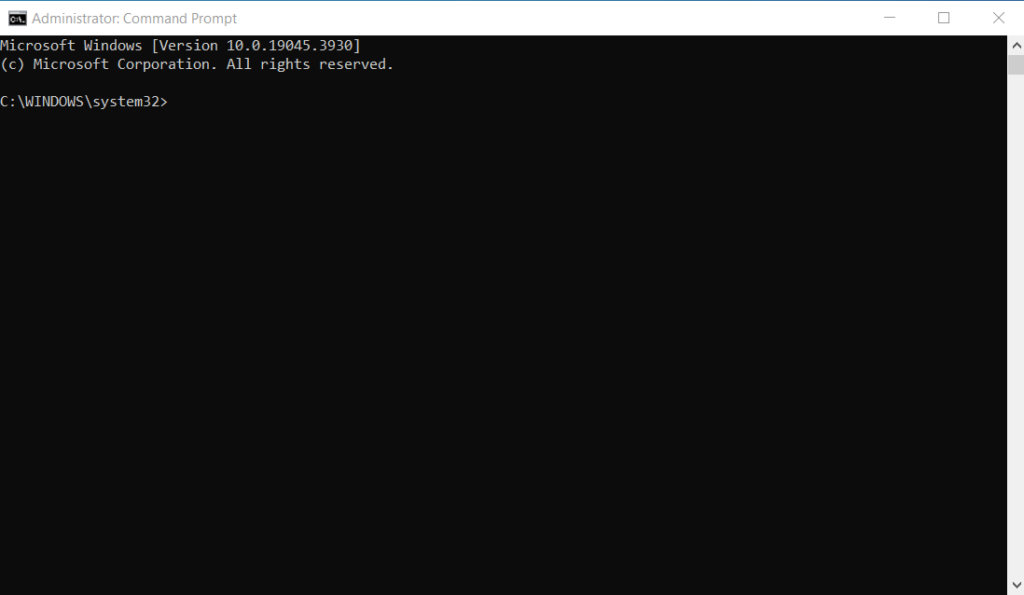
- Use one of the following methods to open the Command Prompt:
-
-
-
- Look up Command Prompt with your taskbar’s search feature. Select Run as Administrator with a right-click on it when you see it in the results.
- To open the Run utility, press the Windows + R keys on your keyboard. Enter “cmd” and hit the keyboard shortcuts Ctrl + Shift + Enter. You are starting the Command Prompt with administrator privileges by doing this.
- To open Command Prompt (Admin), press the Windows + X keyboard shortcut and choose it.
-
-
-
- If the Command Prompt asks to make changes to your device, select Yes. It is possible that you will also need to provide the administrator password.
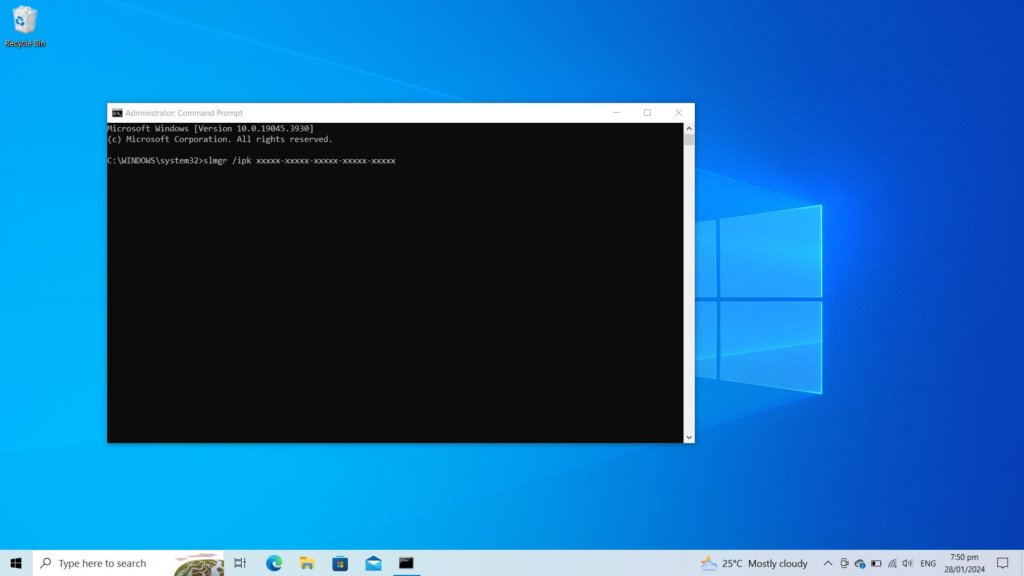
- Make sure to enter the following command, including your 25-character product key, in the correct format: SLMGR/ipk xxxxx-xxxxx-xxxxx-xxxxx-xxxxx
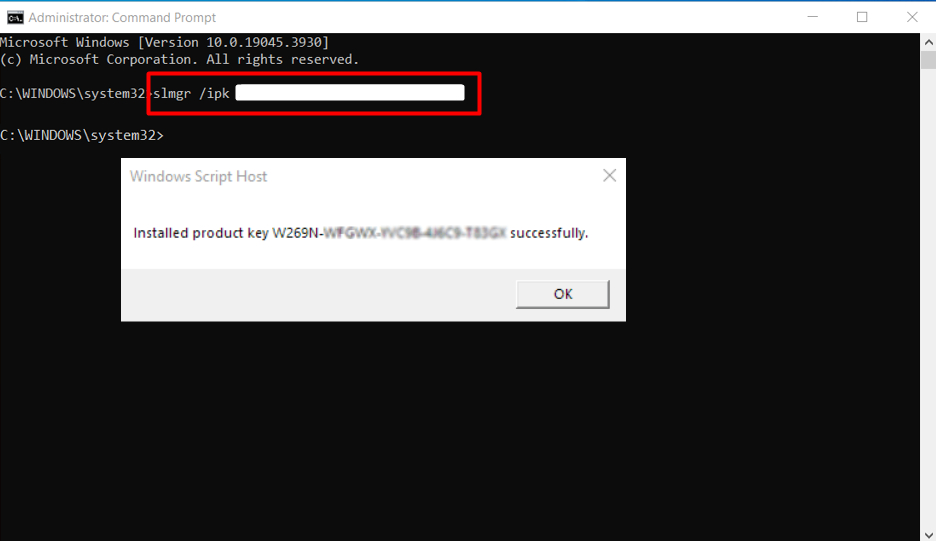
- Using the keyboard, press the Enter key. A dialog box advising you of the activation of your product key ought to appear on your screen.
Your system should be successfully activated after carrying out the previously mentioned processes. By using this little guide, you may confirm this once more:
- Launch the File Explorer.

- Using a right-click, select Properties from This PC.
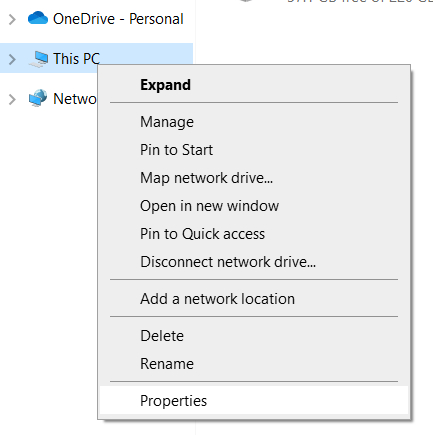
- Examine the section on Windows activation. Go to the next step if you notice “Windows is not activated.”
2. How to use SLUI to modify your product key
The SLUI tool – which is an acronym for Software Licensing User Interface, is a helpful utility that allows you to change the product key for your Windows 10 operating system with ease. You can use this tool to switch to a different product key in a matter of seconds without going through the tedious process of reinstalling the entire OS. Follow the simple steps below to change your product key quickly and effortlessly.
- To open the Run utility, press the Windows + R keys on your keyboard.
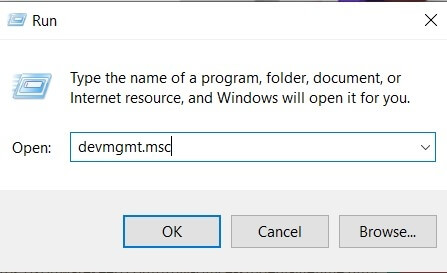
- After entering “SLUI 3,” press the OK button. The Change Product Key window will open as a result. Were you aware? You can use four commands in SLUI. All of these commands have to do with activating Windows. A different SLUI command is described in the following section.
- To finish the activation, enter the new product key you wish to use and adhere to any on-screen directions.
3. Use SLUI to get to the Microsoft Activation Center.
You can manually activate Windows 10 with your product key using the Microsoft Activation Center. SLUI can assist you with more than just changing your product key by providing a different command to contact the Microsoft Activation Center.
- Use one of the following methods to open the Command Prompt:
-
-
-
- Look up Command Prompt with your taskbar’s search feature. Select Run as Administrator with a right-click on it when you see it in the results.
- To open the Run utility, press the Windows + R keys on your keyboard. Enter “cmd” and hit the keyboard shortcuts Ctrl + Shift + Enter. You are starting the Command Prompt with administrator privileges by doing this.
- To open Command Prompt (Admin), press the Windows + X keyboard shortcut and choose it.
- If the Command Prompt asks to make changes to your device, select Yes. It is possible that you will also need to provide the administrator password.
-
-
- On your keyboard, type the following command and hit Enter: SLUI 4
- You should be prompted to choose your nation in a window that appears. To obtain the correct phone numbers, make sure you have chosen the correct nation.
Note: To locate the phone number you need to call, you can also consult this document on the official Microsoft website.
Contact the Microsoft Activation Center by following any instructions displayed on the screen. Your new product key will be manually activated with their assistance.
In summary
With the use of the SLMGR and SLUI commands, we hope that our post was able to assist you with changing your product key or activating your copy of Windows 10. Take full advantage of your PC without any restrictions.