

Unlocking the Power of SLUI Commands in Windows: A Comprehensive Guide
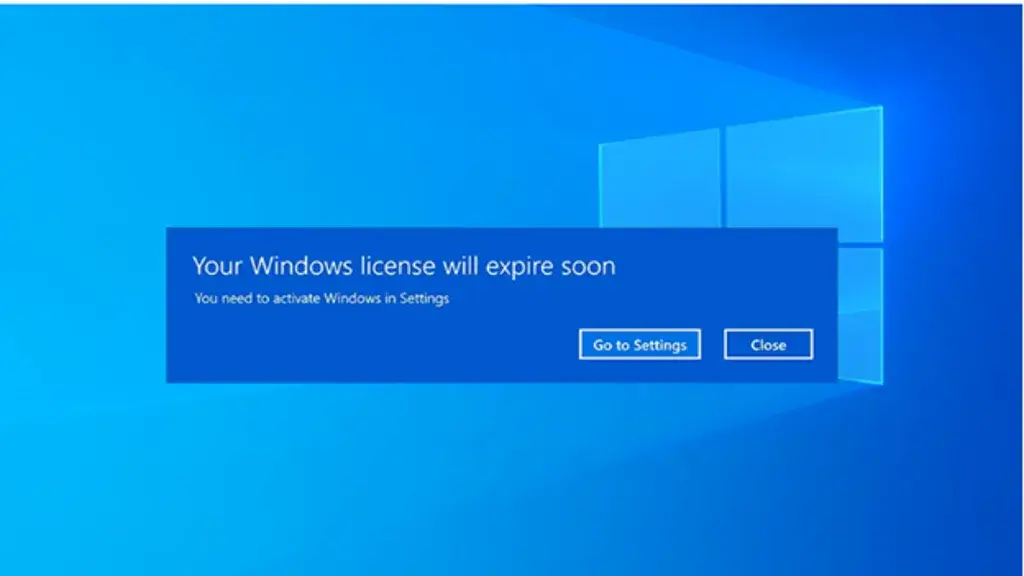
Have you encountered limited access to some of the Windows features? Or are you getting annoyed with this “Your Windows license will expire soon” pop-up- message whenever you restart your computer? Well, this warning message usually appears if you don’t register or activate your Windows operating system before finishing the installation process. The reason might be a system or network error interruption or a missing product key. If this is your concern, you just found the solution with SLUI commands for Windows activation!
You are probably asking why I should activate my Windows. Apparently, aside from the manufacturer’s recommendations, activating your Windows operating system ensures you’ll receive important updates, unlocks all the features, and improves your computer’s overall security and performance. Plus, it gets rid of those annoying activation reminders.
Fortunately, Microsoft has built-in tools to help with the activation process, such as the SLUI commands for Windows activation and slmgr commands, which are free and easy to use. In this article, we will just focus on learning about the different types of SLUI commands and their uses to address your problem with Windows activation, whether you have Windows 7, Windows 10, or Windows 11.
What is a SLUI command?
The SLUI command for Windows activation, or Software License User Interface, is a Windows-based command-line utility. Its primary function is to help you facilitate the operating system activation process and troubleshoot errors that may arise.
SLUI Commands and Its Functions
Since SLUI commands for Windows activation are used to activate the Windows operating system, it is essential to familiarise yourself with the following SLUI commands to activate Windows, execute the activation process, and resolve any errors effectively:
- SLUI 1 command: Use this command to launch the Windows Activation Wizard. It will take you directly to the page where you can enter a product key to activate your Windows installation.
- SLUI 2 command: This command will open the Windows Activation Wizard, which displays your current Windows activation status. The page also allows you to enter a new product key if necessary.
- SLUI 3 command: This command opens the interface for changing the product key when updating it or correcting activation errors. It’s particularly useful in scenarios where the existing key needs to be replaced or updated.
- SLUI 4 command: This command will allow you to activate slui by phone, it opens the phone activation window, a valuable option when internet activation is impossible. By following the instructions provided on your screen, you can activate Windows by contacting Microsoft directly via phone, ensuring that the activation process can still be completed even without internet access.
Application of SLUI Commands Across Different Windows Versions
Although SLUI commands are available in all versions of Windows, the activation process in the latest version is slightly different from that in older versions due to its enhanced user interface. Even so, the functionalities remain the same. Here’s a quick guide on how to use slui commands in Windows 7, Windows 10, and Windows 11.
Activating slui commands on Windows 7
To activate your Windows license offline, here is how to activate slui by phone in Windows 7.

- Open the Run dialog box by pressing the Windows key + R.

- Type slui 4 and press Enter or click OK (a phone activation window will open).

- Select your exact country or region, then click Next.

- Follow the instructions on your screen to complete the activation process by phone. You will be required to provide the installation ID that Microsoft’s system generated automatically (you can see it on your screen). Then, the Microsoft agent will give you a confirmation ID. Then, click Enter Confirmation ID.

- Enter the confirmation ID provided by the Microsoft agent, then click Activate Windows and you are done.
This method is particularly useful when online activation encounters issues or reactivation is necessary for hardware changes.
Activating slui commands on Windows 10
Depending on your needs, Windows 10 users can use SLUI 3 and SLUI 4 commands.
- Changing the Product Key (SLUI 3): If you made significant changes to your computer hardware or purchased a new Windows license, use this command to open a page to enter a new product key.

- Access the Run dialog by pressing Windows key + R.

- Type slui 3 and press Enter or click OK. This opens the product key entry window.

- Input the new key and click NEXT, then follow the instructions on your screen to complete the activation process.
Activate slui by Phone (SLUI 4)
This command activates your Windows license in offline mode via phone.
- Open the Run dialog by pressing Windows key + R.
- Enter slui 4 and press Enter to launch the phone activation window.
- Follow the instructions to complete the activation by phone.
Activating slui commands on Windows 11
In Windows 11, you can activate your license with Slui 3 or Slui 4 by following these steps.
- Changing the Product Key (SLUI 3):
- Open the Run dialog by pressing Windows key + R.
- Type slui 3 and hit Enter to access the product key entry interface.
- Enter the new product key and proceed with the prompts to finalize activation.
Phone-Based Activation (SLUI 4):
- Press Windows key + R to open the Run dialog box.
- Type slui 4 and press Enter. This will bring up the phone activation window.
- Follow the instructions on your screen to continue the activation process by phone.
If this won’t solve your activation problems, read Fixing Windows Key Not Working on Windows 10/11
Addressing Common Issues with SLUI Commands for Windows Activation
Despite the utility of SLUI commands, users may occasionally encounter challenges during the activation process. Here are some solutions to common issues on why slui command is not working:
- Internet Connectivity Issues: When attempting to activate Windows online, you need a stable internet connection. If the connection is unstable, the activation process may fail or not proceed as expected.
- Administrative Privileges: Some SLUI commands may require system administrative privileges to execute successfully. To open the Command Prompt with administrative privileges, search for cmd, right-click it, and select “Run as administrator.”
- Ensuring Windows is Updated: Outdated Windows installations can sometimes cause activation-related problems. Make sure that your system is up to date to prevent this issue.
- Correct Product Key Entry: Accuracy is critical when entering a product key. Ensure the key is typed correctly, as mistakes can prevent successful activation.
- Contacting Microsoft Support: If problems persist despite troubleshooting, contacting Microsoft Support can provide additional help. They can offer solutions tailored to specific activation issues that users might face.
Read more activation errors: Get help with Windows activation errors – Microsoft Support
Leveraging SLUI Commands for Windows Activation and Efficient License Management
In conclusion, SLUI commands for Windows activation are more than just tools —they are essential components in the overall system management of Windows licenses. From verifying activation status to changing product keys and performing phone-based activation, these commands cover a wide range of solutions. For anyone maintaining Windows systems, understanding and using SLUI commands is key to ensuring a smooth, hassle-free experience with the operating system. If you have questions or require further assistance with SLUI commands for Windows activation, don’t hesitate to seek support. With slui commands, managing your Windows operating system becomes seamless and efficient.
Other related topic: What is the slmgr command?
Activate Your Windows Today with Ease!
Tired of seeing the ‘Your Windows license will expire soon’ message? Say goodbye to interruptions and unlock all the premium features with SLUI commands! From activation to troubleshooting, our guide covers it all for Windows 7, 10, and 11.
Get instant access to helpful solutions and seamless activation.
Visit FastSoftwares for unbeatable deals on genuine Windows licenses and start enjoying a fully activated, secure, and high-performing system today!
Don’t wait—Click here to explore our offers!
Written by:
Similar Articles

Sign up for our Newsletter
Enter your email address to subscribe to this blog and receive notifications of new posts by email.

