

Troubleshooting Windows Update: "We Couldn't Complete the Updates, Undoing Changes"
Dec 09, 2024, by Jhean
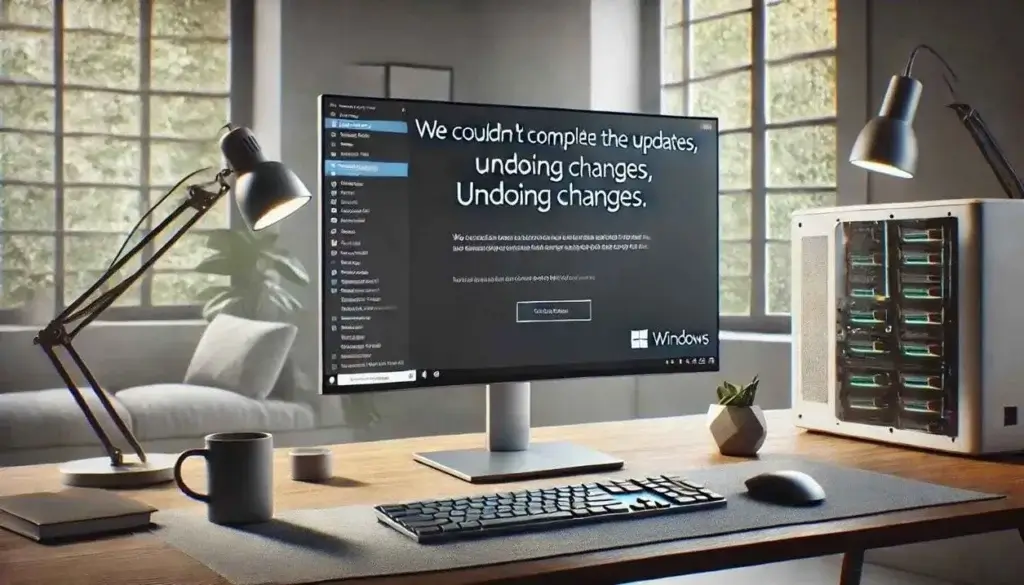
Understanding the "We Couldn't Complete the Updates, Undoing Changes" Error
If you’ve ever seen the frustrating message, “We Couldn’t Complete the Updates, Undoing Changes,” you’re not alone. This error can appear when a Windows update fails and your system rolls back to its previous state. While it can be nerve-wracking, it’s not the end of the world. Knowing the common causes and understanding how to resolve Windows Update Error Fix issues can save you a lot of stress.
Diagnosing the Undoing Changes Error
- Common Causes of the Undoing Changes Error
There are a few typical reasons this error happens, such as:
- Failed Updates:
- Sometimes the update files are incomplete or corrupt, which causes the update to fail.
- Software Conflicts:
- New updates might clash with existing software, especially older programs or custom settings.
- Failed Updates:
- System Corruption:
- Pre-existing issues like damaged system files can also cause updates to fail.
- System Corruption:
- Interrupted Updates:
- If your system shuts down or loses power while updating, it can result in incomplete installations.
- Interrupted Updates:
Understanding Windows Update Error Fix and these causes helps you figure out what went wrong and how to prevent it next time.
- Using Diagnostic Tools to Identify the Issue
Windows has built-in tools that can help you identify what’s causing the Windows Update Error Fix:
- Windows Diagnostic Tool:
- This tool checks for both hardware and software issues.
- Windows Diagnostic Tool:
- Event Viewer:
- This logs any update errors and warnings, giving you specific details about what went wrong.
- Event Viewer:
- System File Checker (SFC):
- Running the command `sfc /scannow` checks for and fixes corrupt system files.
- System File Checker (SFC):
- Windows Troubleshooter:
- This automatic tool detects and fixes common update problems.
- Windows Troubleshooter:
After understanding the Windows Update Error Fix and potential causes using diagnostic tools, you now have a clearer view of the Undoing Changes error. Incomplete updates, software problems, corrupted systems, or stopped updates are the usual causes of this problem. Using Windows Diagnostic tools, such as the Windows Update Troubleshooter, System File Checker (SFC), and Event Viewer, can greatly help identify the precise problem and direct the next steps toward resolution.
With this knowledge, you are better equipped to prevent the error in the future by ensuring uninterrupted updates, resolving conflicts, and maintaining system integrity.
Regular system checks and timely updates, combined with a proactive approach to system and software maintenance, will help you minimise the risk of encountering this error again.
Step-by-Step Solutions to Windows Update Error
Basic Troubleshooting Steps
Let’s start with a few simple solutions before diving into more technical Windows Update Error fixes:
- Restart in Safe Mode:
- Sometimes, starting your computer in Safe Mode can help. This limits the number of programs running, preventing potential conflicts.
- Restart in Safe Mode:
- Perform a System Restore:
- If the update caused major issues, reverting your system to an earlier point can fix it.
- Perform a System Restore:
- Check Disk Space:
- Ensure you have enough free space for the update.
- Check Disk Space:
- Disconnect Peripherals:
- Unplugging external devices, like printers or USB drives, can sometimes resolve conflicts.
- Disconnect Peripherals:
These simple steps can often fix the problem without requiring deeper troubleshooting.
Advanced Solutions for Persistent Issues
If the basic steps don’t work, try these advanced methods:
- Command Prompt Fixes:
- You can reset Windows Update components using commands like `net stop wuauserv` and `net start wuauserv`.
- Command Prompt Fixes:
- DISM Tool:
- Running `DISM /Online /Cleanup-Image /RestoreHealth` repairs corrupted files that the SFC tool might miss.
- DISM Tool:
- Manual Update Installation:
- Download the update directly from Microsoft’s website if the automatic process keeps failing.
- Reset Windows Update Components:
- This more thorough reset clears the update cache and restarts update services.
- Reset Windows Update Components:
Resolving the “Undoing Changes” error can often be achieved through basic troubleshooting like restarting in Safe Mode, performing a System Restore, checking disk space, or disconnecting peripherals. However, if these steps don’t work, advanced solutions such as using Command Prompt fixes, the DISM tool, manually installing updates, or resetting Windows Update components may be necessary to fix Windows Update Error. By following these steps, you can effectively address the issue and prevent future update failures.
Preventing Future Windows Update Errors
Best Practices for Smooth Windows Updates
To avoid the “Undoing Changes” error in the future, follow these tips:
- Regular Backups:
- Always backup your system before installing major updates.
- Keep Drivers Updated:
- Outdated drivers can cause update conflicts.
- Schedule Updates:
- Run updates when you’re not using your computer to avoid interruptions.
- Maintain System Health:
- Regularly clean up disk space and check for errors to keep your system running smoothly.
- Regular Backups:
Adopting these practices can help ensure that your updates install without a hitch. For more detailed steps and solutions, read more about fixing the Undoing Changes error here.
Tools and Utilities for Automatic Maintenance
To make your life easier, use these tools to automate maintenance:
- Windows Maintenance Tool:
- Automates disk cleanup, defragmentation, and error checking.
- Windows Maintenance Tool:
- Task Scheduler:
- Set this tool to run regular maintenance tasks, like system scans, without needing to remember to do them manually.
- Task Scheduler:
- Automatic Updates:
- Let Windows update itself automatically, ensuring you always have the latest patches.
- Automatic Updates:
Keeping your system updated and using automation tools ensures optimal performance, security, and stability. Regular maintenance and timely updates protect your system from risks and keep it running smoothly, reducing the chances of future issues.
Why Do Windows Updates Matter?
Keeping your computer secure and running smoothly means staying on top of Windows updates. By turning on automatic updates, you make sure your system gets the latest security patches, bug fixes, and performance boosts without any extra effort. Regular updates help protect against vulnerabilities and prevent problems before they start.
Security and Performance Enhancements
Windows updates aren’t just about getting the latest features—they’re crucial for keeping your system secure and running smoothly:
- Security Patches: Updates often fix vulnerabilities that could make your system vulnerable to hackers.
- Performance Boosts: Updates can optimize your system and fix bugs, helping everything run more smoothly.
Keeping up with Windows updates is essential for both security and performance. Regular updates help protect your system from vulnerabilities and keep it running smoothly.
For more tips on the importance of Windows updates click here to learn more.
Consequences of Skipping Windows Updates
Skipping updates can lead to:
Security Risks: If you don’t install the latest patches, your system becomes more susceptible to malware and cyber attacks.
System Instability: Not keeping your software up to date can lead to crashes, performance issues, and compatibility problems.
Loss of Support: Over time, Microsoft stops supporting older versions of Windows, which means no more updates or assistance if something goes wrong.
If you skip Windows updates, your system could face serious security threats, become unstable, and lose support. To keep your computer safe and running well, make sure to stay on top of your updates.
To fix the “We Couldn’t Complete the Updates, Undoing Changes” error, you’ll need a mix of advanced solutions and basic troubleshooting steps. Regular system maintenance, automating updates, and using Windows’ built-in diagnostic tools can significantly reduce the chances of encountering this issue. Keeping your Windows updates in check is crucial not only for your system’s performance but also for its security and longevity. Avoid putting your computer at risk by not updating on a regular basis. Updates on time will keep your system safe and operating at peak efficiency.
Found this guide helpful? Share it with friends or visit our website for more Windows troubleshooting tips!
Written by:
Similar Articles
Sign up for our Newsletter
Enter your email address to subscribe to this blog and receive notifications of new posts by email.

