Complete Guide to Windows Server Remote Desktop Activation with User CAL Licenses
Windows Server remote desktop activation is essential for anyone using Microsoft Windows Server 2016 Remote Desktop User CAL Licenses.
It ensures you comply with licensing requirements and unlocks full remote desktop access for users.
Whether you are an individual, student, or part of a team, understanding this activation process helps you avoid penalties and improve your server setup.
This guide highlights the key benefits of properly activating User CAL licenses, demonstrates their necessity for both legal and performance reasons, and encourages you to make informed purchase decisions.
Understanding Windows Server Remote Desktop User CAL Licenses
Before a Windows Server Remote Desktop Activation it is important to first understand it.
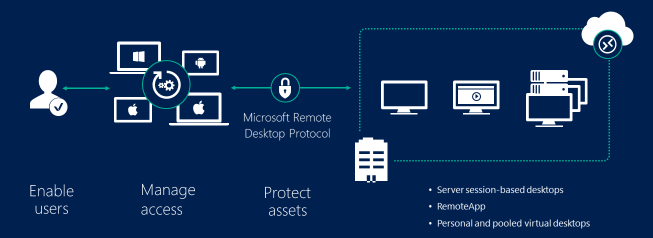
Windows Server Remote Desktop User CAL licenses are a specific type of license designed to allow individual users to connect remotely to a Windows Server environment.
They play a critical role in enabling secure and compliant remote desktop services.
Understanding User CALs helps you manage access rights efficiently, especially in environments with many PC users.
Microsoft remote desktop user CAL activation involves registering these licenses with your server to track and validate usage.
Windows server remote desktop licensing for PC users ensures that each user accessing the server has a proper license, preventing unauthorized access and legal issues.
What is a Remote Desktop User CAL License?
A Remote Desktop User CAL (Client Access License) permits a single user to connect to the Windows Server remotely, regardless of the device used.
This license type is ideal for environments where one user accesses the server from multiple devices.
In Windows Server 2016, User CALs provide flexibility by licensing the user instead of the machine.
Users such as students accessing school servers or team members working remotely need User CALs to comply with Microsoft licensing.
This license protects organizations and individuals by providing authorized access and avoiding costly fines.
Learn more about Windows Server Remote Desktop User CAL licenses.
How to Choose the Right CAL License for Your Setup
Choosing between User CALs and Device CALs depends on your setup needs.
User CALs are better when users need access from various devices, such as laptops, desktops, or tablets.
Device CALs work best when multiple users access the server from a single device, like shift workers sharing a workstation.
Evaluate how many users versus devices require server access to pick the right model.
For students and teams with mobile workflows, User CALs offer better value and simplicity.
Understanding your usage scenario ensures you buy the correct license count, helping you stay compliant while optimizing costs.
Step-by-Step Guide to Windows Server Remote Desktop Activation
Windows Server remote desktop activation involves clear, defined steps to ensure full server functionality.
Following this process helps you activate your licenses smoothly and avoid common issues.
How to Obtain and Enter Your License Key
First, buy genuine license keys from trusted retailers or authorized sellers, such as Fastsoftwares.
After purchasing, open the Windows Server Remote Desktop Licensing Manager on your server.
Select the option to activate the server if needed, then choose to install license keys.
Enter your Windows Server 2016 remote desktop user license key exactly as provided.
Confirm the details and complete the activation process, enabling your server to recognize licensed users.
Proper key entry is crucial to avoid future license validation errors.
Common Activation Issues and How to Fix Them
During Windows Server remote desktop activation, users often face issues such as license manager errors, invalid keys, or connectivity problems during activation.
If you see error messages, double-check the entered license key for typos.
Ensure your server has internet access or the correct proxy settings to communicate with Microsoft activation servers.
Restart the License Manager or the server to resolve temporary glitches.
Consult official troubleshooting guides or contact your license vendor if problems persist.
Addressing these issues quickly helps maintain uninterrupted remote desktop service access.
Further troubleshooting tips can be found in Microsoft’s official activation guide.
Windows Server Remote Desktop Activation Process
The process of Windows Server Remote Desktop Activation is simple and direct, especailly for tech people who know what they’re doing.
To activate Remote Desktop Services (RDS) on a Windows Server, you must install the Remote Desktop Licensing role, activate the license server, and then install your purchased Remote Desktop Client Access Licenses (CALs). A 120-day grace period exists before licensing is enforced.
Before you begin
- Acquire RDS CALs: Purchase the necessary Remote Desktop Services Client Access Licenses (CALs).
- Use administrator account: Log into the server with an account that has administrative privileges.
Step 1: Install the Remote Desktop Licensing role
- Open Server Manager, click Manage, and select Add Roles and Features.
- In the wizard, select Role-based or feature-based installation and click Next.
- Choose the server where you want to install the role and click Next.
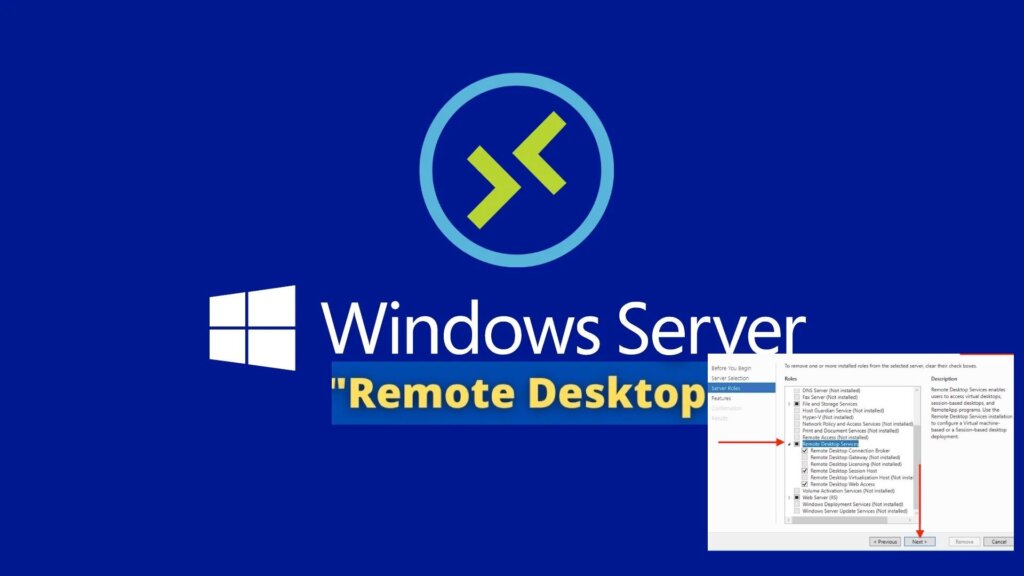
- On the Server Roles page, check the box for Remote Desktop Services, then click Next.
- On the Role Services page, select Remote Desktop Licensing and Remote Desktop Session Host.
- Click Next and then Install.
Step 2: Activate the license server
After installing the role, activate the license server using the Remote Desktop Licensing Manager found in Server Manager > Tools > Remote Desktop Services.
Step 3: Install RDS CALs
In the Remote Desktop Licensing Manager, install your purchased RDS CALs by following the Install Licenses wizard. This involves selecting your license program and entering relevant details.
Step 4: Configure the Remote Desktop Session Host
After a successful Windows Server Remote Desktop Activation, configure the Remote Desktop Session Host to use either Per User or Per Device licensing mode. It’s recommended and necessary in Active Directory environments to configure licensing using Group Policy.
This involves using the Local Group Policy Editor (gpedit.msc) to specify license servers and set the licensing mode under Computer Configuration > Administrative Templates > Windows Components > Remote Desktop Services > Remote Desktop Session Host > Licensing. Settings require a server restart or running
gpupdate /force. Troubleshooting
During Windows Server Remote Desktop Activation, you may face some challanges that needs troubleshooting.
Troubleshooting steps include using the Remote Desktop Licensing Manager to review the configuration and running the RD Licensing Diagnoser (lsdiag.msc). You should also check firewall ports and examine the TerminalServices-Licensing operational log in Event Viewer.
Conclusion
Learned anything on windows server remote desktop activation? Do you now know the steps of proper windows server remote desktop activation?
Properly activating Windows Server remote desktop licenses is key to staying compliant and ensuring your server delivers its full potential.
Following the step-by-step activation process with genuine User CAL licenses safeguards your access rights and legal standing.
Choosing the right User CAL license model optimizes cost and usability, especially for students and teams with remote needs.
Take advantage of trusted discount opportunities through reputable vendors like Fastsoftwares to get the best value.
For reliable Windows Server 2016 Remote Desktop User CAL licenses and expert activation support, trust Fastsoftwares to provide you with genuine products and excellent service.