Upgrade to Windows Server 2016 Standard with Software Assurance for 16 Cores
This article is about Windows Server 2016 upgrade, specifically Windows Server 2016 Standard with Software Assurance.
Windows Server 2016 Standard software assurance upgrade offers IT professionals, students, and teams a powerful solution to enhance their server environment management.
This upgrade is ideal for businesses and organizations seeking better security, management tools, and licensing flexibility.
You can purchase or apply this upgrade through trusted vendors like Fastsoftwares, ensuring a smooth transition.
Considering an upgrade in 2025 makes sense to keep infrastructure current, reduce risks, and gain modern capabilities.
This article shares the Windows Server 2016 upgrade options, proving the value of Windows Server 2016 Standard with Software Assurance, and pushes you to explore cost-effective purchasing paths.
Understanding Windows Server 2016 Upgrade Options
Windows Server 2016 upgrade with Software Assurance should be easy when done right.
The Windows Server 2016 Standard software assurance upgrade combines the robust features of Windows Server 2016 Standard with the added benefits of Software Assurance.
This integration empowers organizations with enhanced support, licensing rights, and smoother upgrade paths.
Compared to earlier versions or editions without Software Assurance, this upgrade significantly improves operational flexibility and future-proofing.
Key Features of Windows Server 2016 Standard Edition
Windows Server 2016 Standard edition offers a range of essential capabilities for small to medium businesses and IT teams.
It supports up to 16 cores per license, making it suitable for standard workload environments.
Core functionalities include improved security features like Windows Defender Advanced Threat Protection and Shielded Virtual Machines.
This edition enables management of virtual machines, with support for up to two Hyper-V containers, perfect for managing application isolation.
Other features include enhanced storage options with Storage Spaces Direct and new networking enhancements for higher efficiency.
These features together provide a reliable and scalable platform for running on-premises or hybrid cloud services.
What Does Software Assurance Include?
Software Assurance (SA) is a comprehensive maintenance program that adds tremendous value to your Windows Server license.
It includes upgrade rights that allow organizations to move to newer Windows Server versions without additional license cost.
SA also offers 24/7 technical support, reducing downtime by providing access to expert troubleshooting.
Additional benefits are licensing flexibility, such as license mobility across servers and platforms, which helps optimize hardware resources.
Moreover, SA grants access to training, deployment planning, and product support services.
This combination ensures IT teams maintain peak performance and remain protected from security threats while easing management overhead.
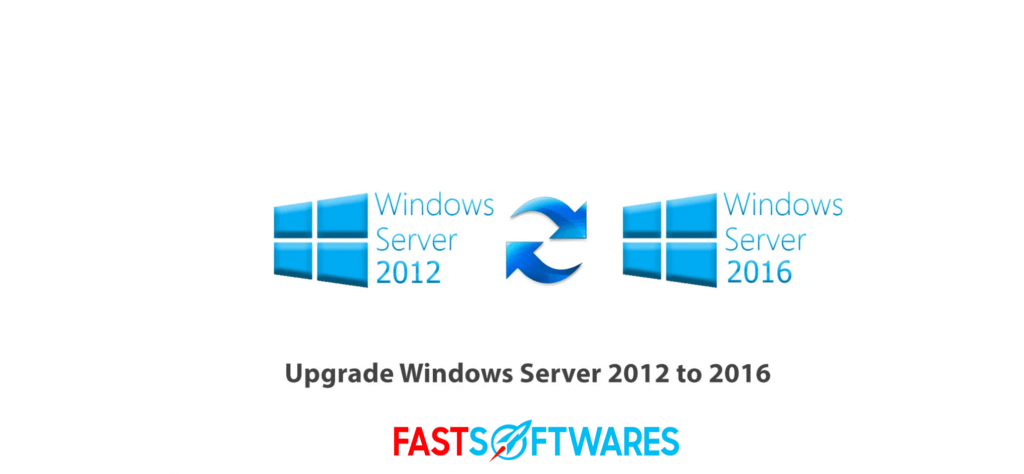
Step-by-Step Upgrade Guide: From Windows Server 2012 to 2016 Standard
Windows Server 2016 upgrade from Windows Server 2012 using Software Assurance ensures you gain new capabilities and continued support with minimal disruption.
The upgrade requires careful preparation and execution to safeguard data and system stability.
Preparing for the Upgrade
Begin by reviewing your current hardware for compatibility with Windows Server 2016 Standard requirements.
- Verify processor cores, RAM, and storage meet or exceed minimum specifications.
- Conduct a full data backup using reliable backup software or cloud services to prevent loss.
- Review installed applications and drivers for compatibility with the new OS version.
- Document your existing network configuration and settings.
- Confirm that your Software Assurance coverage is active to apply upgrade rights.
This preparation phase mitigates risks and ensures a smooth transition.
Executing the Upgrade Process
- Start the upgrade by inserting or mounting the Windows Server 2016 installation media.
- Choose the upgrade option during setup to preserve system settings, applications, and files.
- Follow the on-screen prompts carefully, entering your license information when requested.
- Utilize tools like the Windows Server Migration Tools to transfer roles and features efficiently.
- Monitor the upgrade progress and avoid interrupting the process to reduce downtime.
- Once complete, validate system integrity by checking event logs and testing core services.
- Apply the latest updates and patches to keep your server secure and optimized.
Proper execution minimizes disruption, allowing your organization to quickly benefit from the new platform.
Comparing Upgrade Options: Windows Server 2016 to 2019 with Software Assurance
When you decide on Windows Server 2016 upgrade, you may need to compare first.
Organizations running Windows Server 2016 Standard can leverage Software Assurance to upgrade smoothly to Windows Server 2019.
Evaluating this step helps businesses decide when and how to invest in the latest technology.
Benefits of Upgrading to Windows Server 2019
Windows Server 2019 introduces enhanced security features such as Windows Defender ATP and improved shielded virtual machines.
It offers better performance through support for larger hardware configurations and updated container services.
The system supports hybrid cloud integration with Azure, helping companies bridge on-premises and cloud environments.
Advanced networking capabilities improve speed and reliability, increasing productivity.
Windows Admin Center simplifies server management with a unified web-based interface.
These features provide measurable improvements over Server 2016, advancing operational efficiency.
How Software Assurance Facilitates the Upgrade
Software Assurance simplifies the upgrade path by granting rights to move from Server 2016 to Server 2019 without purchasing new licenses.
It reduces costs and administrative burden by streamlining license management across upgrades.
SA provides access to technical support for deployment and troubleshooting during transition phases.
It also offers training resources, enabling IT staff to quickly adapt to new features.
This support ensures that businesses can upgrade with confidence, avoiding common pitfalls.
Software Assurance thus acts as a cost-effective enabler ensuring access to the latest technologies.
Cost Savings and Discounts on Windows Server 2016 Standard with Software Assurance
Making wise purchasing decisions significantly impacts your software investment’s overall value. Understanding how to find discounts and budget effectively is crucial.
Where to Find the Best Discounts
Authorized sellers like Fastsoftwares provide genuine Windows Server 2016 Standard with Software Assurance licenses at competitive prices.
They frequently offer promotions and bundle deals that can reduce upfront costs.
Buying from trusted vendors ensures you receive valid licenses with full Microsoft support.
Be cautious of unauthorized sellers or suspiciously low-priced offers which may lead to compliance risks.
Fastsoftwares’ reputation for reliable service and transparent pricing makes it an excellent source for your upgrade needs.
Budgeting for Your Upgrade
Plan your upgrade budget by accounting for licensing fees, hardware requirements, and possible training costs.
Leverage Software Assurance to reduce future upgrade expenses and maintenance fees.
Schedule upgrades to coincide with budget cycles to manage cash flow efficiently.
Consider total cost of ownership, including support and downtime costs, to optimize investment.
Effective budgeting ensures you get the best return and uninterrupted service.
Conclusion
This article has been about Windows Server 2016 upgrade with Software Assurance.
Upgrading to Windows Server 2016 Standard with Software Assurance brings powerful features, improved security, and licensing flexibility.
Software Assurance delivers critical benefits such as upgrade rights, support, and training that enhance your IT environment’s stability.
Choosing Fastsoftwares as your trusted vendor guarantees access to genuine licenses and competitive pricing.
Take the next step by exploring available upgrade options, contacting sales, or requesting demos.
Explore your Windows Server 2016 Standard with Software Assurance upgrade options today at Fastsoftwares and secure the best pricing and support.