
Installing Windows Server 2012 R2: A Guide
Is your intention to switch from an older release of Windows Server to Windows Server 2012 R2 or to install Windows Server 2012 R2?The installation of Windows Server 2012 R2 and the various steps you must follow during the process will be covered in this article. Additionally, this blog post will guide you on how to:
- Get ready to install Windows Server 2012 R2.
- Setup Windows Server 2012 R2.
- Configure Windows settings using the Automatic Setup Wizard.
- Oversee the installation of Windows Server 2012 R2.
It is vital to adhere to procedures to guarantee a seamless and effective installation process while installing Windows Server 2012 R2, regardless of whether upgrading an old server to this latest version of Microsoft’s server operating system or installing it for the first time.
How to Get Windows Server 2012 R2
You must ensure your system satisfies the minimal hardware and software requirements before installing Windows Server 2012 R2. You should also make a backup of your present system. The following are the minimal system requirements needed to install Windows Server 2012 R2:
- Processor: 64-bit 1.4GHz CPU (Optimum: 2GHz or above)
- RAM: Minimum 512MB (Optimum: 2GB or above)
- Hard Drive: Disk space of at least 32 GB (Optimum: 40 GB or greater)
Following your confirmation that your machine satisfies the prerequisites, you can download and install Windows Server 2012 R2. A few ways to accomplish this include getting the operating system from Microsoft directly or buying a retail copy.
How to Install Windows Server 2012 R2
Start the system installation process by obtaining an installation media and completing the following steps:
- Into the CD/DVD drive, place your Windows Server 2012 R2 DVD.
- Make sure the installation media is being used when you turn on your computer.
- Select your desired keyboard input method, language, and time zone by following the Windows Setup instructions.
- As Windows Server 2012 R2 installs on your device, enter your product key, configure the installation, and wait.
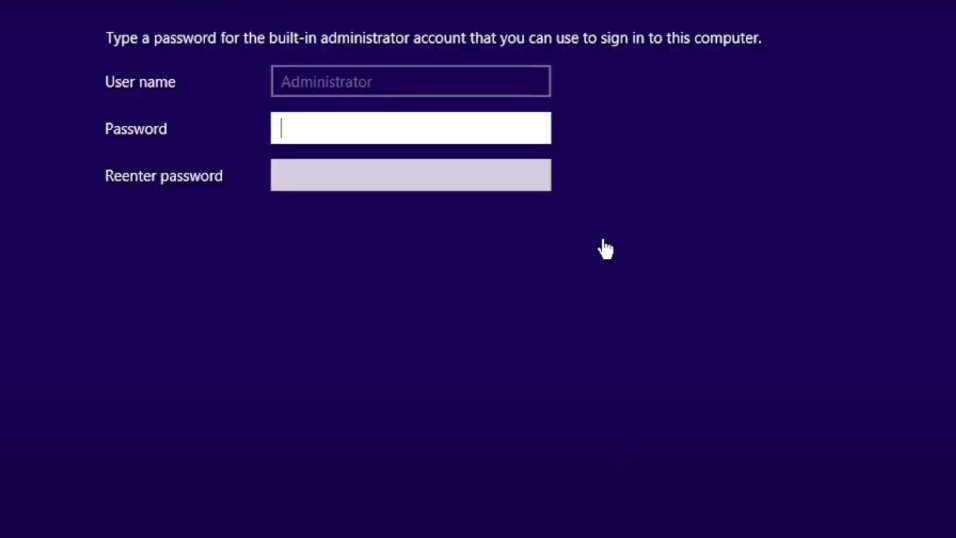
- Complete the creation of your local administrator account.
Select a few more features and settings after installing Windows Server 2012 R2. In addition, you can adjust the language and time zone options you enabled during setup.
Step 1
To ensure that your computer launches the installation package when you turn it on, you must first change the boot order if it is on a DVD or bootable USB. If the boot order isn’t altered, your operating system will launch on the PC.
The BIOS setup program on your computer allows you to change the boot sequence. You must restart your computer and hit the key during the startup procedure to enter the BIOS.
Step 2
After altering the order in which your computers boot up, put the Windows Server 2012 R2 installation media into your CD/DVD drive, after connecting your USB flash drive, turn on your computer again. The installation will start on your computer immediately, or you will be asked to choose a boot device.
Step 3
You will see the Windows Setup process after your machine successfully boots from the installation media.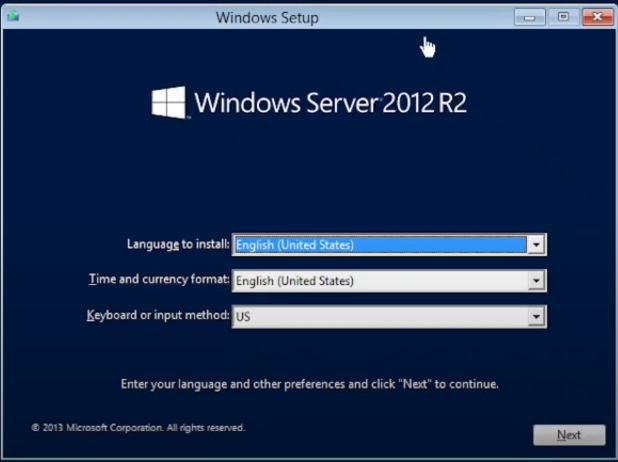
Follow the instructions when you see the Windows Setup screen to install Windows Server 2012 R2 on your computer. Accepting the terms of use and choosing a language, time zone, and keyboard input mode for your device are all part of this procedure. Click Install Now when you’re prepared to proceed.
Step 4
You will be asked by Windows if you wish to apply updates for the setup procedure after it has begun copying temporary files. We advise connecting to the internet immediately if needed; it will take less time than waiting until after installation.
You must input your product key when requested. Locate your legitimate product key and enter the characters and digits accurately to continue. This is required to validate and activate your Windows Server 2012 R2 copy.
Step 5
After completing the process, you will be asked to choose the edition you wish to install. You will also need to select whether to install as a Server Core or with Desktop Experience (which offers a graphical user interface) if installing the Standard or Datacenter editions.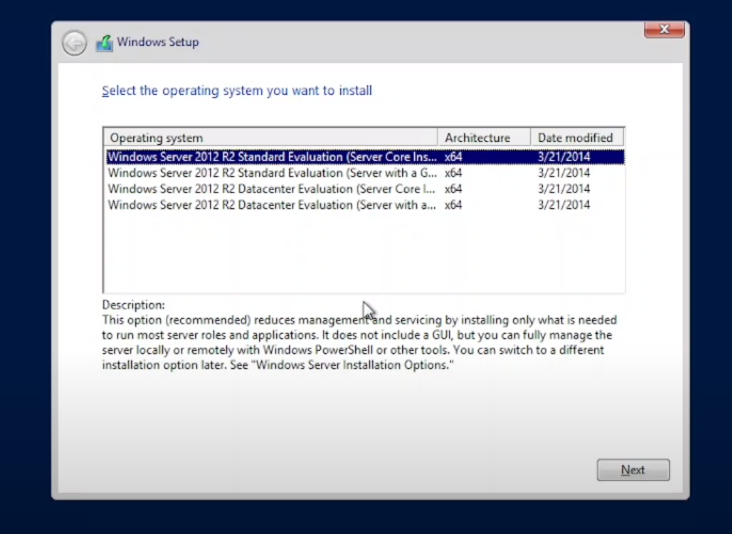
While Server Core offers a more compact and efficient version of Windows Server, handling locally can be more challenging because it is intended to be controlled remotely. The Desktop Experience, on the other hand, provides a more manageable Graphical User Interface and an intuitive user experience.
Once you’ve selected the installation option you want, click
. The license terms will then appear. Press Next once more to proceed after carefully reading these and checking the “I accept the license terms” box.
Step 6
At this point, you can decide how Windows Server should be installed. You have two options: choose Custom to perform a fresh installation or Upgrade, which allows you to save your previous files and preferences. The Upgrade option is available only when installing from an earlier version of Windows Server—such as 2008, 2008 R2, or 2012.
Step 7
You will be asked to choose where you want Windows Server installed during installation. By clicking on Drive Options and choosing New Partition, you can create a new partition or select an existing one from the list of disks.
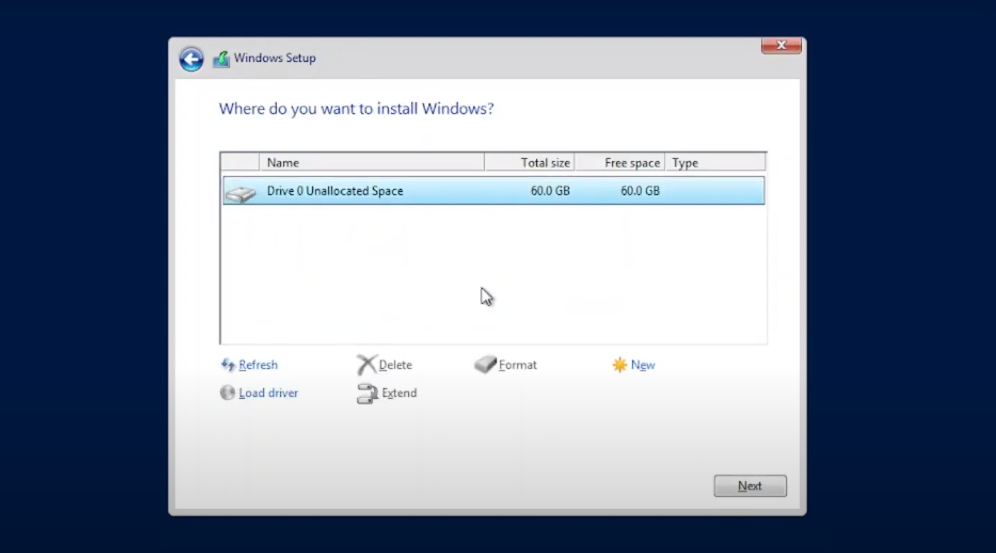
Note: If necessary, back up your hard disk’s contents before proceeding. You risk losing any currently saved data on the selected drive or partition if you don’t.
Click Next once you’ve selected the location for your Windows Server installation. It might take some time, and it’s usual for your computer to restart while installing.
Step 8
Windows Server 2012 R2 will boot up on your PC after configuring everything. Now is the perfect time for your local administrator user to develop a safe username and password. Make sure it’s something you can remember but is also difficult for others to figure out!
Step 9
If Server Core is installed, the screen will display a command window. But there won’t be desktop icons or a Start screen. This is the default interface for Server Core. Server Center often sets the time zone to Pacific Time by default. To adjust this, type “control timedate.cpl” and follow the prompts to enter the new date and time.
Replace “computername” with your preferred name in the Command Prompt after typing “netdomrenamecomputer %computername% /newname:computername” to modify the randomly allocated name that Server Core installs assign to your device.
You could receive a warning message informing you that some services might not function as intended if the server name is changed. To indicate that you wish to proceed with this modification, type “Y.” The computer will then prompt you to turn on again so that the changes take effect. Enter “shutdown /r /t 0” and hit Enter to accomplish this.
Step 10
Using the keyboard shortcut Ctrl + Alt + Delete log in with the username and password you made previously when the server has resumed. You can use Windows Server 2012 R2 now that it’s installed!

In summary
We covered the Windows Server 2012 R2 installation in this guide and took you through each stage of the installation process. To sum up, to guarantee a seamless and effective installation, following procedures must be followed.
The team at FastSotwares is always available to help if you need it or have any queries along the route!
One More thing
Are you looking for additional advice? Visit our Help Center and the FastSotwares Blog to see our other guides! You may get a lot of information on how to solve your computer problems and troubleshoot different situations.
Access our blog entries, promotions, and discount offers early by subscribing to our email. You’ll also be the first to learn about our newest promotions, guides, and other fascinating updates!