Getting Started with Windows 10
The most recent iteration of Microsoft’s ground-breaking operating system is presently Windows 10. Its user-friendly design and cutting-edge capabilities make it the most popular system option with millions of computer users.
This article will assist you in getting started with Windows 10, whether you recently upgraded an older system or bought a brand-new computer.
Please be aware that this guide focuses on Windows 10 desktop and laptop use. Certain things on your end could function differently if you’re currently using a tablet or a PC with a touchscreen.
Getting into Windows 10
When configuring your device, you are prompted to create a local user account or log in with a Microsoft account. This is crucial since the Windows 10 lock screen will appear whenever you switch on your computer. This is the point at which your user account is relevant.
With Windows 10, you may create several user accounts on a single machine and use it with family or company members.
Upon turning on your computer, you must choose your user account from the lock screen, type in the correct password, and log in.
Having multiple accounts lets you maximize a computer with individuals you trust while keeping your personal files separate from others.
The user interface of Windows 10
After logging in, the Desktop and other important Windows 10 Home interface areas will be visible.
Below, we’ve broken down every detail you need about the UI.
Here, you can purchase a Windows 10 Home product key.
The Desktop
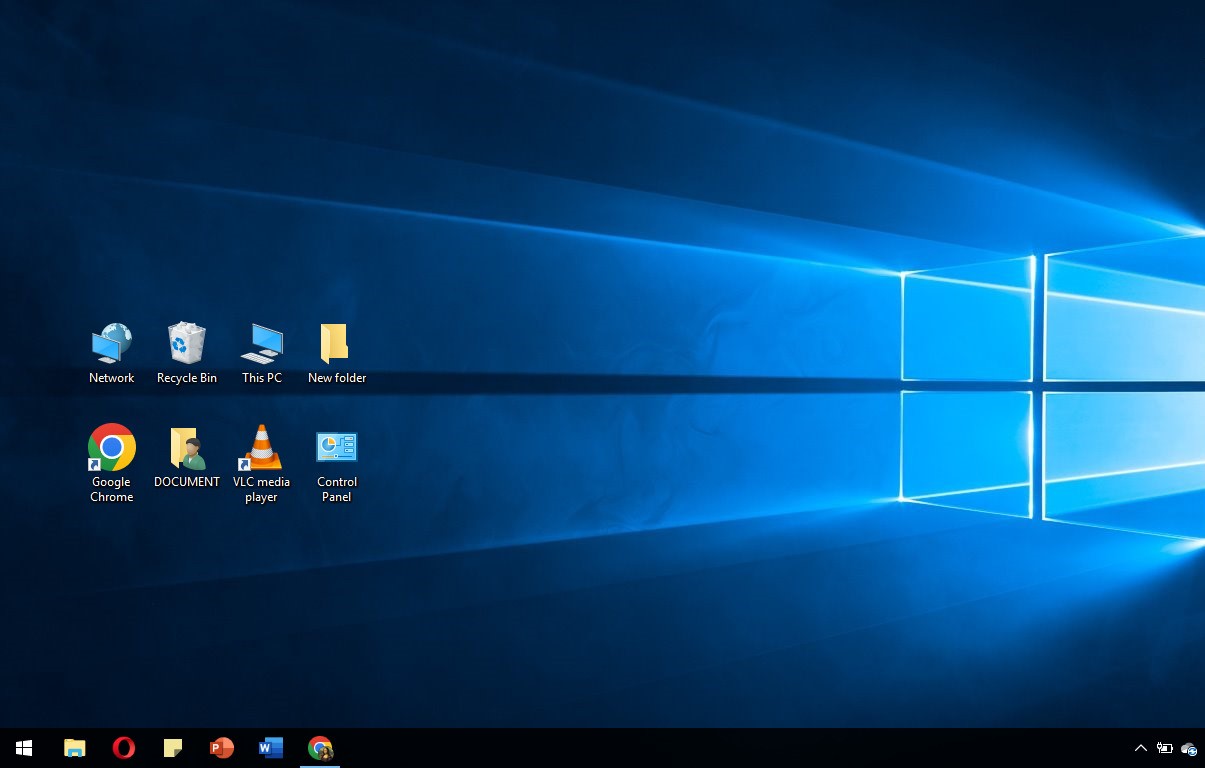
The desktop is one of the primary interfaces you’ll use with Windows 10.
Once activated, you may customize your license with a backdrop and set practical shortcuts to files, directories, and apps.
Read our post on How to Personalize Windows 10 to learn more about modifying your desktop and interface.
Recycling bin
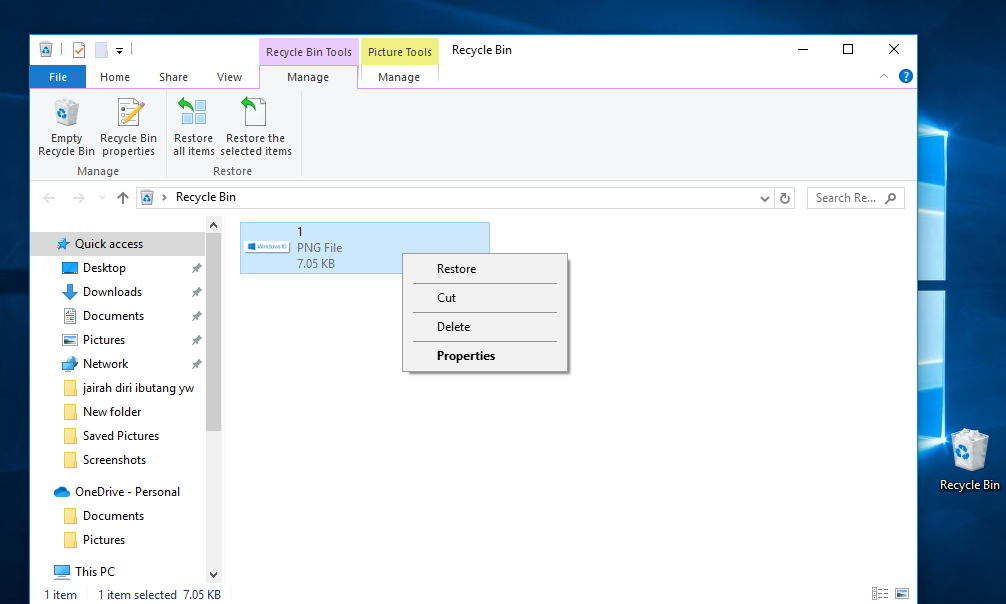
One of the Desktop’s shortcuts is the Recycling bin. Before they are erased from the computer permanently, all of your deleted files end up here.
You can always use this bin to recover files you want to save, even if you unintentionally erased them. Files can also be permanently removed by simply emptying the trash can.
Folders
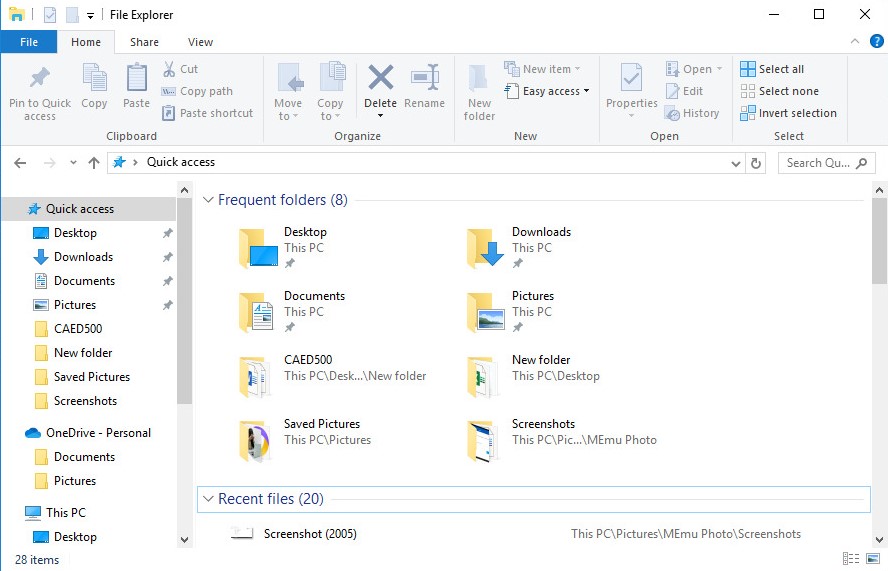
In Windows 10, folders function in the same way as they do on other platforms. They allow you to arrange your files, folders, and shortcuts.
Double-clicking a folder opens it and shows everything inside in a unique application called File Explorer, sometimes called Windows Explorer.
File Explorer is covered in more detail in the section below on navigating Windows 10.
Taskbar
The lengthy bar spanning your screen’s bottom is called the taskbar. It includes programs and other UI components that you often want to be able to access easily at all times. The components of the taskbar are as follows, arranged from left to right.
Start menu
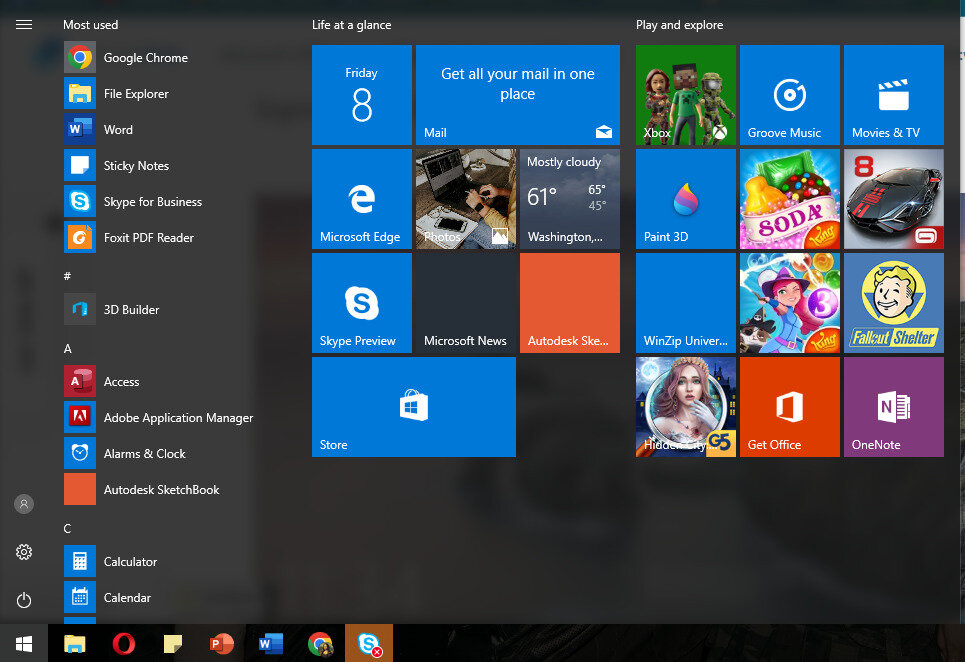
One of the most significant Windows menus is accessible through the Start menu. Access to live tiles, your list of installed apps, and system settings are all available.
Search and Cortana
Use the search options menu to find a file, setting, or application fast. Cortana, your virtual assistant, is also activated by default, enabling you to speak commands and use your microphone. See the section below on Search on Windows 10 for a more thorough explanation of the search.
Shortcuts
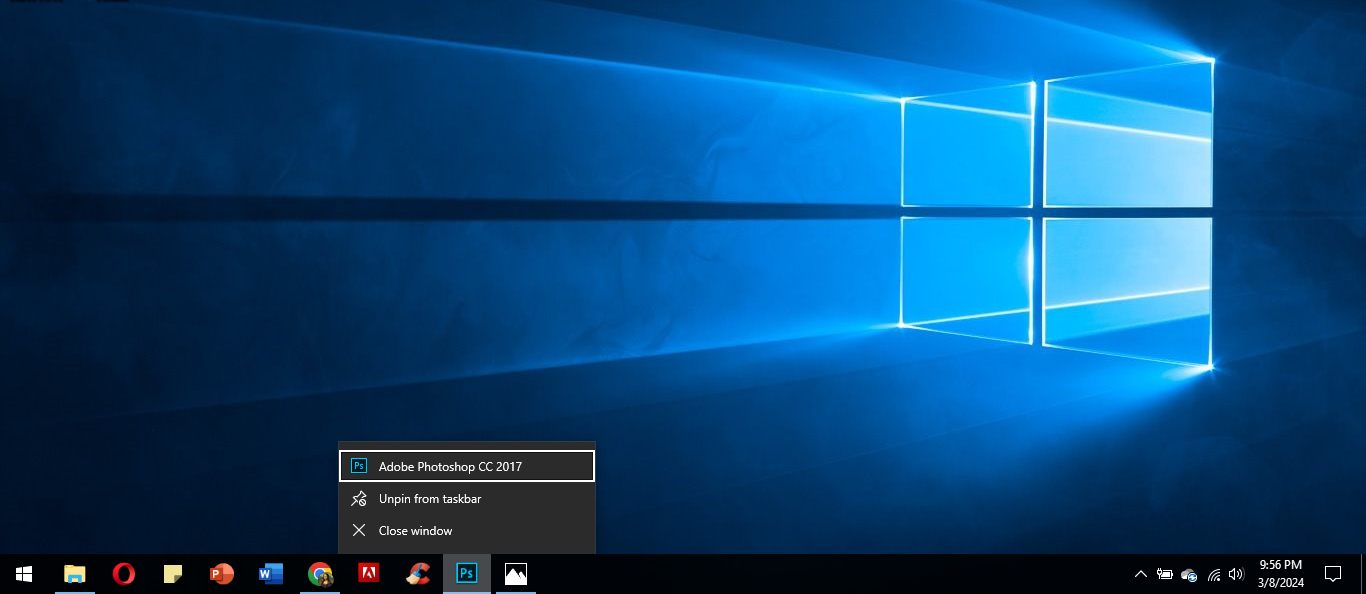
When an application or folder opens, it appears in your taskbar. This lets you quickly navigate between open windows and pin particular items to the toolbar.
Action Center and system tray
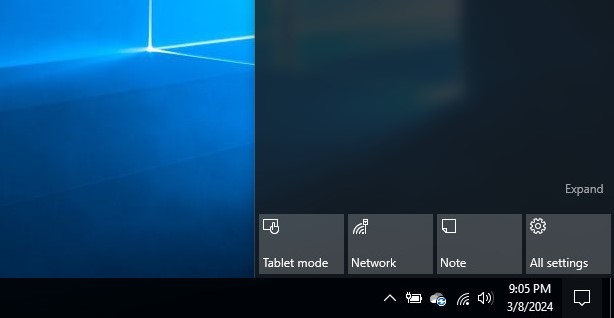
Icons for the network, volume, and other background-running apps can be found in the system tray. The Action Center, located next to it, is where you can quickly switch between Wi-Fi, Bluetooth, tablet mode, and other features and application notifications.
The time and date
The time and date are displayed on the far right edge of the taskbar.
How to use Windows 10
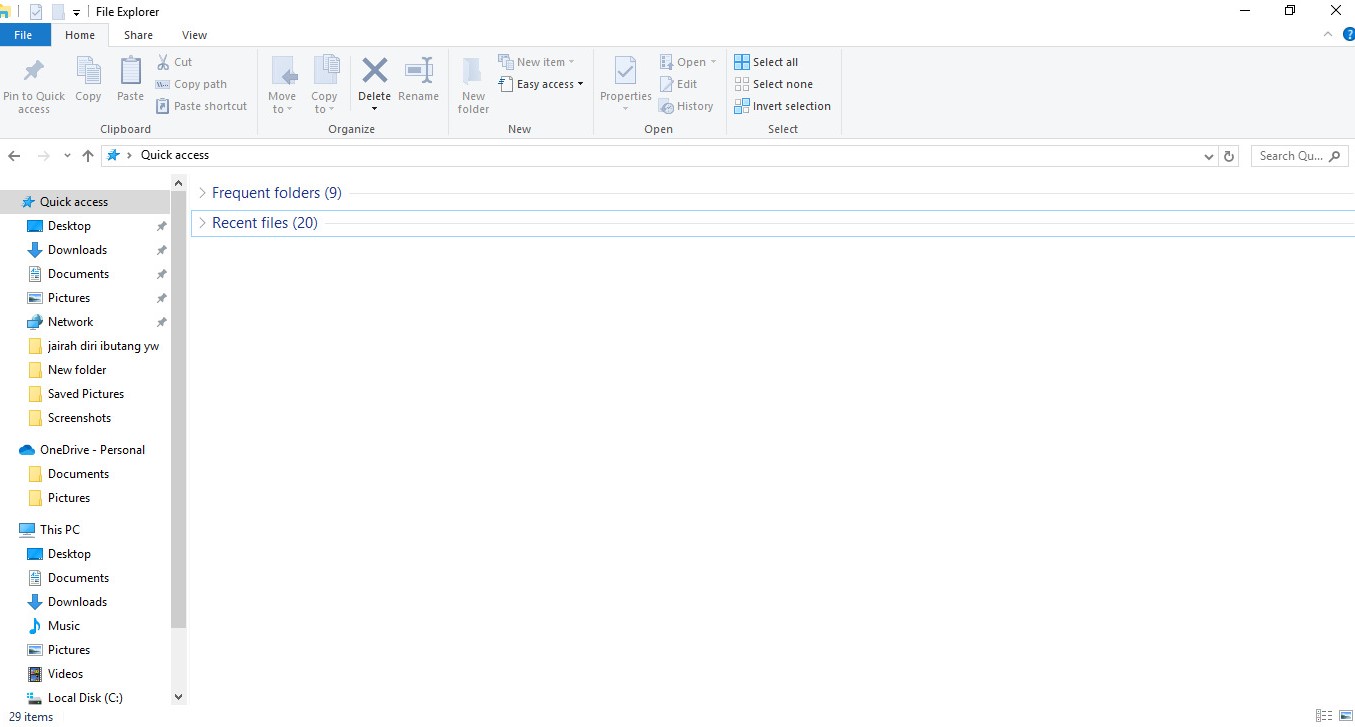
You’ll mainly utilize the File Explorer, Taskbar icons, and Desktop to navigate around your system. We’ll look more closely at the File Explorer in this part.
You can rapidly access the folders you use the most frequently using the File Explorer’s Quick Access toolbar. The Documents, Pictures, Desktop, and Downloads folders are all pinned there by default so that you can access them with a single click. Additionally, you may see your most often used folders here and pin your folders.
Here are some additional helpful shortcuts: OneDrive, This PC where your drives are located, Network, and Homegroup.
Search on Windows 10
The taskbar search bar lets you quickly find files, applications, and system settings. To use it, click on it and type in your search term. The system will then search for your question and provide the most relevant result.
You can search using Cortana if you have it enabled. When you ask Cortana to search for something, it will do so automatically.
Change the Windows 10 settings.
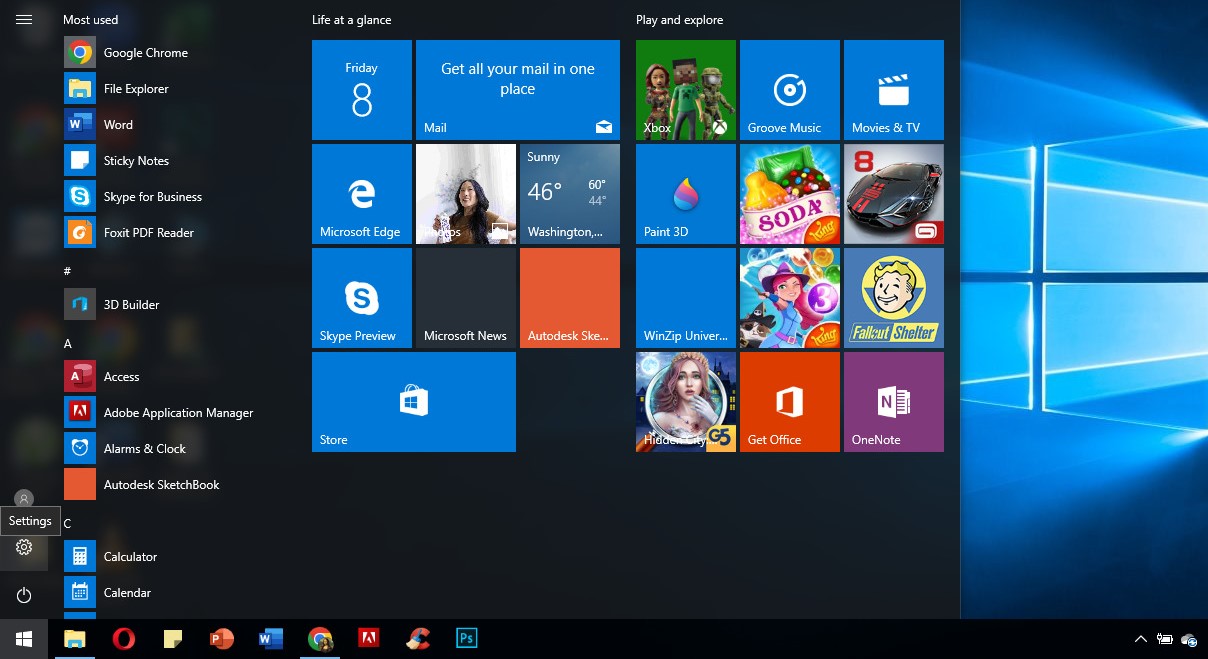
For the optimal experience, you can tweak and modify a myriad of Windows 10 options. This can be done through the Settings app, which you can access by selecting the Settings symbol (represented by a gear) from the Start menu.
Alternatively, you can open the same window with a shortcut by pressing the Windows key + I on the keyboard.
You may remember the Control Panel from earlier iterations of Windows. You need to use the previously mentioned features to search for this interface, which is still in Windows 10.
Turn off your computer.
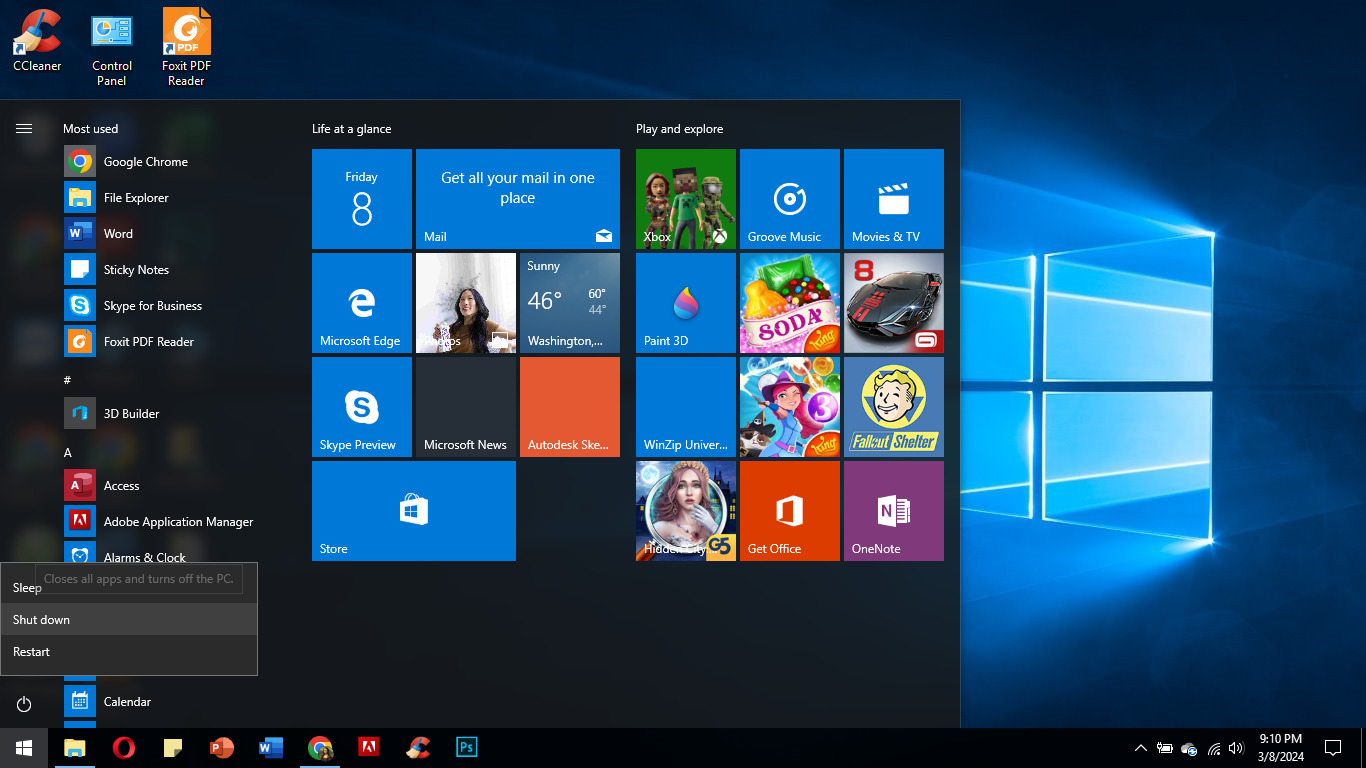
There are several methods to let your computer take a vacation. Click the Power button to quickly shut down, sign out, or put your laptop in sleep mode. This will bring up the Start menu.
Concluding thoughts
This post has been helpful to you in learning how to use Windows 10. To find your next lesson, return to our main Windows 10 tutorials page or jump to our article on Personalizing Windows 10 if you want to learn more about the system.
Consider signing up for our email if you want more guides or to read more stories about technology. We frequently release guides, news pieces, and tutorials to assist you.