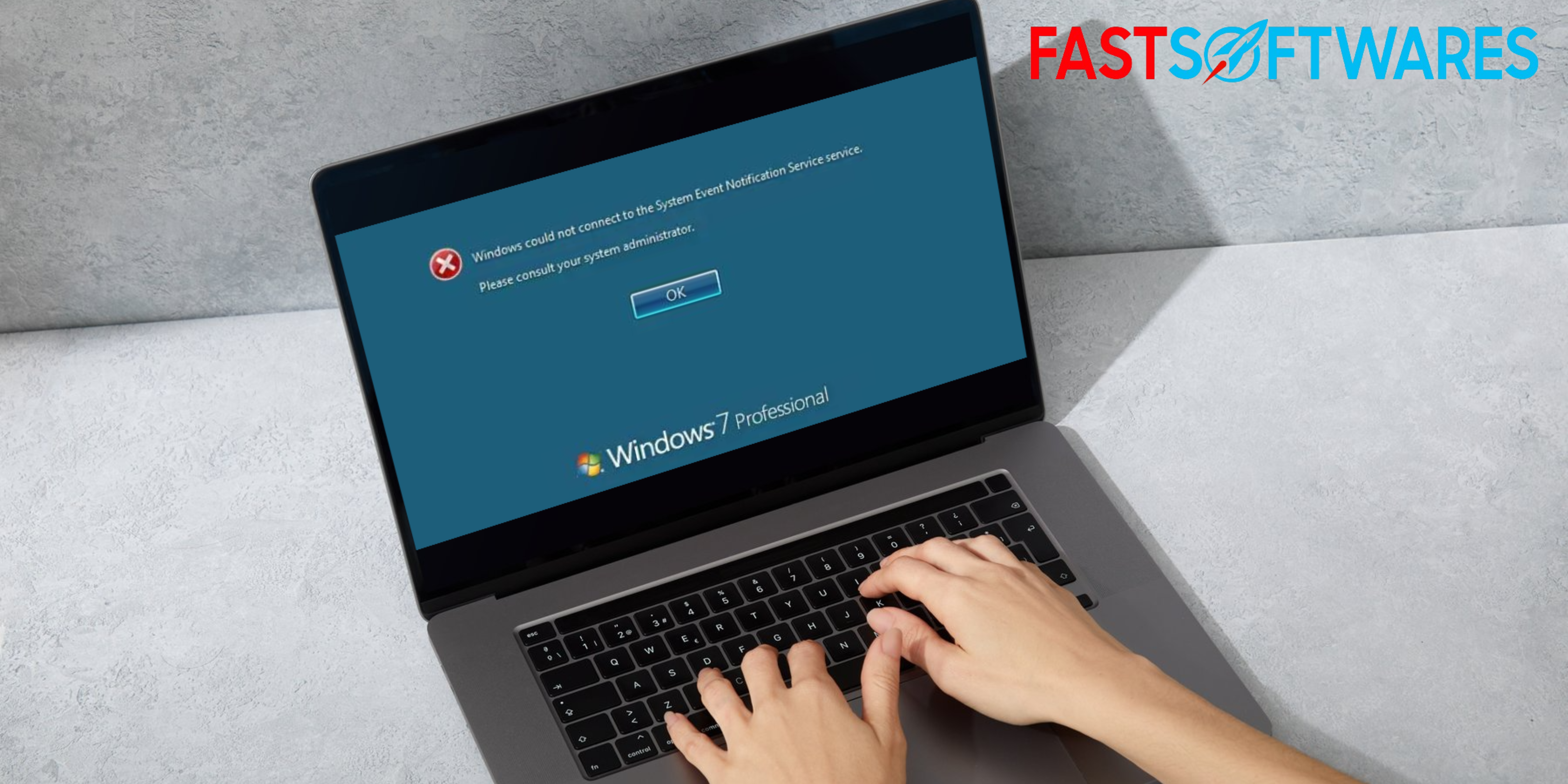
Fixed: “Windows could not connect to the System Event Notification Service” on Windows 7
Be ready for new problems and faults to appear on your screen, especially following a system update. Dealing with Windows 7’s “Windows could not connect to the System Event Notification Service” problem, however, can be disastrous. Either you can not get into your account or, if you can, you are inundated with numerous error popups.
Allow us to ease your anxiety a little: do not start shopping for a new computer just yet—this is not a hardware problem. Discover what this problem is, what causes it, and how to fix it in a matter of minutes from the comfort of your own home by reading this article.
“Windows Could not Connect to the System Event Notification Service” seems to be an error message. What could be the reason behind this?
This specific error has no one, clear-cut source, unlike a lot of other Windows problems.
Based on user reports and answers from the Microsoft team themselves, we’ve compiled a list of possible things that trigger the “Windows could not connect to the System Event Notification Service” popup.
- The error is being caused by a Windows update. . A lot of customers have complained that the Windows 7 System Event Notification Service appears to be broken by the KB2952664 upgrade in particular.
- The SENS system is tainted. . The System Event Notification Service (SENS) can be tainted in some way. If you frequently shut down your computer erroneously, you should be suspicious of this.
- There is an issue with the Windows Font Cache Service’s operation. The Font Cache Service is a critical component of several Windows 7 services. It has a cascading impact, so if something goes wrong with it, your PC can experience problems with the SENS service.
- There is no active DHCP client service. The SENS service may be misbehaving because your system is currently unable to address and manage DNS records and IP addresses.
- incorrect settings for the Winsock Catalog. . Winsock is a sophisticated tool, and its configuration matters. According to user reports, fixing SENS problems frequently involves restoring the Winsock Catalog.
- The SENS service is being interfered with by something. Certain antivirus programs include network and endpoint security in their premium packages. For instance, it is well known that Symantec Endpoint Protection frequently causes issues when it interferes with Windows 7’s SENS service.
- outdated drivers for video cards. Do not forget to update your drivers! More problems than you might think can arise from an antiquated driver.
Fix for “Windows could not establish a connection to the System Event Notification Service”
After examining the reasons, it is time to deal with the error appropriately. You should be able to access the system by logging into an administrator account if you are unable to log into your regular user account. There is always at least one administrator user on the system, so make an effort to contact the account owner.
Now that you’re logged in as an administrator, it’s time to start troubleshooting!
Advice: Although Windows 7 was the primary platform on which our techniques were developed, this problem has also been observed to arise on Windows Vista and even Windows XP. Try our methods if you are using one of those systems! They could just work the magic.
Method 1: Automate the System Event Notification Service and restart it
Checking to see if the problematic service is operating correctly should be your initial step. The steps that follow will help you accomplish this.
- Using your keyboard, simultaneously press the Windows and R keys to open the Run utility.
- After entering “services.msc,” click OK. By doing this, the Services window will open.
- Once your services have all loaded, find and pick the System Event Notification Service.
- From the context menu, choose Restart after performing a right-click on the System Event Notification Service. Click Start if Restart is not available.
- Next, select Properties by performing a second right-click on the System Event Notification Service.
- Verify that Automatic is selected for the Startup type, then click OK.
- Give your computer a restart.
You can now check to see if the error has been fixed.
Method 2: Restart and restart the Windows Font Cache Service
If restarting the System Event Notification Service itself didn’t work out, you should immediately follow up by making sure the Windows Font Cache Service is working properly.
- Using your keyboard, simultaneously press the Windows and R keys to open the Run utility.
- After entering “services.msc,” click OK. By doing this, the Services window will open.
- Wait for all of your services to load, then locate and choose the Windows Font Cache Service.
- Right-click on Windows Font Cache Service, then select Restart from the context menu. Click Start if Restart is not available.
- Next, right-click on Windows Font Cache Service again and choose Properties.
- Verify that Automatic is selected for the Startup type, then click OK.
- Give your computer a restart.
Try using your accounts again to check if the error still occurs.
Step 3: Turn on the DHCP server
Users have reported experiencing problems with one final service. It is the DHCP service, which for some reason frequently appears to be disabled. Make sure it is running if you continue to encounter the same error.
- Using your keyboard, simultaneously press the Windows and R keys to open the Run utility.
- After entering “services.msc,” click OK. By doing this, the Services window will open.
- Find DHCP Client and double-click on it.
- Verify that the General tab is selected.
- Select Automatic as the Startup type.
- Verify that the service is currently running according to the Service status. You can enable it by clicking the Start button if it is not already.
- Press the OK button, then restart your gadget.
Check to see whether the System Event Notification Service is still giving you problems after your computer has restarted.
Method 4: Upgrade your security software
Numerous users have reported that problems with the System Event Notification Service appeared to stop after they updated their antivirus software to the most recent version. The network and endpoint protection that certain antivirus apps provide is most likely to blame for this.
Antivirus apps typically have a settings tab or a separate update tab where you can update them. Numerous apps include automatic updates or prompts to update your software.
As an illustration, Norton Antivirus has a LiveUpdate function.
From Norton Community, mnorth1984
Go to the suite’s website or search for online tutorials if you are not sure how to update your client. There can never be a single guide created for an app because they are all unique.
Method 5: Reset the Winsock Catalog
It’s conceivable that accidental changes to your Winsock Catalog caused troubles with the System Event Notification Service. In this scenario, the best bet is resetting your Winsock Catalog.
To do this, we’ll be using the Command Prompt. If you’re not skilled with utilizing commands, simply follow our procedures and copy-paste any text written in this font. Those are commands, which can be put into the Command Prompt.
- Using your keyboard, simultaneously press the Windows and R keys to open the Run utility.
- Type in “cmd” then hit the Ctrl + Shift + Enter buttons on your keyboard. This will run the elevated Command Prompt.
- Input the following command, then hit Enter: netsh winsock reset
- To resolve the problem, please try restarting your computer and then check if the issue still persists.
Method 6: Uninstall the Windows KB2952664 Update
We mentioned the KB2952664 update as a possible reason for the “Windows could not connect to the System Event Notification Service” error in the “What causes the “Windows could not connect to the System Event Notification Service” error?” section.
Other than the problems with the SENS service, the update was difficult for many customers. It may cause major speed decreases when browsing the internet, freezing windows, and even an excruciatingly sluggish shutdown.
If none of the aforementioned fixes resolved the issue, we advise you to remove this particular update. this specific update. Just take the following actions to accomplish it.
- To open the Start Menu, go to the bottom left of your screen and click on the Windows symbol. Select the Control Panel at this time.
- Switch to Category in the View by mode.
- Select the Uninstall a program link found under Programs.
- Click on the View installed updates option at the left side of the window.
- Locate the KB2952664 update, then right-click on it and select Uninstall. This will uninstall the troublesome update from your PC.
- Give your gadget a restart and see if the error persists.
See: 10 Windows 2023 Must-Have Apps and Software
Last Words
We wish you the best of luck in fixing the “Windows could not connect to the System Event Notification Service” problem in Windows 7 that our instructions helped you with.
Check out our other articles if you’re looking for information about other Windows issues, troubleshooting tips, or just want to learn more about your operating system.
If you are looking for a software provider that is trustworthy and ethical in their business operations, your quest ends with SoftwareKeep. As a BBB Accredited Business and Microsoft Certified Partner, we strive to provide our customers the software products they need in a trustworthy and satisfying way. With every sale, you can count on our support before, during, and after the transaction.
One more item
We appreciate you taking the time to read this article and blog all the way up to this point.
When you have a moment, please consider sharing this piece on social media. It could also be of use to someone else.
Get our newsletter to read our upcoming blog posts, reviews, and articles as soon as they arrive in your inbox. We also send out emails with offers, discounts, and updates about our items. One will not elude you.