
How to Fix Windows 10’s Stop Code Memory Management Issue
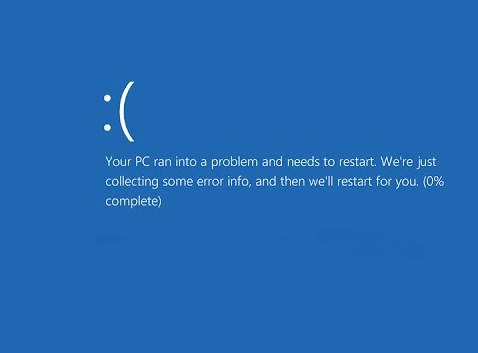
It’s crucial to treat system crashes properly. You’re in the perfect place to find out what the Stop Code MEMORY MANAGEMENT on a blue screen means and how to avoid it if you’ve recently seen it. This Blue Screen of Death error is frequently encountered, as many Windows 10 users have observed.
A BSoD error is the Stop Code Memory Management. Given that it indicates the exact location of the error, it is a memory management issue unique to your system. It is easy to troubleshoot the problem. This article will teach you the value of memory management and how to fix Windows 10’s Stop Code MEMORY MANAGEMENT BSOD error.
In Windows 10, what is memory management?
An essential component of your Windows 10 operating system is memory management. It takes command of the system and manages computer memory, maintaining constant RAM use. It distributes memory blocks among the open apps according to their needs.
Simply put, memory management regulates how much memory your computer uses, and its operation contributes to overall system performance optimization.
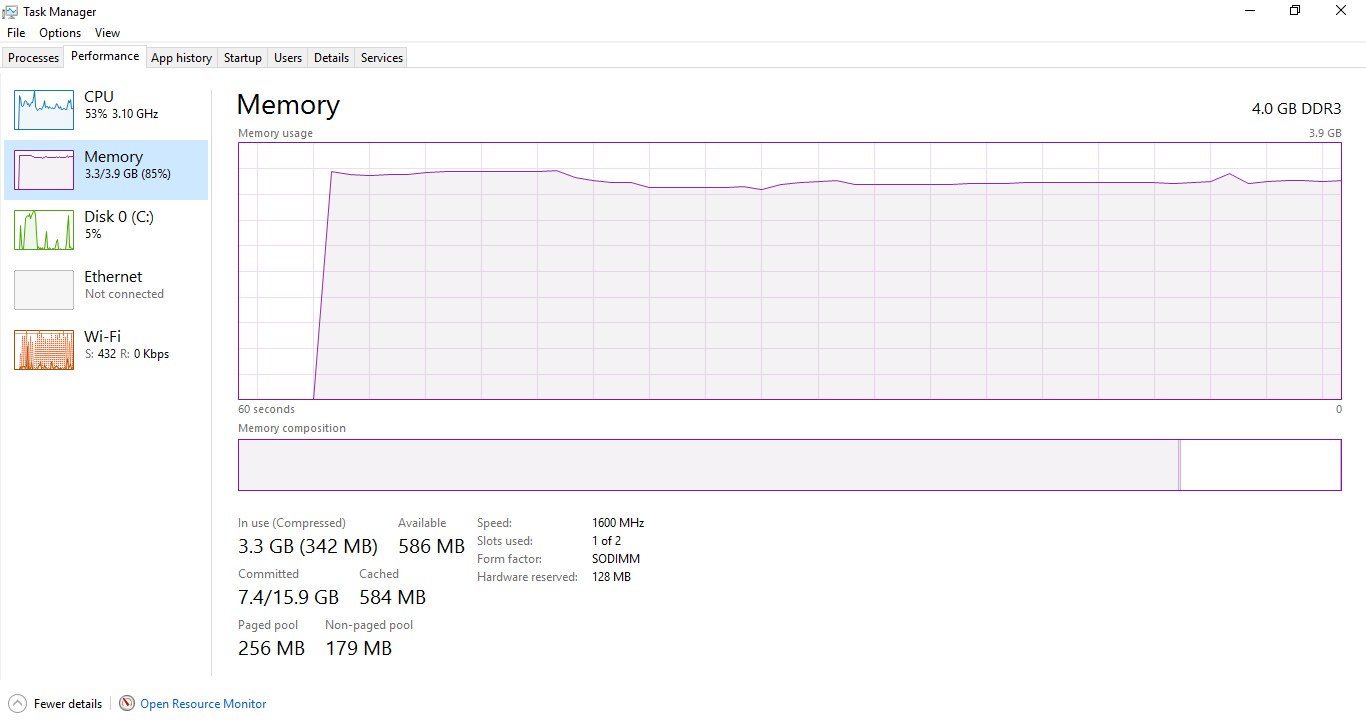
Rogue processes can use your computer’s memory when the memory management process malfunctions, leaving no RAM available for other methods. This could increase the likelihood of other issues with your system, like crashes and service outages. Frequently, this results in a Blue Screen of Death.
What Is the Cause of the BSoD Error in Stop Code Memory Management?
The Stop Code Memory Management error indicates a severe memory and system issue with your computer. The system-side issue is typically a hardware issue, however it might occasionally be a software issue. Rarely, the error can point to firmware problems.
So, there is a memory issue with your machine. This can be an isolated incident or a serious memory management problem. The following are some potential reasons unique to the Stop Code MEMORY MANAGEMENT:
An isolated memory error
- Software problems, such as files in the system directory becoming corrupted
- Hardware or software problem
- RAM errors with malfunctioning memory sticks
- Problems with recently purchased hardware, such as a graphics card
- Hardware malfunction or outdated hardware
- Driver errors, absenteeism, or obsolete
- Disk malfunctions
- Virus and firmware
- Older version of Windows 10
Although not all possible reasons for stop code memory management BSoD errors are known to exist, these are some of the more plausible ones. There are other reasons why you might be experiencing this problem in your system. Our techniques are designed to assist you in restoring your computer at any cost, even if you’re reading this with a particular case.
How to Resolve Windows 10’s Stop Code Memory Management
The Stop Code Memory Management error can scare you at first for a valid reason. You probably need some project progress or data. Fortunately, you can fix it, so you don’t have to worry.
Try restarting your computer to see if the problem still occurs. Should it not reappear following the restart, it could have been an isolated incident. Even if this does occur, investigate the issue and take the following actions to be sure it doesn’t happen again. Use the nine solutions in this article to fix the Stop Code MEMORY MANAGEMENT completely.
Method 1. Check Your Computer for Potential Malware or Virus Attacks
One of the primary causes of computer malfunctions is malware infection. Malware programs and applications on a user’s device have the potential to cause permanent damage. The memory management error might be caused by an active virus on your system, despite being extremely uncommon.
Using dependable antivirus software, perform a system scan. Use Windows Defender, which comes integrated into the operating system if you don’t already have a third-party antivirus installed.
- Launch the taskbar search bar by clicking the magnifying glass icon. Alternatively, you can use the Windows + S keyboard shortcut to open it.
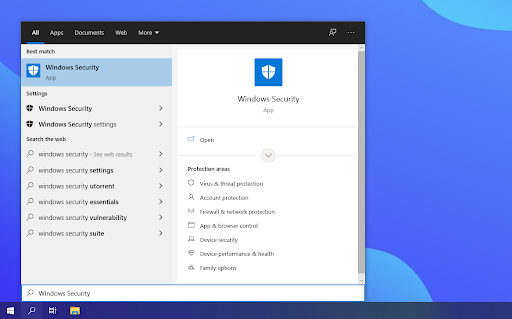
- Enter Windows Security, then click on it from the list of results.

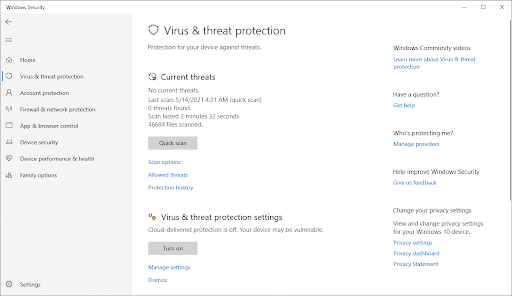
- To access the Virus & Threat Protection tab, use the menu option on the left-hand pane or your home screen. Choose the Scan Options option.

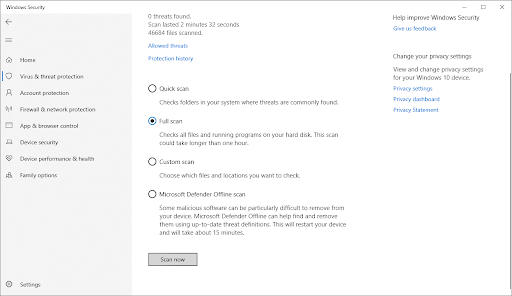
- Select the “full scan” option. This will check every file on your disks to ensure no hidden dangers. Please note that this scan may take longer than one or two hours, depending on the amount of data on your system.
- To start the scan, click the “Scan now” button. Windows 10 will automatically quarantine or delete any threats that are found. After the scan, you may check the results to see which malicious files were eliminated.
Method 2. Use the Memory Diagnostic Tool on Windows.
The Windows Memory Diagnostic tool is one built-in utility in Windows to assist in locating and fixing memory-related system faults. It will test your RAM and let you know if any problems compromise its performance.
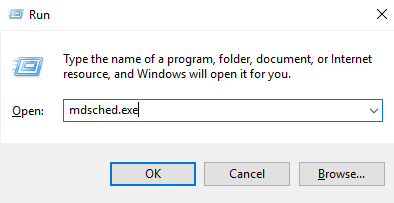
- Press the Windows + R keys on your keyboard to open the Run utility. Enter “mdsched.exe” here and click the OK button.

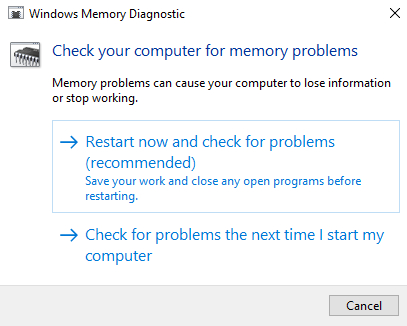
- A RAM scan will start when you select ” Restart now and check for problems (recommended.” Stop any open applications and save any files before choosing this option.

- As an alternative, select “Check for problems the next time I start my computer” and schedule a later time to restart the gadget.
- At that point, the Windows Memory Diagnostics Tool interface will appear and begin automatically testing for memory issues on your computer. The process can take a few minutes to finish, so please be patient while it displays the test results.
Your computer’s memory is probably in good condition if the Windows diagnostic tool finds or displays no issues now or the next time you sign on. In this instance, move on to the techniques listed below to investigate the error further.
Method 3. Make Driver Updates
The Stop Code MEMORY MANAGEMENT may be brought on by out-of-date hardware drivers on the machine or by a rogue or malfunctioning hardware driver. Examine which hardware drivers require updating or update them all at once.
Look for Updates on Drivers
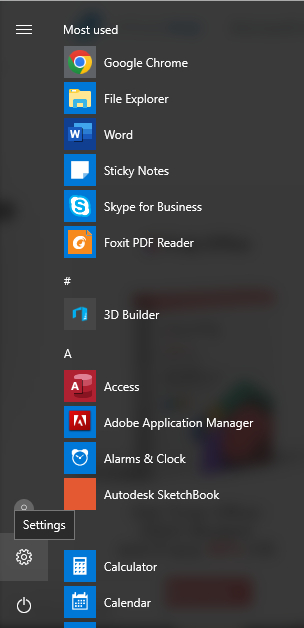
- To access your computer’s Start menu, click the Windows icon located in the bottom-left corner of your screen. From there, select “Settings” or simply press “Windows + I“.

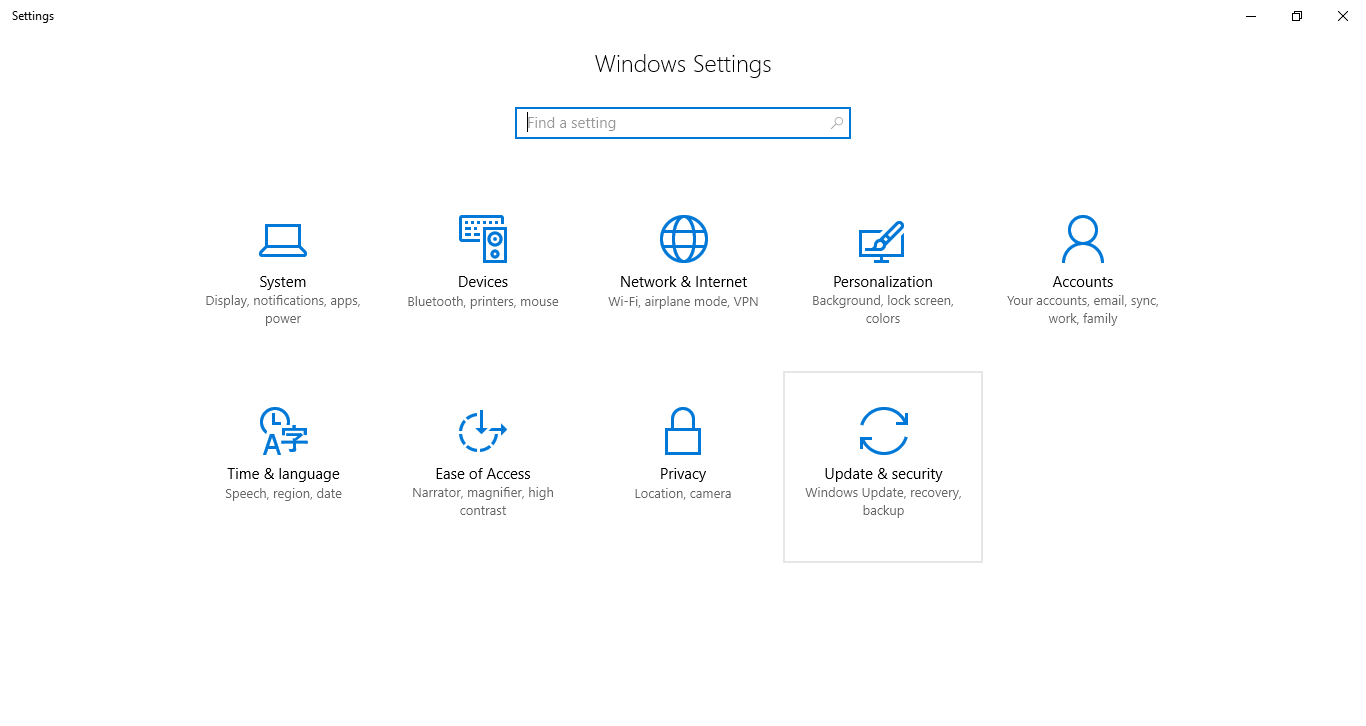
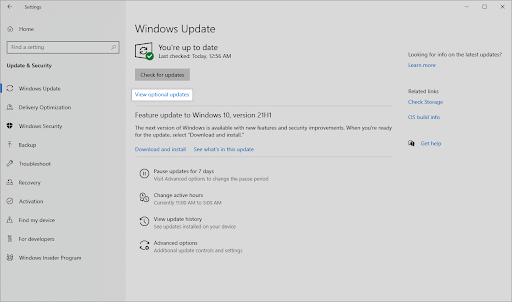
- Select the Update & Security tile by clicking. The majority of your Windows Update settings are located here.

- Navigate to the Windows Update area and, if the link is accessible, click View optional updates.

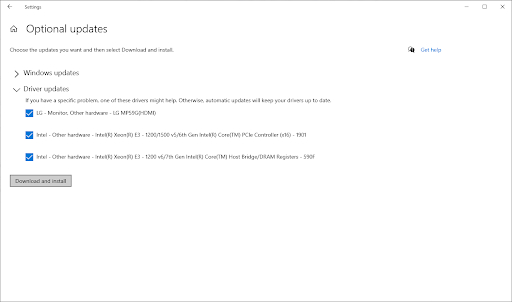
- Examine which drivers presently require an update by expanding the Driver Updates section. Just check the drivers that need updating by placing a checkbox next to them, then select Download and Install.
- After letting Windows 10 update your drivers, restart your computer.
Update Particular Drivers
Manually updating each device driver can be done if you know which one is causing the memory management problem. We advise installing the most recent drivers for your PCI Memory Controller and video card. Look for devices with yellow exclamation points next to them if you need clarification on the drivers.
- To access the Device Manager option, press the Windows + X keyboard shortcut and select it from the WinX menu.
- To update a driver, right-click on it and choose Update driver from the context menu.
- Select the driver update method that you want. Windows 10 allows you to either manually find a new driver file on your machine or let it look for one automatically.
- Wait until the driver installation is finished. Try updating any more drivers you want to, and if the problem with the high CPU is resolved, stop here.
Method 4. Examine and Fix Disk Errors
Use the Check Disk (chkdsk) command to scan and fix a disk fault. Hardware problems like corrupted NTFS volumes or faulty disk sectors might result in disk errors. Any of these could cause the blue screen error Stop Code MEMORY MANAGEMENT. The Blue Screen of Death will be resolved by the chkdsk tool’s identification and repair of these issues.
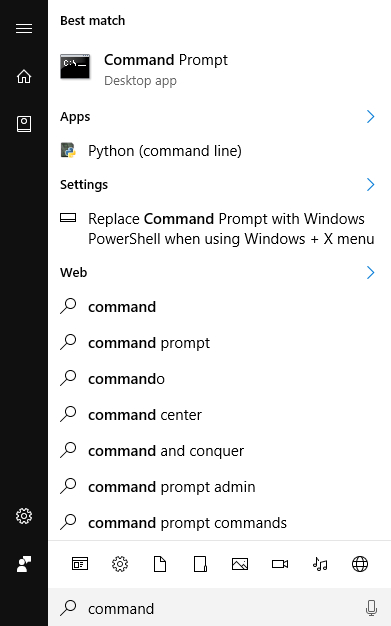
- Launch the taskbar’s search bar by selecting the magnifying glass button. Alternatively, you can use the Windows + S keyboard shortcut to open it.
- Open a search window and type Command Prompt. Select Run as Administrator with a right-click on it when you see it in the results.

- If the User Account Control (UAC) prompts you to activate the program with administrator access, click Yes.
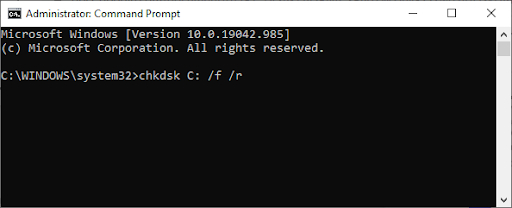
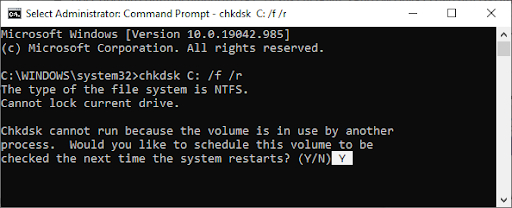
- Enter chkdsk C: /f /r after typing it. This command checks the C: drive for mistakes and fixes them. You must change the C: to the entry letter of the other disks to check the other disks.

- An error message stating that “Chkdsk is unable to run because another application uses the drive” can appear. In this instance, hit Y followed by Enter. The next time you boot up the system, Chkdsk will automatically check and fix any corrupt sectors.
- Because another process is using the volume, Chkdsk cannot run.
- Give your device a restart. Await the completion of your system’s analysis by the Check Disk command. It will try to repair the drive and retrieve any information that can be read.
Method 5. Fix Damaged System Files
The BSOD error may also result from issues with Memory Management brought on by corrupted computer files. The SFC scan can locate these and fix them.
Windows 10 has a built-in utility called the System File Checker (SFC) to aid in troubleshooting. It can automatically identify damaged system files and restore them to functionality. The Stop Code MEMORY MANAGEMENT-related BSoD issues may be resolved using the SFC scan.
- Launch the elevated Command Prompt. For instructions, see “Method 4. Scan and Repair Disk Errors” above.
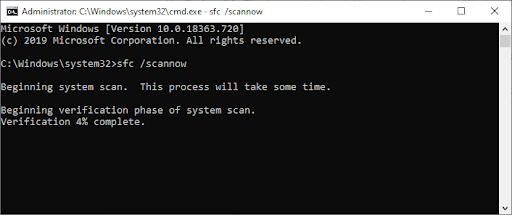
- To run the program, type sfc /scannow into the program Prompt window and press Enter.

- Await the completion of the computer scan by the System File Checker. If a mismatch is found, the application will try to resolve any associated issues and restore the required system files.
It could take some time for the SFC scan to go through your system and find any corrupted or missing system files. Some users have stated that their PC’s operation changed after running the scan, even if it finds nothing.
Method 6. Empty Temporary Folders and Files
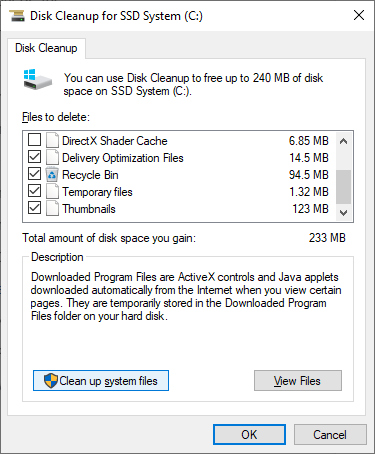
Windows 10 frequently generates temporary directories and files. If they build up, they may slow down your computer and potentially result in stop code memory management faults. To clear up space and fix computer memory problems, use the Disk Cleanup tool to eliminate irrelevant files.
- Launch the taskbar’s search bar by selecting the magnifying glass button. Alternatively, you can use the Windows + S keyboard shortcut to open it.
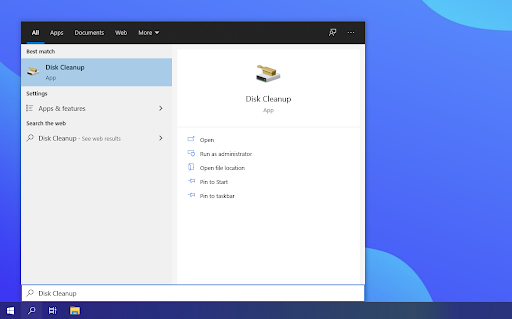
- Press Enter to search for Disk Cleanup, then select the top result.
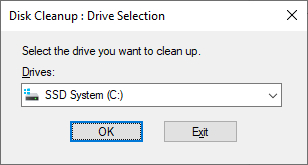
- After choosing the Windows 10 system drive, press the OK button. The system is often installed on disk C:.

- You can check how much space temporary files occupy in the new window. Verify that both Temporary Files and Temporary Internet Files are chosen. Other useless files, such as Thumbnails and DirectX Shader Cache, can also be removed. Click OK once you’ve finished choosing what you wish to delete.

- In the resulting dialogue box, select the Delete Files button. Your device’s storage will be cleared when the removal procedure gets underway.
- Do you wish to remove these files forever? Select “Yes.”
Method 7. Examine the recently installed programs
Verify whether you have installed any new software lately. Certain recently installed apps won’t work with your operating system or won’t get along with other apps on your computer. This can be the cause of the BSOD problem related to memory management.
You should uninstall any recently installed programs immediately if you discover they are the source of the issue, then check to see whether it still occurs.
- Click the Windows logo in the lower-left portion of your monitor to open up the Start menu. Select Settings, or press Windows + I to access the shortcut.
- On the Apps tile, click. All of the installed applications on your computer are located here.
- Apps should be sorted by Installation date.
- After selecting a newly installed program with one click, choose the Uninstall option.
- Confirm your selection by clicking Uninstall once more, and then adhere to any on-screen directions provided by the software’s uninstaller. Ensure that the software is deleted.
- For each application on the list, follow these procedures once more. Once all troublesome apps have been removed from your computer, restart it to check if the Blue Screen of Death has disappeared.
Method 8. Install any unfinished Windows updates.
There are occasions when unfinished Windows 10 updates result in memory management issues. To see whether the error still occurs, look for any waiting Windows Update packages and install them.
- Click the Windows logo in the lower-left portion of your monitor to open up the Start menu. Select Settings, or press Windows + I to access the shortcut.
- The Update & Security tile can be clicked. The majority of your Windows Update settings are located here.
- Verify whether any updates are still due and need to be installed. In that case, install the Windows updates by clicking the Install Updates button. Without any other option, select Check for Updates and allow Windows 10 to locate any available updates.
- Additionally, see if any updates need to be downloaded, then select Download. After allowing any new Windows 10 components to download, install the updates.
To ensure your system is always up to date, Windows 10 is advised to check for updates frequently. Updates will squash bugs, patch vulnerabilities, and add new features to all users who are qualified to receive them.
Method 9. Windows 10 reset
If none of the solutions above resolve your problem, you should reinstall or reset Windows 10. You can choose to restore the system without erasing any of your files. Regretfully, most of your apps and system settings will be removed to give your smartphone a new start.
For thorough, step-by-step instructions on installing Windows 10, see our How to Install Windows 10, 8.1, or 7 Using a Bootable USB tutorial. Visit Microsoft’s official help page for information on how to reset and refresh your browser.
Last remarks
You may find dozens of guides in our Help Center if you need more assistance. Revisit us for additional educational articles, or contact our professionals for prompt help.
One More Thing
To purchase our products at the most excellent price, would you like to get discounts, deals, and promotions? Remember to provide your email address below to subscribe to our newsletter! Get the newest email sent straight to your inbox.