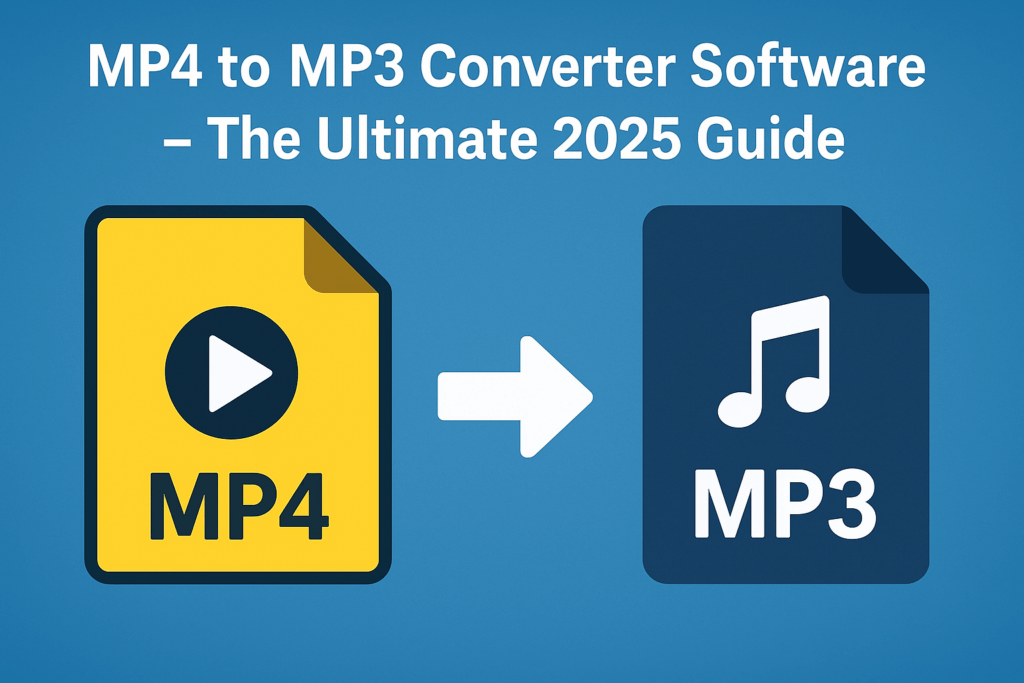
MP4 to MP3 Converter Software – The Ultimate 2025 Guide
Introduction
Videos are now an essential part of our daily lives whether for learning, entertainment, or work. However, there are many situations when you only need the audio track instead of the full video. For example, you might want to listen to a recorded lecture during a commute, save background music from a video, or extract an interview for a podcast. In such cases, using MP4 to MP3 converter software is the fastest and most efficient solution.
This guide will cover everything you need to know about converting MP4 to MP3, including:
-
Why people convert MP4 files to MP3
-
The best online and desktop converter software in 2025
-
Mobile app options for quick conversions
-
Step-by-step instructions for beginners
-
Tips to get the best audio quality without losing data
Why Convert MP4 to MP3?
MP4 is a multimedia container that includes both video and audio, while MP3 contains only audio. Converting MP4 to MP3 has several benefits:
-
Saves Space: Audio files are much smaller in size, making them easier to store and share.
-
Improved Accessibility: MP3 files play on almost all devices, including smartphones, tablets, and music players.
-
Convenient for Listening: Extract songs, podcasts, or lectures from videos for offline use.
-
Content Reuse for Creators: Podcasters, editors, and content creators can reuse extracted audio in their projects.
Best Online MP4 to MP3 Converter Software
Online tools are perfect for users who want quick, one-time conversions without downloading additional software.
1. Convertio
-
Supports multiple formats and high-quality bitrates (128–320 kbps).
-
Works directly in your browser.
-
Free for small files, premium for larger conversions.
2. CloudConvert
-
Offers trimming, volume adjustment, and fade effects.
-
Ensures data security with private conversions.
3. Zamzar
-
Simple interface with drag-and-drop functionality.
-
Supports both single and bulk conversions.
4. FreeConvert
-
Batch processing included.
-
Allows customization of metadata and audio settings.
These tools are excellent for fast tasks, but they require a stable internet connection.
Best Desktop MP4 to MP3 Converter Software (Windows/Mac/Linux)
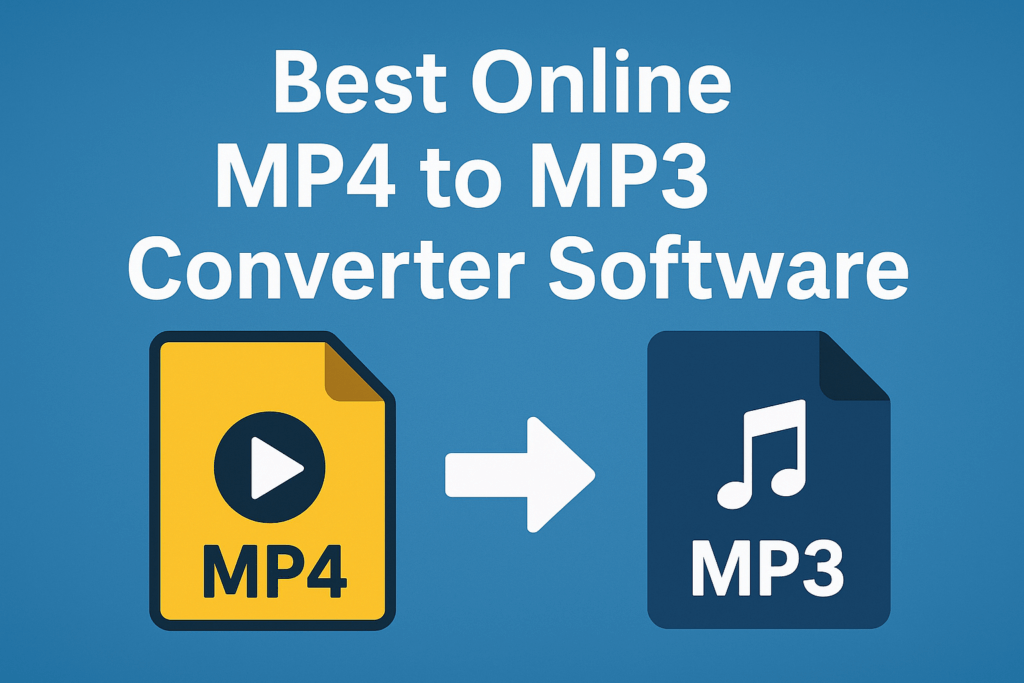
Desktop programs are better for users who perform conversions frequently or deal with large video files.
1. VLC Media Player (Free)
-
Open-source and widely available.
-
Conversion process:
-
Open VLC → Go to Media > Convert/Save
-
Add MP4 file → Choose MP3 → Start conversion
-
2. HandBrake (Free)
-
Works across platforms (Windows, Mac, Linux).
-
Batch processing supported.
-
Ideal for professionals.
3. Movavi Video Converter (Paid)
-
GPU-accelerated fast conversion.
-
Clean, user-friendly interface.
4. Any Video Converter
-
Free and paid versions available.
-
Handles a wide variety of video/audio formats.
5. Freemake Video Converter (Windows)
-
Drag-and-drop feature for beginners.
-
Offers various presets for quality selection.
Mobile MP4 to MP3 Converter Apps
If you often convert files on the go, mobile apps are convenient options.
For iPhone
-
MP3 Converter – Audio Extractor
-
Easy to use with high-quality output.
For Android
-
Video to MP3 Converter by InShot
-
Allows trimming, merging, and bitrate adjustments.
Step-by-Step: How to Convert MP4 to MP3
Online Conversion (Using Convertio)
-
Visit the Convertio website.
-
Upload your MP4 file.
-
Select MP3 as your output format.
-
Adjust bitrate (e.g., 256 kbps for music).
-
Click Convert.
-
Download your MP3 file.
Offline Conversion (Using VLC Media Player)
-
Open VLC.
-
Navigate to Media > Convert/Save.
-
Add the MP4 video.
-
Select MP3 as the profile.
-
Choose the destination folder and click Start.
Tips for High-Quality Conversion
-
Always use higher bitrate (256–320 kbps) for music.
-
Trim unnecessary parts before conversion to save space.
-
Normalize audio to maintain consistent volume levels.
-
Avoid multiple conversions to prevent quality loss.
Legal & Technical Considerations
-
Only convert videos that you own or have permission to use to avoid copyright issues.
-
Larger files may require desktop tools for faster processing.
-
Check the final file size if using mobile data or limited storage.
Final Thoughts
Converting MP4 to MP3 in 2025 has become simple thanks to a wide range of converter software and online tools. If you need a quick conversion, use online platforms like Convertio or CloudConvert. For frequent users or bulk processing, desktop software like HandBrake and Movavi Video Converter offers advanced options and better performance. Mobile apps are perfect for occasional use when you’re on the go.
By choosing the right MP4 to MP3 converter software, you can save time, reduce storage, and enjoy your favorite audio anywhere, anytime. For more helpful guides on Windows issues and software solutions, check out our Fastsofwares blog section for the latest tips and tutorials.