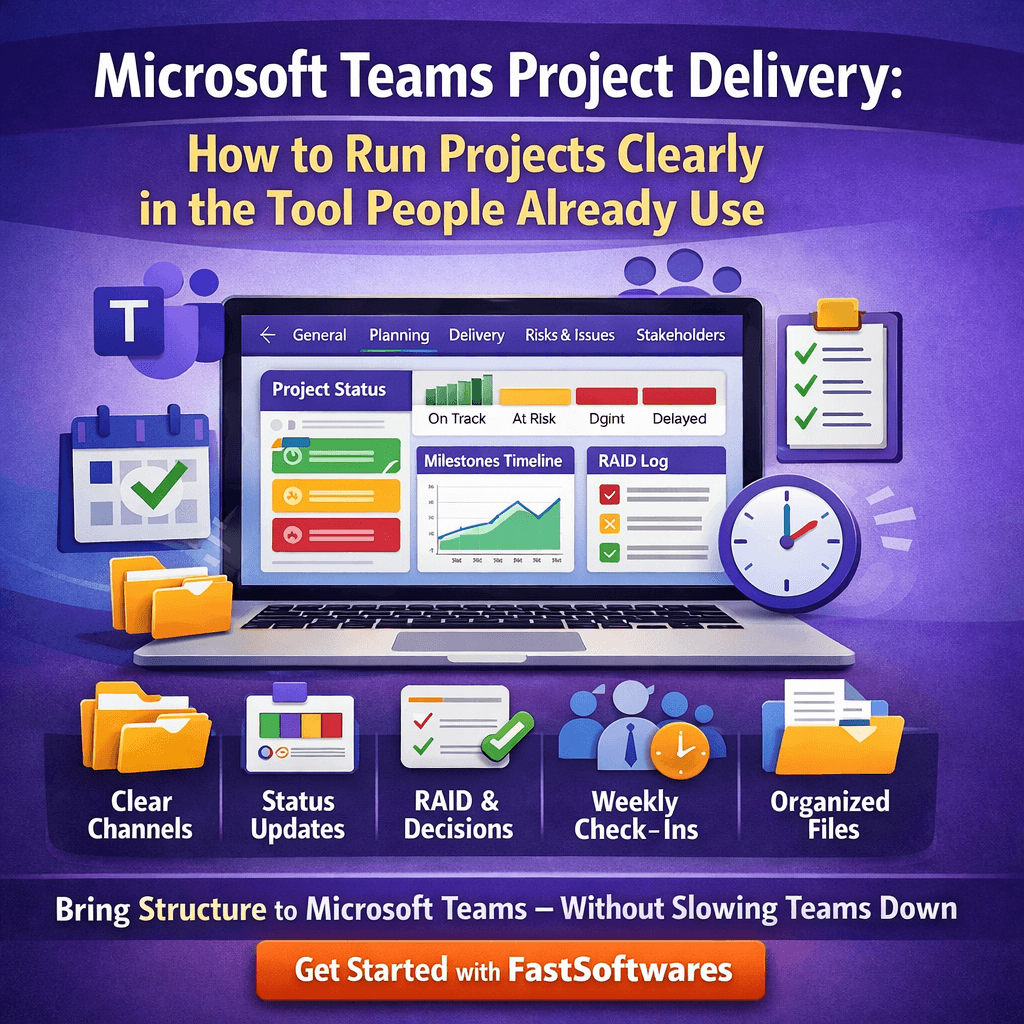
Microsoft Teams Project Delivery – How to Run Projects Clearly in the Tool People Already Use
Microsoft Teams has become the default place where work happens for many organizations. People chat, meet, share files, and coordinate day-to-day tasks in Teams. That naturally leads to a common question: can Teams also be the place where projects are managed effectively?
The answer is yes, but only if you introduce structure. Teams is excellent for collaboration, but collaboration alone is not project management. Projects need clarity on ownership, scope, milestones, and decisions. Without a lightweight operating model, a project in Teams can quickly become a busy space where updates are scattered across chats, documents, and meetings, with no reliable view of what is actually on track.
This article outlines a practical way to run projects in Microsoft Teams without creating bureaucracy. It focuses on the operating habits that make Teams work as a project hub: clear channel design, predictable cadence, shared status reporting, and decision-making discipline.
What Teams does well for projects, and what it does not do by default
Teams is strong at:
- fast communication and visibility across a group
- keeping conversations connected to files
- making meetings easy to schedule and run
- bringing stakeholders into the same space
Teams does not automatically provide:
- a consistent project structure across multiple initiatives
- standard templates for status, RAID, and governance
- a portfolio view across projects
- a reliable way to capture decisions and changes over time
Those gaps are not flaws. They simply mean you need a repeatable approach so each project team is not forced to reinvent the same system.
The core principle – separate collaboration from control
A simple way to think about projects in Teams is to separate two needs:
- Collaboration – discussions, quick alignment, document sharing, problem-solving.
- Control – milestones, ownership, risks, decisions, and reporting.
Teams supports collaboration naturally. Your job is to add just enough control to make delivery predictable, without turning the project into paperwork.
Step 1 – Set up a Teams structure that matches how people think
Many project Teams fail because the structure is either too vague or too complex. A workable structure usually has a small number of channels with clear purpose.
Recommended channel set for most projects
- General – announcements, key links, and a pinned status view
- Planning – scope, requirements, milestones, and working documents
- Delivery – day-to-day coordination, progress updates, work tracking
- Risks and issues – RAID discussion and escalation
- Stakeholder updates – sponsor communications, decisions, meeting notes
This channel set keeps day-to-day chatter from burying the information leaders need. It also creates predictable places to find key project artefacts.
When to add more channels
Add channels only when there is a clear reason. For example:
- a vendor workstream
- a training and rollout workstream
- a testing workstream
- a site or region workstream for multi-location delivery
If channels proliferate without purpose, Teams becomes harder to navigate and people revert to private chats.
Step 2 – Establish a project information “front page” inside Teams
Project teams and stakeholders need a quick way to answer: what is this project, where is it up to, and what is next?
Create a simple “front page” by pinning key items in the General channel, such as:
- one-page project charter
- current status update
- milestone timeline
- top risks and issues
- decision log
The goal is to reduce searching. If people cannot find the latest status quickly, they will ask for updates repeatedly, which increases noise.
Step 3 – Use a consistent status update format
Status updates are where trust is built or lost. In Teams, the risk is that updates become casual messages in chat. That is useful for quick coordination but unreliable for governance.
Adopt a short status update format and publish it on a predictable cadence. A practical weekly or fortnightly status includes:
- Status and trend – green, amber, red plus improving, stable, or deteriorating
- Status rationale – one or two sentences explaining why
- Progress – what moved since the last update, aligned to milestones
- Next milestone – what it is and the date
- Top risks and issues – owners and due dates
- Decisions needed – what is required, from whom, and by when
The written rationale is critical. It prevents “everything is fine” reporting and gives sponsors the context needed to make decisions quickly.
Step 4 – Make decision-making visible with a decision log
Hybrid and fast-moving projects often repeat the same conversations because decisions are not recorded clearly. Teams then waste time re-litigating.
A decision log can be very simple. For each decision, record:
- decision statement
- date and decision-maker
- options considered (briefly)
- impact on scope, timeline, or cost
- actions and owners
Store it where stakeholders can find it. If decisions live in meeting recordings or private notes, the team loses continuity.
Step 5 – Treat risks and dependencies as first-class work
Teams makes it easy to talk about risks, but it is just as easy for those conversations to disappear into chat history. A RAID approach works best when it is visible and reviewed.
Keep a small list of material items. For each one, make ownership unavoidable:
- clear risk or issue statement
- owner
- action or mitigation
- due date
- escalation trigger
Review RAID briefly every week. It can be a five-minute section of the check-in meeting. The consistency matters more than the duration.
Step 6 – Build a meeting cadence that reduces meetings overall
It sounds counterintuitive, but a predictable cadence usually reduces total meetings. When people trust they will get the right forum for decisions and updates, they stop creating ad-hoc calls.
Weekly delivery check-in (30 minutes)
- review milestone movement
- review top risks and issues
- confirm decisions needed and owners
- agree next week’s focus
Bi-weekly stakeholder update (30 to 45 minutes)
- review status and trend with rationale
- confirm sponsor decisions
- agree changes to scope, timing, or resourcing
Keep both meetings anchored to the shared status update. Avoid presenting slides or reading out long updates. Use the shared view and focus on decisions.
Step 7 – Keep project files organised without creating a document maze
Teams connects to SharePoint for document storage. Without a simple folder structure, files become hard to find and people start duplicating documents.
A simple structure often works:
- 01 Charter and governance
- 02 Plans and requirements
- 03 Delivery artefacts
- 04 Testing and acceptance
- 05 Communications and training
Use naming conventions and keep the number of folders small. Findability beats perfection.
Where a Teams-based approach benefits from a dedicated project structure
Teams can operate as a strong project hub, but many organisations eventually want a more standardised project experience across multiple initiatives. The challenge is consistency. When every project team structures their Team differently, leadership reporting and cross-project visibility become manual.
This is why some organisations look for a structured approach to microsoft teams project management that keeps collaboration in Teams while supporting consistent templates, reporting, and governance across projects.
A practical checklist for running projects in Teams
- create a small set of purposeful channels
- pin a project “front page” with charter, status, milestones, RAID, and decisions
- publish a weekly or fortnightly status update with rationale and trend
- use a decision log to prevent repeated debates
- track dependencies with owners and due dates
- run a short weekly delivery check-in focused on unblocking
- use a predictable sponsor cadence for decisions
- keep documents organised with a simple folder model
Teams becomes a reliable project environment when it is treated as a system, not just a chat space. Add lightweight structure, keep reporting consistent, and anchor meetings to decisions. That combination produces visibility and speed without unnecessary admin.
Run Projects Clearly in Microsoft Teams — Without Adding Complexity
Standardize your project delivery, improve visibility, and keep Teams working the way people already do.
???? Explore FastSoftwares for Microsoft Teams Project Management