
Mastering the Excel RoundDown Function for Accurate Calculations
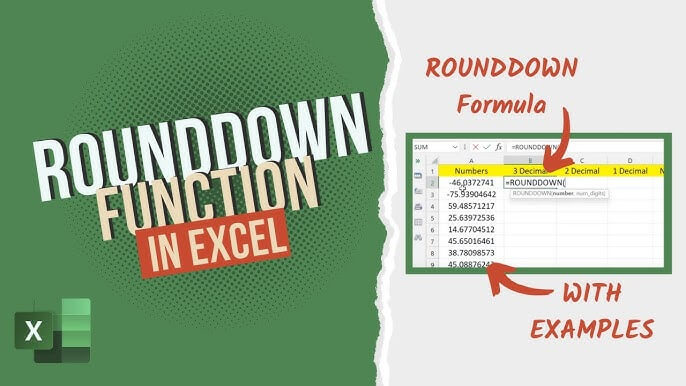
The Excel RoundDown function is a crucial tool for accurate calculations, allowing users to round numbers down to the nearest integer or decimal place.
Rounding in Excel is essential for simplifying values, eliminating least significant digits, and keeping numbers close to their original value.
Understanding how to use the RoundDown function in Excel can significantly improve data analysis and calculation accuracy.
The RoundDown function is particularly useful when working with financial data, where precision is critical.
Excel offers various rounding functions, including the RoundDown function, to handle different rounding needs.
This article focuses on using the Excel ROUNDDOWN function in Microsoft Excel. The functions return the specified number rounded down to a given number of places.
The ROUNDDOWN function operates on any real number, making it versatile for a wide range of numeric values.
To use the function, you need to provide the following arguments: number and num_digits. What makes it useful is its unique properties.
This function is different from standard rounding, as it rounds all numbers down. Unlike standard rounding, ROUNDDOWN always rounds towards zero, regardless of the value of the next digit.
Introduction the Excel RUNDOWN Function
Rounding in Excel is a fundamental concept that helps users simplify numbers by removing the least significant digits, making data easier to interpret and present. This is where the Excel RUNDOWN Function comes in.
Excel functions such as the ROUND, ROUNDDOWN, ROUNDUP, FLOOR, and CEILING functions allow you to round numbers to the nearest integer, decimal point, or even a specific multiple.
For example, the ROUND function lets you round a number to a specified number of decimal places, while the ROUNDDOWN function always rounds a number downward, toward zero, regardless of the value of the digits being removed.
These Excel functions are essential for ensuring your data maintains its integrity while being presented in a more manageable format.
Whether you need to round to a certain number of decimal places or to the nearest multiple, understanding how to use these functions will help you work more efficiently with your data and achieve accurate results.
Understanding Excel RUNDOWN Function
The RoundDown function in Excel is used to round a number downward to a specified number of decimal places. In the syntax of the ROUNDDOWN function, the number argument is the value that you want to round down.
For example, only numbers below 5 are rounded down in regular rounding, and values higher than 5 are rounded up. With ROUNDDOWN, all numbers are always rounded down. The rounddown rounds numbers downward toward zero, regardless of the value of the digits being removed. This may be useful in several scenarios.
The RoundDown function is different from the Round function, which rounds a number to the nearest integer or decimal place based on the digit immediately to the right of the rounding digit.
Excel functions, such as the RoundDown function, and formulas for rounding operations, can be used to simplify complex calculations and improve data analysis.
The RoundDown function is an essential tool for financial analysts, who need to round numbers accurately to make informed decisions.
What is the ROUNDDOWN formula in Excel?
This formula rounds a number down, toward zero.
The syntax for the RoundDown function is
=ROUNDDOWN(number, num_digits) Where:
- number – The value you want to round down.
- num_digits – The number of digits (decimal places) to which your specified number should be rounded down.
How to use the Excel RUNDOWN Function formula
The RoundDown function can be used to round numbers to the nearest integer, nearest whole number, decimal place, or multiple.
The steps below were written using the latest Microsoft Excel 2019 for Windows 10. Don’t worry — the guide works even if you’re currently using a different version or platform.
We’ve set up an example table that uses the ROUNDDOWN formula to link one number, and then return a specific number of decimal places.
To round a number to the nearest integer, or nearest whole number, use the RoundDown function with 0 as the second argument, such as =ROUNDDOWN(A1, 0).
To round a number to a specific decimal place, use the RoundDown function with a positive number as the second argument, such as =ROUNDDOWN(A1, 2). For example, =ROUNDDOWN(53.47364, 1) will round the number to one decimal place, resulting in 53.4. This is also how you round to the nearest tenth using ROUNDDOWN, as it keeps one digit after the decimal point and sets the rest to zero. To round to two decimal places, use =ROUNDDOWN(53.47364, 2), which gives 53.47.
The RoundDown function can also be used to round numbers to the nearest multiple, such as the nearest 10 or 100.
You can use the ROUNDDOWN formula to round the number to a specified number of decimal places, providing control over the precision of your results.
Rounding numbers is a critical step in data analysis, and the RoundDown function provides a flexible and accurate way to do so.
- Launch Microsoft Excel and open the relevant document you want to work with or create a new one.
- Select an output cell.
- Type in the following formula: =ROUNDDOWN(number, digits). For example, if you wanted to round down the number 53.47364 to 5 digits, you’d type in =ROUNDDOWN(53.47364,5).
- Alternatively, you can reference cells in the formula. For example, if you want to round down the value in C4 with the value in E6, you can use the =ROUNDDOWN(C4, E6) formula.
- You may also mix and match cells and numbers. For example, you can round down any cell value to a number, and vice versa.
Advanced Rounding Techniques
The MROUND function in Excel can be used to round a number to the nearest multiple, such as the nearest 5 or 10. The excel mround function is especially useful for rounding numbers, prices, or time values to specific multiples, making it ideal for precise financial calculations and decimal adjustments.
The FLOOR function can be used to round a number down to the nearest multiple, such as the nearest 10 or 100.
The CEILING function can be used to round a number up to the nearest multiple, such as the nearest 10 or 100.
Advanced rounding techniques, such as using the MROUND, FLOOR, and CEILING functions, can be used to handle complex rounding needs. The excel round function can also be used for standard rounding, allowing you to round numbers to a specified number of digits using different parameters.
These functions provide more flexibility and accuracy than the standard RoundDown function.
Rounding Time
Time values in Excel can be rounded using the RoundDown function or other rounding functions, such as the MROUND or FLOOR functions.
To round time to the nearest hour, use the RoundDown function with the TIME function, such as =ROUNDDOWN(A1, TIME(1,0,0)).
To round time to the nearest minute, use the RoundDown function with the TIME function, such as =ROUNDDOWN(A1, TIME(0,1,0)).
Rounding time values is essential in scheduling and time management applications.
The RoundDown function provides a flexible and accurate way to round time values.
Using Excel RUNDOWN Function in Excel
To use the RoundDown function in Excel, simply type =ROUNDDOWN(A1, num_digits) in a cell, where A1 is the cell containing the number to be rounded and num_digits is the number of decimal places.
Press Enter to apply the function and display the result.
The RoundDown function can be used in combination with other Excel functions, such as the SUM or AVERAGE functions, to perform complex calculations.
Using functions in Excel can simplify complex calculations and improve data analysis.
The RoundDown function is an essential tool for anyone working with data in Excel.
Common Errors to Avoid
One common error to avoid when using the RoundDown function is specifying an incorrect number of decimal places.
Another common error is using the wrong function, such as the Round function instead of the RoundDown function.
To avoid errors, always check the syntax and arguments of the RoundDown function before applying it.
Common errors can be avoided by carefully reading the documentation and examples provided for the RoundDown function.
It’s also essential to test the function with sample data to ensure it’s working as expected.
Best Practices for Rounding
Always specify the correct number of decimal places when using the RoundDown function.
Use the RoundDown function instead of the Round function when you want to round a number down to the nearest integer or decimal place.
Avoid using the RoundDown function with negative numbers, as this can produce unexpected results.
Best practices for rounding include using the correct function, specifying the correct number of decimal places, and avoiding common errors.
Following best practices can ensure accurate and reliable results when using the RoundDown function.
Troubleshooting Common Issues with Excel RUNDOWN Function
If the RoundDown function is not working as expected, check the syntax and arguments to ensure they are correct.
If the function is still not working, try using a different function, such as the Round function or the MROUND function.
Troubleshooting common issues with the RoundDown function can be done by checking the documentation and examples provided.
Common issues can be resolved by carefully reading the error messages and adjusting the syntax and arguments accordingly.
It’s also essential to check for any formatting issues that may be affecting the function’s behavior.
Final Tips
When working with rounding functions in Excel, keep in mind that the ROUNDDOWN function always rounds a number down, toward zero, making it ideal when you want to consistently reduce values.
In contrast, the ROUNDUP function always rounds a number up, away from zero, and the ROUND function follows standard rounding rules, rounding up or down based on the value of the digit after the rounding digit.
If you need to round a negative number, the ROUNDDOWN function will move the value closer to zero, making it less negative. For rounding to a specific multiple, such as the nearest hour or tenth, the MROUND function is your go-to tool.
Additionally, the INT function rounds a number down to the nearest integer, and the FLOOR function rounds a number down to a specified multiple. Understanding when to use each function will help you round a number accurately and efficiently, no matter the scenario.
Key Takeaways
For more information on the RoundDown function, regularly visit the FastSoftwares Blog and consult the provided Excel documentation and examples.
Additional resources, such as online tutorials and forums, can provide further guidance on using the RoundDown function.
The Excel community provides a wealth of resources and support for learning and using the RoundDown function.
You can also find many online resources, such as videos and blogs, that provide tips and tricks for using the RoundDown function.
These resources can help you improve your skills and become more proficient in using the RoundDown function.
The RoundDown function in Excel is a powerful tool for rounding numbers down to the nearest integer or decimal place.
Understanding how to use the RoundDown function can significantly improve data analysis and calculation accuracy.
By following best practices and avoiding common errors, you can ensure accurate and reliable results when using the RoundDown function. The RoundDown function is an essential tool for anyone working with data in Excel, and its proper use can simplify complex calculations and improve data analysis.
With practice and experience, you can become proficient in using the RoundDown function to achieve accurate and reliable results.
Last Thoughts
In conclusion, rounding in Excel is a powerful feature that allows you to simplify and manage your data with ease. By mastering the various rounding functions—including the ROUND, ROUNDDOWN, ROUNDUP, FLOOR, and CEILING functions—you can round numbers to the nearest integer, decimal point, or specific multiple, depending on your needs.
Whether you are working with financial figures, scientific measurements, or any other type of data, knowing when and how to use the ROUNDDOWN function and its counterparts will help you present your data clearly and accurately.
Remember to use the ROUNDDOWN function when you need to round numbers downward, the ROUNDUP function for rounding up, and the ROUND function for standard rounding.
With continued practice, you’ll become proficient in using these Excel functions to make your data more manageable and presentable.
Read this guide as well about Excel Rundown function.