How to Install Microsoft Office 2011 Home and Student on Mac: A Complete Guide
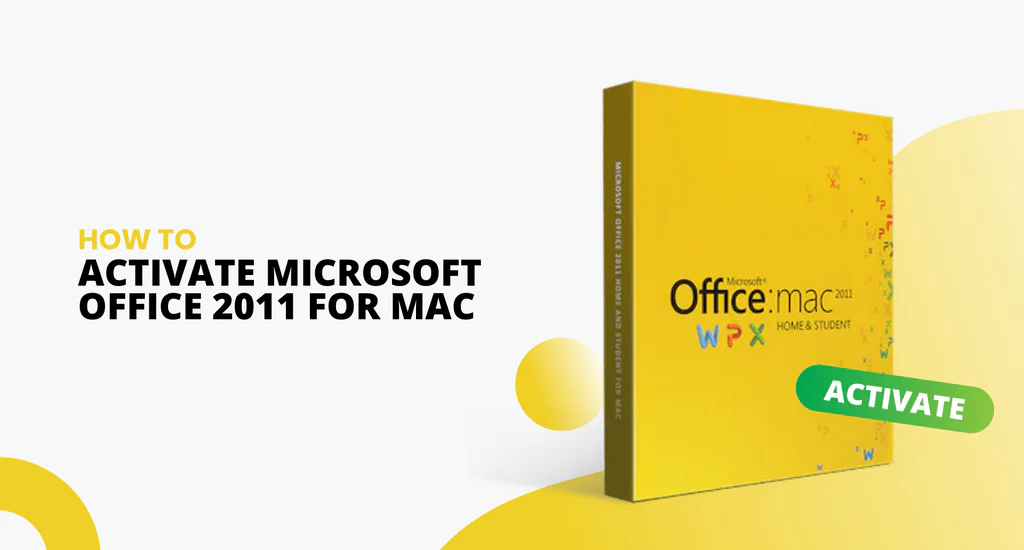
Want to Install Microsoft Office 2011 Home and Student on Mac? You are in the right place.
Microsoft Office 2011 Home and Student for Mac remains a trusted choice for users who want reliable office software optimized for their Macintosh systems.
This complete guide helps Mac users install Microsoft Office 2011 Home and Student with ease and confidence.
Whether you are setting it up on a new Mac or reinstalling it, this guide provides clear, proven steps to achieve a smooth installation and activation process.
You will learn what system requirements your Mac must meet, where to find authentic installation files, how to complete the installation step by step, and how to activate your product properly.
This guide emphasizes the importance of installing and activating Office 2011 correctly to enjoy all its features without interruption.
Preparing to Install Microsoft Office 2011 Home and Student on Mac
Before you install Microsoft Office 2011 Home and Student on your Mac, you must prepare your system for a flawless setup.
Knowing how to install Office 2011 Home and Student on Mac starts with confirming your Mac’s capabilities and securing the necessary installation files.
Check Mac System Requirements
Microsoft Office 2011 Home and Student requires a Mac running at least macOS 10.5.8 (Leopard) or later.
Your Mac should have an Intel processor, a minimum of 1 GB RAM, and 2 GB of available disk space.
These requirements ensure the software runs efficiently without compatibility issues.
Older Mac hardware or unsupported macOS versions might cause installation failures or degraded performance.
By verifying these specifications, you avoid wasted effort and frustration during installation.
Obtaining Microsoft Office 2011 Installation Files
To Install Microsoft Office 2011 Home and Student on Mac securely, always obtain your installation files from trusted sources. For example, Fastsoftwares is a reliable seller that offers genuine Office 2011 installation media and download options.
Avoid unauthorized downloads or pirated software as they risk malware and may not activate properly.
Once you purchase or obtain your copy legally, you will receive either a physical disk or a DMG installer file.
Having authentic installation files is crucial to ensure a safe and successful setup.
Step-by-Step: Install Microsoft Office 2011 Home and Student on Mac
This section explains the step-by-step office 2011 installation on Mac, guiding you through the full setup process.
You will learn how to mount the disk image, run the installer, and finalize the installation for first use.
The instructions below help you install Office Home & Student 2011 Mac edition accurately.
Mounting the Installation Disk Image
If your installation file is a DMG, double-click it to mount the disk image. Your Mac will open a virtual drive containing the Office 2011 installer.
If you have a physical disk, insert it into your Mac’s optical drive or an external drive.
Mounting the disk image makes the installer accessible to begin the setup.
This step is essential because the installation software resides within the mounted volume.
Running the Installer and Setup
Inside the mounted disk image, double-click the “Microsoft Office 2011 Installer” application to launch it.
The installer welcomes you with a prompt to accept the license agreement—read and agree to proceed.
You can select the typical installation type, which includes standard Office apps like Word, Excel, PowerPoint, and Messenger.
Choose the destination drive for the installation, usually your Mac’s internal drive.
Follow the on-screen prompts carefully and enter your administrator password when requested.
This step installs all necessary program files to your system.
Completing Installation and Initial Launch
After the installer finishes copying files, it confirms a successful installation.
Eject the installation disk image safely by dragging it to the Trash or using Finder’s eject option.
Locate Microsoft Office apps in your Applications folder or Launchpad.
Open one app, such as Word, to begin the initial launch.
You may see a welcome screen prompting further setup or activation.
Completing this step confirms Office 2011 is fully installed and ready.
Activating Microsoft Office 2011 Home and Student on Mac
After you install Microsoft Office 2011 Home and Student on Mac, the next thing to do is activate your Office.
Activating Office 2011 Mac activation unlocks its full features and ensures your software runs legally.
This microsoft office 2011 home student installation guide section covers how to enter your key, activate online, and solve common issues.
Entering Your Product Key
Locate the 25-character product key included with your Office 2011 purchase.
When prompted on first launch or during activation, enter this key exactly as shown.
Proper input of the product key links your software license to your Mac.
Keep this key safe for future reference.
Online Activation Process
After entering your product key, activate Office 2011 online by connecting your Mac to the internet.
The activation wizard verifies the key with Microsoft servers.
Follow on-screen instructions until you receive confirmation of successful activation.
This online method is the fastest and most reliable way to activate your Office suite. See detailed guidance on activating Microsoft Office 2011 Mac online.
Troubleshooting Activation Errors
If activation fails, verify your internet connection is stable.
Check that your product key was entered correctly without typos.
Some common errors include already used keys or server issues.
If needed, use Microsoft’s phone activation option or contact Fastsoftwares customer support.
Resolving activation problems ensures uninterrupted access to Office features.
Comparing Microsoft Office 2011 Home and Student with Alternatives
Want to install Microsoft Office 2011 Home and Student on Mac? Wait.
When deciding to install microsoft office 2011 home and student on mac, consider how it stacks up against newer options.
Knowing the pros and cons helps you pick the best office solution for your needs.
Microsoft Office 2011 vs Newer Office Versions
Office 2011 offers a familiar interface and solid performance for older Macs.
However, newer Office suites provide updated features, improved cloud integration, and better macOS compatibility.
The latest versions support collaboration tools, regular security updates, and subscriptions like Microsoft 365.
Though more expensive, they suit users needing modern productivity features.
Office 2011 remains cost-effective and functional for users with basic needs and compatible Macs.
Office 2011 vs Free Office Alternatives for Mac
Free office alternatives such as LibreOffice and Google Docs provide robust basic office functions at no cost.
LibreOffice offers offline capabilities similar to Office, while Google Docs excels in cloud collaboration.
However, some users prefer Office 2011’s precise document formatting and Microsoft file format compatibility.
Free suites may have fewer advanced features or slight compatibility quirks.
Choosing Office 2011 ensures a familiar environment, especially for students and home users focused on Microsoft formats.
Conclusion
Successfully installing and activating Microsoft Office 2011 Home and Student on Mac requires preparation, following a clear step-by-step setup, and ensuring proper activation.
This guide explained how to check your Mac’s requirements, obtain authentic installation files from trusted sellers like Fastsoftwares, and complete every part of the installation.
By following the activation instructions carefully, you unlock all features and avoid common errors.
Choosing Microsoft Office 2011 remains a smart solution for many Mac users who want reliable, cost-effective productivity software.
For a hassle-free to install Microsoft Office 2011 Home and Student on Mac, visit Fastsoftwares today.