
How to Fix "Windows Can't Communicate with the Device or Resource" Error
When a particular network resource, like a DNS server or a distant website, cannot be accessed by your Windows computer, the error message “Windows can’t communicate with the device or resource Windows 11, 10, and 7” usually appears. Numerous factors, such as DNS, network adaptor, or network setup issues, maybe the source of this difficulty. In this article, we’ll walk you through several troubleshooting techniques to help you effectively fix this problem.
1. Verify the network connection. Make sure your gadget is linked to the internet first and foremost. Take these actions:
- Verify the Physical Connection: If you’re using a computer, ensure the Ethernet wire is securely connected to the router and computer.
- Check the WiFi connection. To establish a connection again, Wi-Fi users need to disconnect and rejoin the network.
Examine Additional Devices: Verify if additional devices connected to the same network can access the web. If they can, your device will probably be the only one having the issue.
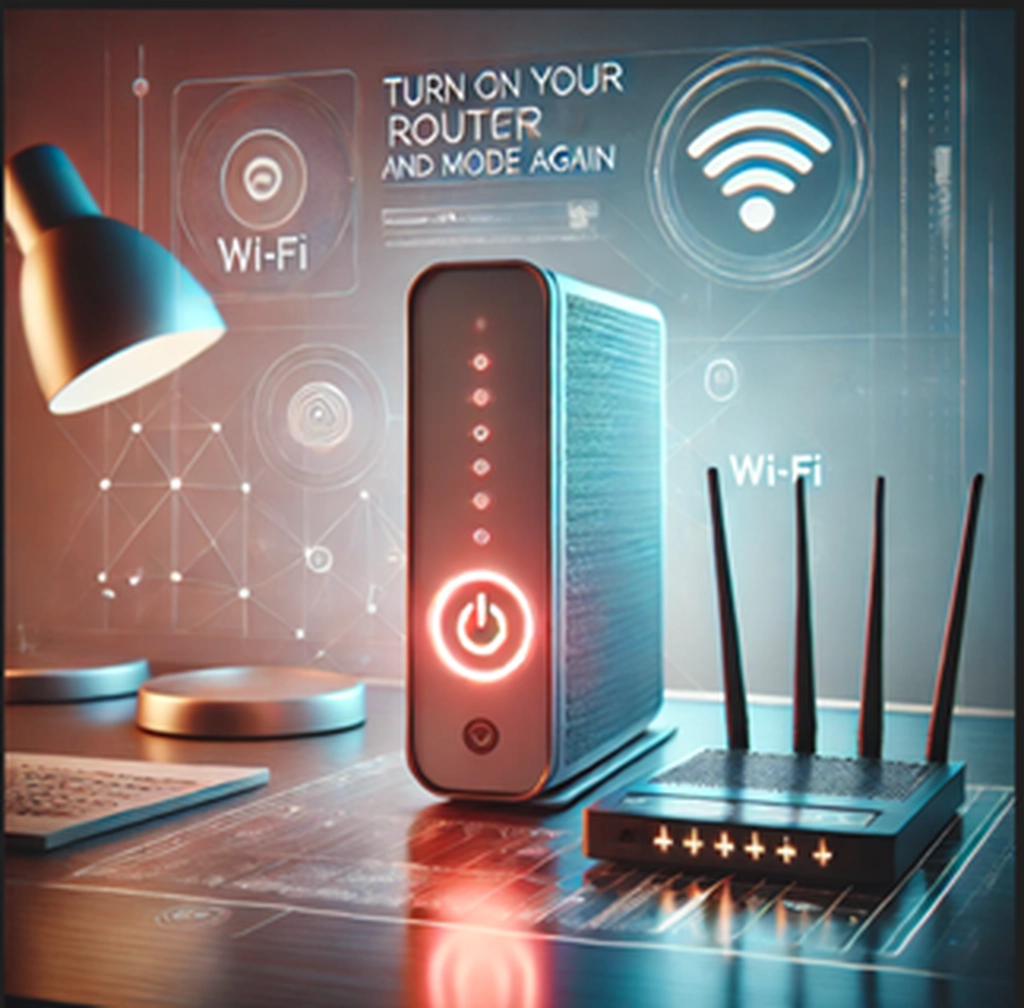
2. Turn on your router and modem again. Restarting the computer can frequently fix connectivity problems:
- Unplug the router and modem.
- Give them a full thirty seconds to shut down completely.
- Re-plug them in and give them time to restart.
- After reconnecting your device, see if the problem has been fixed.
3. Reset Winsock and Clear DNS Cache Resetting the network settings and emptying the DNS cache can occasionally be helpful:
- Launch Windows 10 set the DNS server command line using the Command Prompt as an administrator.
- As you type, enter each of the following commands one after the other:
- ipconfig /flushdns
- ipconfig /release
- ipconfig /renew
- netsh winsock reset
- To determine whether the issue persists, try restarting your computer.

4. Adjust the DNS Server Configuration By manually adjusting your DNS settings, you can avoid issues with your current DNS server:
- Go to Control Panel > Network and Sharing Center > Adjust Adapter Settings.
- Right-click on your network connection to view its Properties.
- Click Properties after selecting Internet Protocol Version 4 (TCP/IPv4).
- Select Enter the DNS server addresses shown below:
- 8.8.8.8 is the preferred DNS server.
- 8.8.4.4 is the alternate DNS server.
- After selecting OK, restart your computer.
5. Turn Off Proxy Configuration Network connectivity may occasionally be hampered by proxy configurations:
- Navigate to the Connections tab under Control Panel > Internet Options.
- Select the LAN settings option.
- Ensure you enable automatic settings detection and use a proxy server for your local area network.
Click OK, then attempt to rejoin.
6. Update the driver for your network adapter. Problems with networks might arise from outdated or corrupt drivers:
- Choose Device Manager by performing a right-click on the Start menu.
- When right-clicking on your network adapter after expanding the network adapters, choose Update driver.
- Select Automatically search for driver software updates.

7. Check Firewall and Security Software. Security software can sometimes block network connections:
- Temporarily disable your firewall or security software and see if the problem persists.
- If it resolves the issue, consider configuring the software to allow the connection.

8. Restart Network Services. Restarting network services can refresh network settings:
- Open Command Prompt as an administrator.
- Type the following commands, pressing Enter after each:
- net stop dhcp
- net start dhcp
- net stop DNS cache
- net start dnscache
- Restart your computer.

9. Reset Network Settings. If the issue persists, resetting your network settings can help:
- Go to Settings > Network & Internet > Status.
- Click on Network reset.
- Click Reset now and restart your computer.
To sum up, if you have followed all of these steps and the problem persists, there may be a more intricate network issue. For more help in such circumstances, contact your network administrator or Internet service provider (ISP). Sustaining a steady and safe network environment is essential for continuous internet connectivity and efficiency.
This comprehensive guide provides users with clear, step-by-step instructions to troubleshoot and resolve the common “Windows can’t communicate with the device or resource” error, ensuring a seamless experience with minimal technical jargon.
If you require assistance resolving, Windows can communicate with the name resolution server but can’t find the hostname. Click here for more information.
Struggling with Network Errors?
Get rid of the “Windows Can’t Communicate with the Device or Resource” error quickly with Fastsoftwares! Our comprehensive guide offers simple troubleshooting steps to fix DNS issues, reset network settings, and ensure your internet connection is stable.
Fix your connection now with solutions that are easy to follow, whether it’s updating network drivers, clearing DNS cache, or adjusting proxy settings.
Need more software solutions? Visit Fastsoftwares for all your software needs and expert support to keep your systems running smoothly!
Written by:
Similar Articles

Sign up for our Newsletter
Enter your email address to subscribe to this blog and receive notifications of new posts by email.

