







How to Fix Windows 10 Scrolling Issues
Microsoft Partner-certified configuration: Our primary method of navigating computers and websites is by scrolling. Scrolling problems cause significant issues for you and make your online life miserable.
Numerous Windows 10 users have complained about the system’s automated scrolling, uncontrollable scrolling, and other problems.
You may find numerous ways to eliminate this bothersome bug in our blog.
We advise you to attempt the first three of the following fixes. Applying them quickly and easily could resolve your Windows 10 scrolling problem.
Quick Fixes for Windows 10 Scrolling on its Own
Examine any mouse-related issues.
Initially, we must ascertain whether the problem stems from a mouse malfunction or a system defect. Before debugging Windows 10 itself, you can attempt the following:
- After a few minutes, unplug and re-plug your mouse.
- Connect your mouse to a separate USB port.
- Verify that the mouse cable is in good condition.
- If your mouse is wireless, ensure the batteries are in it or replace it.
- Verify that nothing is obstructing your scroll wheel with dirt.
- Unplug any controllers that are connected at the same time as your mouse.
Using these recommendations, you may verify that the USB ports on your mouse and computer are functional.
Does Windows 10 continue to scroll on its own? Opt for one of our alternative solutions.
Log in and out of the Windows application.
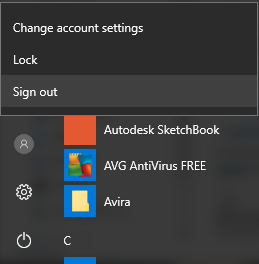
You should fix Windows 10’s automatic scrolling by signing out of your local Windows user account and then back in.
- Get the Start menu open.

- When you see your user avatar, click Sign out.

- Select to sign back into your account on the login screen.
Change the background settings.
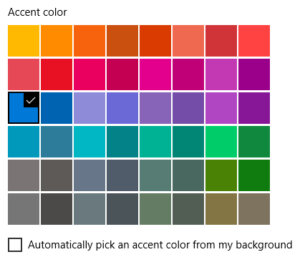
Does Windows 10 slide down, but when you scroll back up, does it return to the top of the window or file? There might be a disagreement between the accent and background color options.
This is limited to users whose background is a Slideshow.
- On your desktop, right-click on a blank space and choose Personalize.
- From the menu on the left, select Colors.

- Take the checkmark off and automatically choose a background color to be utilized as an accent.

Your slideshow background changes constantly; thus, the automatic accent color has to choose a new color every time. Every time your background image changes, your window is updated.
Overall Troubleshooting
Launch the Windows Troubleshooter
Included with every copy of Windows 10 comes a useful utility called the Windows troubleshooter. It can identify various system faults, such as device and hardware malfunctions.
- Look for the Control Panel and start the program.

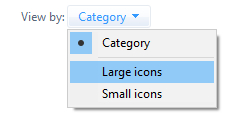
- Activate the Large Icons view mode.

- From the menu, select Troubleshooting.

- Select Hardware and Sound by clicking.

- In the Device section, select Hardware and Devices.
- Await the troubleshooter’s discovery and resolution of any problems.
How to add a new local user
Often, a fresh user on your computer can resolve many problems. Just create the user and check if the issue is resolved; you don’t need to migrate your files or preferences here.
The steps to add a new local user are as follows:
- Launch the Settings application. You can rapidly complete this task by pressing the Windows and I keys on your keyboard.
- Access Accounts.

- Select the “Family & Other Users” option located on the left.

- To add another person to this PC, click the icon.

- Select the link “I don’t have this person’s sign-in information.”

- If a user does not have a Microsoft account, choose the appropriate link to add.

- After entering a username, select Next. You do not need to enter a password, but you are free to do so.
When you return to your account after logging into the new users, you may see if the problem has been resolved.
Restore Windows
Return to a System Restore point where your scroll problems weren’t yet noticeable if all else failed. Watch this MDTechVideos video to find out everything there is to know about restoring your Windows 10 machine.
Our post helped solve your Windows 10 self-scrolling issue.
Go no further than FastSoftwares if you’re searching for a software provider you can rely on for its honesty and morality. Being a Microsoft Certified Partner and a BBB Accredited Business, we are devoted to providing our clients with a dependable and fulfilling experience regarding the required software products. We’ll be there for you before, during, and following every sale.