Windows 10 Stuck at “Getting Windows Ready”
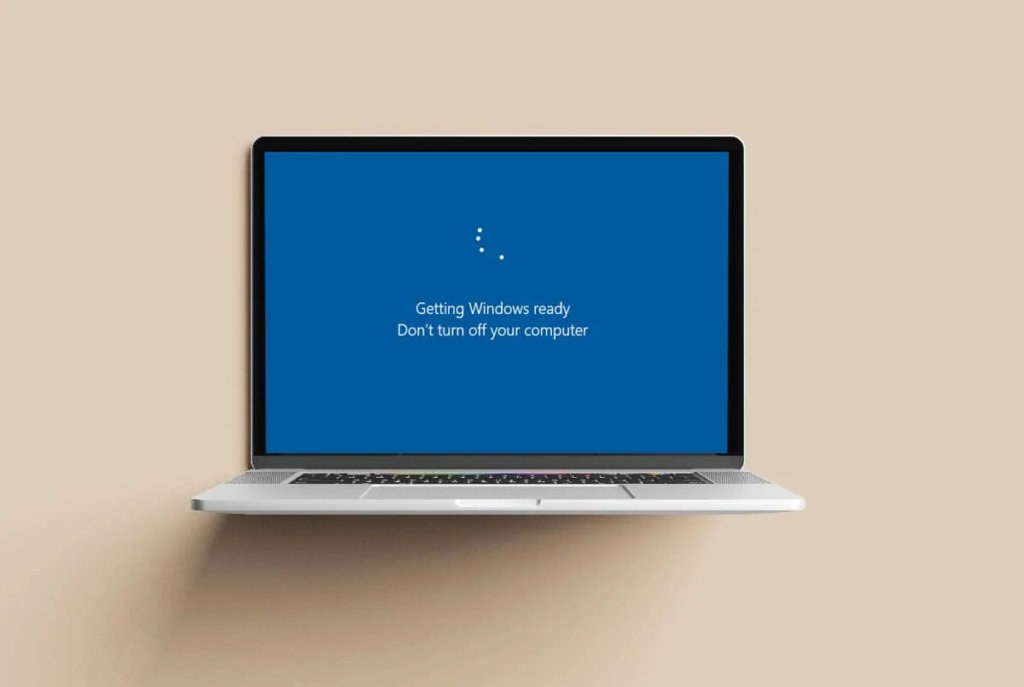
While Windows 10 is a great operating system, you may encounter the “Getting Windows Ready” screen issue, preventing you from using your computer.
Random failures can still occur on Windows 10 PCs. One common issue is when Windows stays stuck on the “Getting Windows ready” screen.
There are a few things you can try to fix when this error occurs. Let us discuss the potential immediate reasons for this mistake first, so you know what to watch out for!
What is causing the stuck “Getting Windows ready” screen?
Numerous factors, such as faulty install files, viruses, or mismatched software, could cause this.
The most frequent reason for this problem is faulty Windows installation files. For instance, corruption could happen if you restart your computer before Windows has finished installing.
If malware is present, the Windows upgrade may get stuck on “Getting Windows ready.”
Thus, the following are the most frequent reasons for the blocked “Getting Windows ready” screen error:
- faulty system files
- faulty boot device and broken computer hardware
- infection with malware
- Your computer hardware isn’t compatible with Windows 10
- Slow internet connection, network issues
There could be a multitude of circumstances interfering with the proper operation of our computers, including the previously listed ones.
However, some have been determined to be more likely than others, giving us a wide range of potential fixes.
How to resolve the “Windows getting ready” issue
You are not sure what to do next when Windows 10 gets stuck on the “Getting Windows ready” prompt. You have two options: solve the problem or patiently wait for Windows to finish whatever it is doing.
Let us look at the actions you can take to fix this annoying mistake.
Step 1: Hold off until Windows 10 loads.
The simplest answer is to bide your time. When you find yourself stuck on the screen that says, “Getting Windows ready, do not power off your computer,” some Microsoft support staff members advise taking this strategy.
Your computer may be performing background tasks such as downloading and installing files, initiating a Windows 10 update process, or modifying application settings, which may give the impression that it is stuck.
You can not use your computer while it is working to finish the installation, so it seems to be “stuck” for a while.
The easiest thing to do is to wait for the procedure to finish. Windows updates on current machines should take ten to twenty minutes.
On the other hand, the system installation process could take several hours to complete.
Sometimes, doing nothing is the best course of action. Take a few hours off from using your computer, then come back to see if the “Getting Windows ready” screen is still there.
Step 2: Give your machine a power reset.
All data in memory will be lost upon power down, but data on your hard drive will remain intact.
One easy way to fix problems with the “Getting Windows ready” screen sticking is to power cycle the machine.
As we have already covered, there are several possible causes of this problem during startup, including damaged data.
You could try powering down your device to see if it helps. Let us examine the procedures needed to free Windows from the stuck screen:
- To fully shut down your computer, press the Power button. Wait until the computer fan stops spinning and the screen goes completely black before shutting it down.
- Unplug every accessory you own, including earbuds, external hard drives, USB flash drives, and more. Take out your computer’s power adapter or wire as well.
- If your laptop has a detachable battery, take the battery out of the battery compartment.
- For approximately thirty seconds, press and hold the computer’s Power button in order to remove any residual charge from the capacitors.
- Reinstall the power line to your computer and, if you took it out earlier, put the battery back in your laptop. But do not connect any of the USB devices back in just yet.
- To turn on your computer, press and hold the Power button. If you encounter an issue where your Windows 10 PC is stuck on the “Getting Windows ready” screen, you can take a moment to verify if the problem has been resolved.
You can reconnect all of your peripherals and other USB devices if you can get into your machine.
Step 3: Make use of System Image Recovery or System Restore.
In case you come across the “Getting Windows ready” screen and you have a System Restore point or System Image backup created with Windows’ repair tools, you can utilize them to restore your PC to its previous state.
- Visit Microsoft’s website to download the Media Creation Tool. Use this tool to create a CD/DVD or USB installation drive for Windows.
- Put the USB drive or boot disk you made into your computer to start it. After setting the keyboard technique, language, and time, click Repair your machine.
- To resolve the issue of being stuck in the “Getting Windows ready” loop, you can use the System Restore wizard. Simply follow the required steps to restore your system to a previous restore point. This can either be an automatic restore point or a manually created one.
You might be able to get beyond the troublesome screen after restoring your system. Do keep in mind that some of your files and programs may be lost.
Step 4: Launch the System File Checker application
Your operating system may have severe issues, such as the boot loop if your system’s files are corrupted. One of Windows 10’s built-in tools for troubleshooting is the System File Checker (SFC).
Corrupt files can be automatically detected and repaired by it.
Normally, the Command Prompt would allow you to use the System File Checker. You must utilize your computer through a unique path, though, as you are unable to boot it.
- Insert a boot disk or USB that you’ve created to start your computer. Once you’ve selected “Repair your computer,” choose “Troubleshoot” from the menu.
- I am running a few minutes late; my previous meeting is running over.An advanced choices list will be displayed on the screen. All you have to do is click on Command Prompt and wait for it to load. A black pop-up window ought to appear on the screen.
- To run the command, type it and press Enter on your keyboard: /sfc scannow 4. Hold off till the system file verification procedure is finished. When the progress status hits 100% completion, you will know it is finished. After that, try restarting the machine to see if the “Getting Windows ready” loop persists.
Step 5: Start Windows 10 by Repairing It
If your computer has problems booting up, you can use Windows Startup Repair as a debugging tool.
It is an excellent place to start if you have been stuck at “Getting Windows ready” for hours.
- If you need to access Windows Recovery Environment (WinRE), you can do so by booting your device with a USB drive or a Windows installation disc.
- In WinRE, navigate to “Advanced settings” and choose “Startup Repair.” Any problems stopping Windows from loading will be fixed by doing this.
- After the repair tool has finished, check to see if your operating system can start.
In case you face an error message that states that “Startup Repair” or “Automatic Repair” is unable to fix issues with your PC while attempting the Startup Repair process, you should consider using an alternative method to resolve the issue of the “Getting Windows ready” screen in Windows 10.
Step 6: Verify your internet access
If your Windows 10 upgrade is still in progress and the system is installing new files, the steps below may come in handy.
It is conceivable that Windows cannot download or verify the necessary files for booting because of a problem with your internet connection.
Restarting your router is one of the numerous methods to fix internet problems.
Since all you need for this step are the three simple steps that are listed below, there is no reason not to give it a try:
- Find the router’s power button and press it to turn it off.
- Hold off for a short while. It is advisable to give your router and network five minutes to shut down fully.
- Restart your router.
Make careful to unhook the Ethernet cable and look for any damage if you utilize a wired connection, such as Ethernet.
Reconnect the cable to see whether it resolves the boot loop issue and looks in good condition.
Step 7: Carry Out a Factory Reset
If all else fails, a complete factory reset should solve the issue. Until you save your files, it completely cleans your computer and installs Windows 10 as if it were the first time!
This is one weapon in the toolbox for dealing with backed-up drives and other annoyances that can render computing intolerable or unusable.
The ideal choice for people who wish to preserve their documents and other personal data is “keep my files.”
However, before installing Windows, “Remove everything” will ensure that all your installed files and programs are removed.
This covers any settings or saved games you have changed after installing the operating system!
We strongly advise backing up your important files somewhere before performing a factory reset. You have two backup options: the cloud or a local hard disk or USB.
Storing your files in cloud-based services such as Google Drive, Dropbox, or OneDrive provides the safest backup option.
Final Thoughts!
In this blog article, we have included troubleshooting steps in case your Windows 10 computer is stuck on the “Getting Windows ready” prompt. We hope these pointers were helpful! If not, contact our professionals at FastSoftwares for more help. For further assistance.
Additionally, you might want to return to our site soon because we want to provide more informative articles regarding Windows 10 and related IT subjects. Curious? Here are some of our most recent posts for you to peruse!