Fix Guide: For the ‘We Couldn’t Create the Outlook Data File’ Error
Introduction:
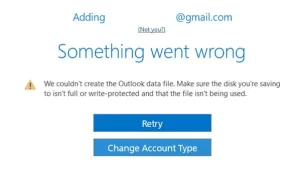
Encountering the “We Couldn’t Create the Outlook Data File” error can disrupt your productivity and cause frustration. In this guide, we’ll delve into the root causes of this issue and provide you with step-by-step solutions to resolve it effectively.
Understanding the Error
Gain a clear understanding of what triggers this error message in Outlook. Explore the various scenarios and circumstances that lead to its occurrence, from incorrect settings to file corruption.
What are the causes of the Error and how can we fix this?
This error is quite familiar to users of Outlook, and individuals have identified potential reasons for its occurrence.
– Gmail account: The error typically arises when attempting to integrate a Gmail account into Outlook. While the precise cause remains unclear, it may be related to Gmail’s security settings.
– Outlook bug: An often-cited factor contributing to this issue is a flaw within Outlook itself. This glitch impedes the addition of an email account through the “Add account” option.
– Simplified Account Creation Wizard: Introduced as a recent feature in Outlook, the Simplified Account Creation Wizard may also be implicated. As with many new features, its implementation can occasionally lead to errors and glitches within the application.
Step-by-Step Fix Solutions
1. Verify Outlook Configuration Settings:
Ensure that your Outlook settings are correctly configured, including email account setup and data file paths. We’ll guide you through the process of checking and correcting any misconfigurations.
2. Repair Corrupted Outlook Data Files:
Utilize the Inbox Repair Tool (Scanpst.exe) to fix any corruption issues within your Outlook data files (.pst). Follow our detailed instructions to run the tool effectively and restore your data files to a healthy state.
3. Create a New Outlook Profile:
Sometimes, a corrupted Outlook profile can trigger the error message. Learn how to create a new Outlook profile from scratch to resolve profile-related issues and regain access to your data.
4. Check User Permissions:
Ensure that your user account has the necessary permissions to create Outlook data files in the designated location. We’ll walk you through the process of verifying and adjusting user permissions as needed.
More Comprehensive Troubleshooting
How to Verify Available Hard Disk Space:
- Launch the File Explorer from the taskbar.

- Navigate to “This PC” in the left side menu.

- Under “Devices and drives,” view the available space for each attached hard disk.



What to Do if the Hard Disk is Full:
To free up space on your hard disk, consider the following options:
– Utilize the Disk Cleanup tool.
– Clear your Windows cache.
– Download and run CCleaner.
– Uninstall unnecessary applications.
How to Remove Write Protection from a Hard Disk:
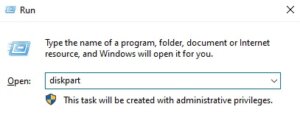
Follow these steps to remove write protection using the Diskpart utility:
- Press the Windows and R keys simultaneously.
- Enter “diskpart” and click OK.

- Execute the commands “list disk,” “select disk (number),” and “attributes disk clear read-only” one by one.
- Once complete, exit the Diskpart utility.
Check Gmail’s Security Options:
If encountering issues with connecting Outlook to Gmail, consider adjusting Gmail’s security settings or using Google’s App passwords.
Add Your Email to Outlook Using Alternate Methods:
If facing obstacles with the “Add account” feature in Outlook, try adding your account through alternative means to bypass the issue.
Use Manage Profiles:
Access Outlook’s manage profiles window to add an email account by following these steps:
- Open Outlook and navigate to the File menu.
- Click on Account Settings and select Manage Profiles.
- Proceed to add a new email account and follow the prompts.
Use Mail in Windows:
Alternatively, add your email account to Outlook via the Mail option in the classic Windows Control Panel by:
- Opening the Control Panel.
- Selecting Mail or Email and adding a new account.
Changing Registry Values:
Modify registry values cautiously to ensure system integrity while adjusting Outlook settings or configurations.
Disable Simplified Account Creation:
To resolve issues with the simplified account creation wizard, disable it by editing registry files following these steps:
- Launch the Registry Editor.
- Navigate to HKEY_CURRENT_USER\SOFTWARE\Microsoft\Office\16.0\Outlook\Setup.
- Create a new DWORD value named “DisableOffice365SimplifiedAccountCreation” and set its value to 1.
- Restart Outlook to apply the changes.
Following these steps should assist in resolving the “We couldn’t create the Outlook data file” error in Outlook, enabling smooth email management and utilization of Outlook’s features.
Best Practices for Outlook Maintenance
Learn best practices for maintaining a healthy Outlook environment and preventing future occurrences of the error. From regular backups to staying updated with software patches, we’ll share essential tips to keep your Outlook running smoothly.
Conclusion
By following the comprehensive solutions outlined in this guide, you’ll be able to overcome the “We Couldn’t Create the Outlook Data File” error with confidence. Don’t let technical setbacks hinder your productivity – empower yourself with the knowledge and tools needed to fix Outlook issues effectively.