
How to use Microsoft Outlook to add an email account
Microsoft-approved vendor Installing Microsoft Outlook on your computer has many advantages, including:
- The capacity to prioritize your most important emails by organizing your inbox.
- Share files from the cloud so that everyone is working with the most recent version of the document.
- You can continue to stay productive and connected no matter where you are.
- To plan your appointments and meetings, keep your calendar organized and managed.
You must take these procedures to add an email account to Microsoft Outlook.
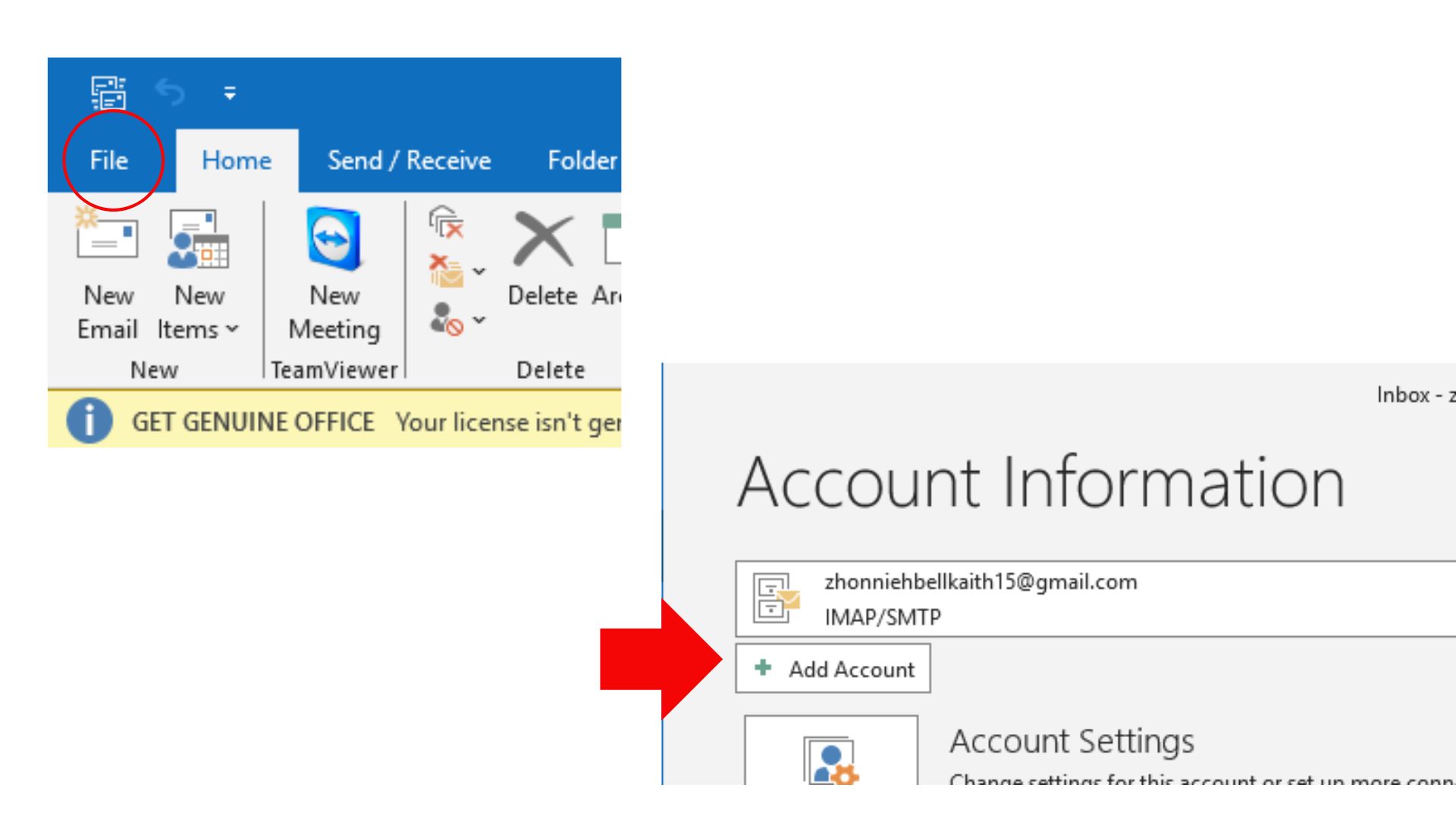
- Launch Microsoft Outlook, go to File and choose Add Account. Remember that you will see a Welcome Screen if you use Outlook for the first time.

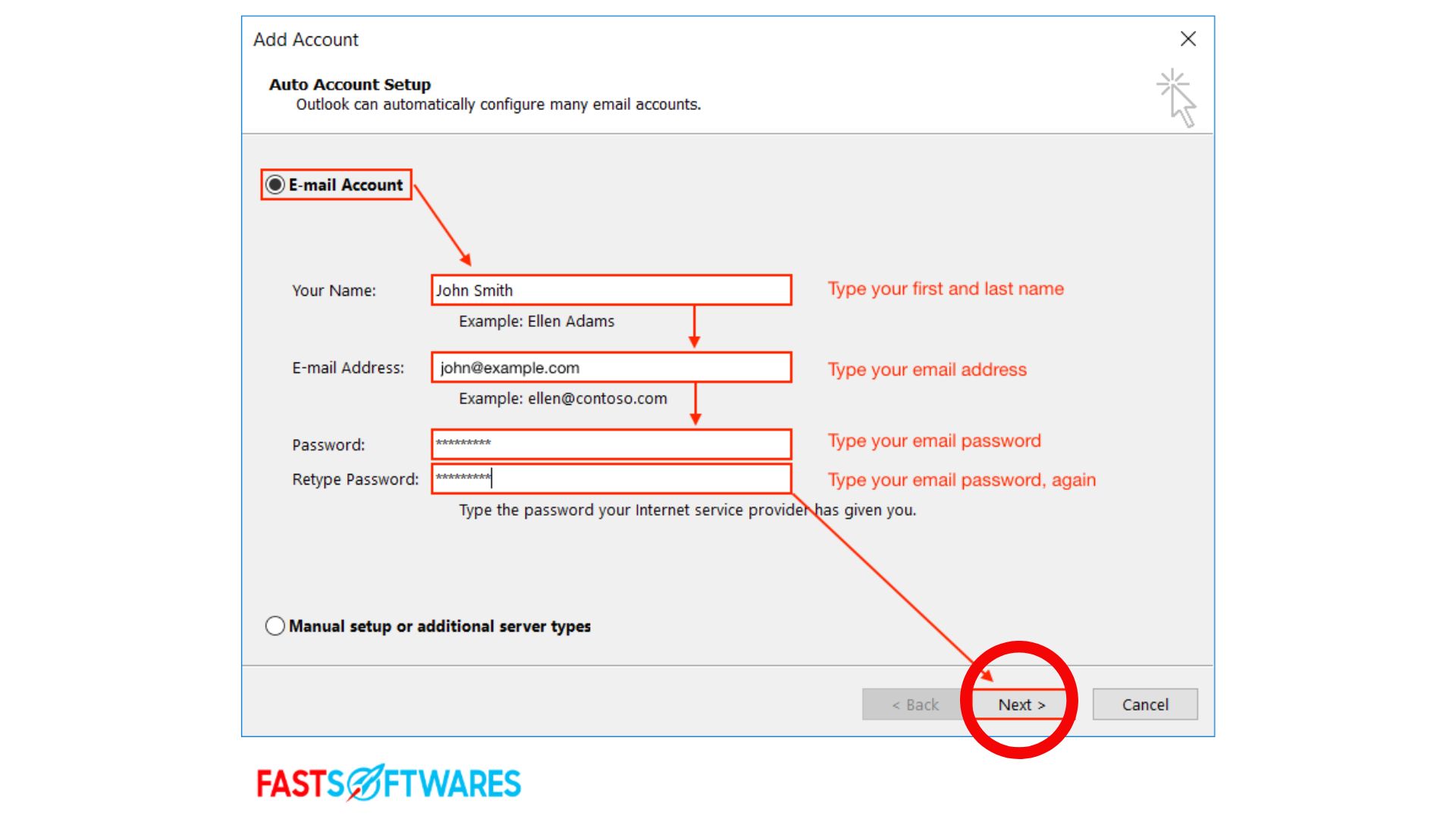
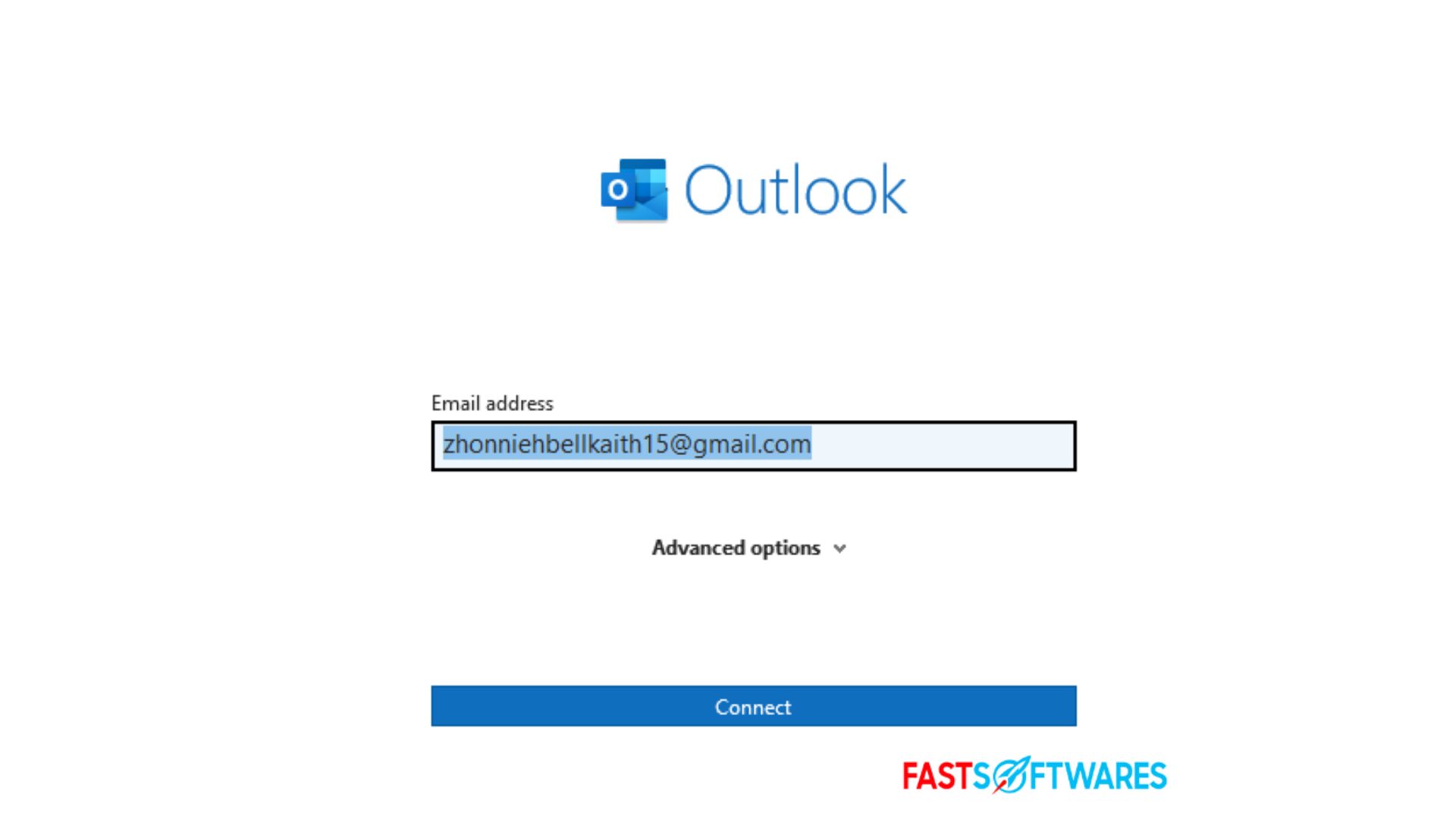
- After entering your email address, select Connect. Enter your email address, password, and name if your screen appears differently. After that, click Next.
- You can then pick OK after entering your password when prompted.
- Select Finish after that.
If you have problems configuring your email in Microsft Outlook on your PC, you can try this approach.
- Navigate to File first, then choose Account Settings.
- Next, navigate to the email tab, pick your AOL account from the list, and choose Change.
- Select More Settings from the POP and IMAP Account Settings window.
- Ensure the box labelled “My outgoing server” is checked by selecting the Outgoing Server tab. Go ahead and check the box if it isn’t.
- If your account is IMAP, select the Advanced tab and confirm the settings are accurate.
Go no further than FastSoftwares if you’re searching for a software provider you can rely on for its honesty and morality. Being a Microsoft Certified Partner and a BBB Accredited Business, we are committed to providing our clients with a dependable and fulfilling experience regarding the required software products. We’ll be there for you before, during, and following every sale.
Our 360 FastSoftwares Degree Promise is that.