

Mastering Windows WiFi Direct: A Comprehensive Guide
Dec 03, 2024, by Raymark
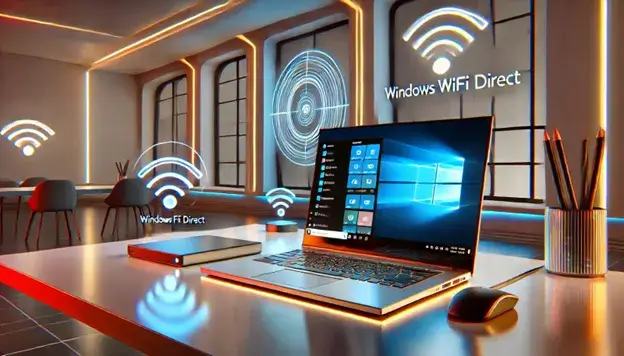
Two devices can connect and interact directly via WiFi Direct, a ground-breaking technology that eliminates the need for a wireless access point or conventional WiFi network Though with quicker data transmission speeds and the capacity to manage more significant data volumes, it operates like Bluetooth. For consumers who require peer-to-peer connections for file sharing, gaming, and other types of wireless communication, WiFi Direct on Windows is growingly popular.
What is WiFi Direct Windows , and How Does It Differ from Traditional WiFi?
WiFi Direct basically lets devices establish direct connections between them without an intermediary router, thereby enabling their creation of their network. By contrast, conventional WiFi manages connections using an access point. For instance, a router acts as the mediator between your laptop and others when you connect it to a home network, therefore controlling the data flow.
WiFi Direct gets beyond this need. Peer-to-peer networking technologies let devices interact directly with one another. This helps in situations when the current task calls for an existing network that is either unsuitable or absent.
WiFi Direct's Benefits for Windows
WiFi Direct Windows presents various benefits, especially for Windows users:
- No Router Required: Perfect for short deployments since it removes the need for a wireless router and lets devices connect anywhere and whenever.
- Fast Data Transfer: WiFi Direct offers faster data transfer speeds than Bluetooth, therefore improving dependability and speed.
- Device Compatibility: Many contemporary Windows devices—including laptops, cellphones, and even smart TVs—have WiFi Direct capability built in.
- Convenient for File Sharing: WiFi Direct provides fast and simple file sharing between devices without an internet connection.
Situations Where WiFi Windows Direct Shows Greatest Advantage

When standard WiFi might not be accessible or is inconvenient, WiFi Direct Windows is most useful:
- File Sharing: WiFi Direct provides a sensible alternative without the internet when two Windows machines need to quickly move big files.
- Gaming: Another great use case is multiplayer gaming free of lag since devices can link straight for a flawless performance.
- Printer Connectivity: Certain printers provide WiFi Direct, therefore enabling you to print from your laptop or phone without first connecting to a network.
Understanding WiFi Direct Technology
Over the past few years, wireless communication has had amazing developments. Though their demand for a central router limited them, traditional WiFi (Wireless Fidelity) networks transformed how devices accessed the internet. WiFi Direct sprang from a direct reaction to this restriction.
Device-to-device communication was mostly using Bluetooth and Near-Field Communication (NFC) prior to WiFi Direct. Although Bluetooth is good for low-scale data transfers, it usually proves too slow for more demanding chores such as movie streaming or file sharing. Conversely, NFC is best for low-bandwidth, short-range uses like mobile payments.
Combining the speed and dependability of conventional WiFi with the convenience of peer-to-peer communication, WiFi Direct closes the distance.
How WiFi Direct Windows Operates
WiFi Direct runs on a straightforward peer-to-peer networking architecture. Using a method known as “Service Discovery,” which finds nearby WiFi Direct-compatible devices, devices find one other. Once found, the devices link via safe network protocols, usually using WPA2 encryption to guarantee data security throughout transit.
WiFi Direct uses the built-in WiFi adaptor features on Windows. Functioning as a type of “mini router,” the gadget lets other devices connect. This makes use simple without requiring intricate setups.
The connection procedure consists of a few simple phases:
- Device Discovery: Devices announce their availability.
- Connection Request: Once found, devices ask permission to link.
- Secure Link Established: Data can be transferred thanks to a safe, encrypted link created.
Setting Up WiFi Direct Windows on Devices
WiFi Direct Windows requires that your device satisfy some hardware and software requirements:
- WiFi Adapter: Your gadget has to have a WiFi Direct supported WiFi adapter. Most contemporary computers feature this.
- Windows Version: WiFi Direct is supported natively in Windows 10 and subsequent editions; older versions may call for other software or updates.
- Up-to-date Drivers: Ensuring your WiFi drivers are up to date will help prevent compatibility issues.
To be sure WiFi Direct is among the accessible wireless capabilities, just check the network settings of your device.
Detailed Guide on Turning On WiFi Direct
Enabling WiFi Direct Windows calls for the following actions:
- Open Settings: Get to the Windows Settings menu.
- Go to Devices: Choose “Devices” first, then “Bluetooth & Other Devices.”
- Turn On WiFi Direct: Make sure your WiFi is turned on. Should WiFi Direct be supported by your device, it will show under accessible connections.
- Pair Devices: From the list, choose the device you wish to connect to; then, use the on-screen directions to create the connection.
Windows Command Prompt lets more sophisticated users handle WiFi Direct connections. To check for WiFi Direct support or set connections, simply open Command Prompt and run commands, including netsh wlan show drivers
Common WiFi Direct Troubleshooting:

Typical problems using WiFi Direct Windows consist in:
- Interference: WiFi Direct connection may be disrupted by surrounding wireless frequencies.
- Compatibility Issues: Not all devices support WiFi Direct or might need for software updates.
- Driver problems: Older network drivers might inhibit effective connections.
Often resolving these issues requires either updating drivers or making sure gadgets fall within range to reduce interference.
Try resetting network settings using the Command Prompt for more technical problems. Advanced users may also update their firmware using the Windows Device Manager or reinstall WiFi Direct drivers.
Exploring Practical Applications of WiFi Direct
WiFi Direct Media Streaming and File Sharing
File sharing is among the most often used WiFi Direct Windows applications. It is especially helpful in homes or offices where speedy transfer of huge files is necessary. Another common use case is media streaming; in this case, you may wirelessly broadcast music and videos between devices without using an internet connection.
WiFi Direct for Collaboration and Gaming
By letting users connect their devices straight for flawless, lag-free gameplay, WiFi Direct can also improve multiplayer gaming. In team projects, it can also be quite helpful since it allows team members to directly interact and file sharing during meetings.
Conclusion
From file sharing to gaming and video streaming, mastery of WiFi Direct on Windows creates fresh chances for wireless communication. Knowing how to set up and troubleshoot WiFi Direct will help you to maximize output and experience flawless device-to-device connections.
Have you tried WiFi Direct Windows on your device? Share your experience with us in the comments! Visit Fastsoftwares.com for expert tips and great deals on software to enhance your Windows experience!
Upgrade Your Experience with FastSoftwares! Discover expert tips, unbeatable deals, and cutting-edge software to supercharge your Windows setup. Visit FastSoftwares.com today and take your productivity to the next level!
Written by:
Similar Articles

Sign up for our Newsletter
Enter your email address to subscribe to this blog and receive notifications of new posts by email.

