
Maximizing Performance: A Guide to Updating Intel Drivers on Windows 11
In the ever-evolving landscape of technology, keeping your Windows 11 system up-to-date is paramount to ensure optimal performance and stability. One crucial aspect of this maintenance is updating your Intel drivers. This article will guide you through the comprehensive process of updating Intel drivers, utilizing the official methods outlined by Intel. Let’s delve into the importance of updating these drivers and explore the step-by-step process.
Why Update Intel Drivers on Windows 11?
Intel, a leading semiconductor manufacturer, regularly releases driver updates to address various issues, enhance hardware compatibility, and improve overall system performance. Neglecting to update Intel drivers may lead to suboptimal functionality, decreased performance, and potential security vulnerabilities. Therefore, keeping these drivers current is essential to harness the full potential of your Intel hardware.
- Enhanced Performance:
Regularly updating Intel drivers ensures that your hardware operates at its best, delivering improved performance and responsiveness. - Compatibility and Stability:
Updated drivers are designed to work seamlessly with the latest software updates, enhancing compatibility and system stability. - Security Enhancements:
Intel releases driver updates to address potential security vulnerabilities, safeguarding your system against potential threats. - Bug Fixes and Feature Improvements:
Updating Intel drivers addresses known issues, bugs, and often introduces new features, contributing to an overall smoother user experience.
Step-by-Step Guide to Update Intel Drivers on Windows 11:
-
Identifying Your Intel Hardware:
Learn how to identify your Intel hardware components to ensure accurate driver updates.
-
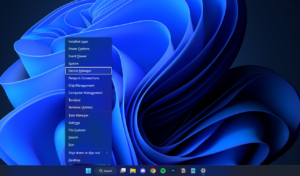
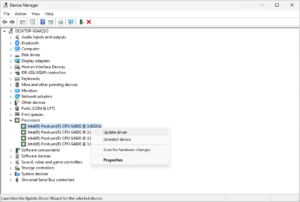
Accessing the Device Manager:
Navigate to the Device Manager in Windows 11 to locate and manage your Intel hardware.
To ensure accurate updates, identify the specific Intel hardware components installed on your system. Common components include graphics cards, network adapters, and chipsets. This information is crucial for downloading the correct and compatible drivers.
-
Locating Intel Drivers:
Understand where to find the latest Intel drivers on the official Intel website.
-
Downloading and Installing Driver Updates:
Follow a simple guide on downloading and installing the latest Intel drivers for your specific hardware.
On the designated Intel webpage, locate and download the latest drivers for your identified hardware components. Ensure that the drivers are compatible with Windows 11 to avoid any compatibility issues.
Once the drivers are downloaded, initiate the installation process by following the instructions provided by Intel. Typically, this involves running an installer that guides users through the installation steps. Be attentive to any prompts or options during the installation.
-
Restart Your Computer:
After successfully installing the updated drivers, it is advisable to restart your computer. This step ensures that the changes take effect and that the newly installed drivers are fully integrated into the system.
-
Check for Windows Updates:
In addition to updating Intel drivers, regularly check for Windows updates. Microsoft often includes driver improvements in these updates, contributing to overall system stability and performance.
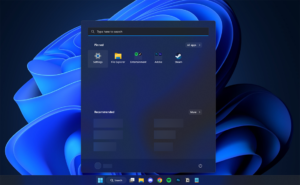
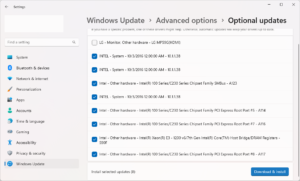
- Open the Start menu and select Settings. You can also press the Win + I shortcut on your keyboard to open the Settings app.

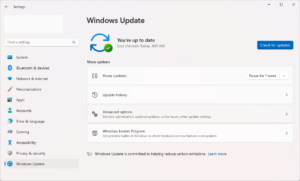
- Select Windows Update using the menu on the left, and then click on Advanced Options.

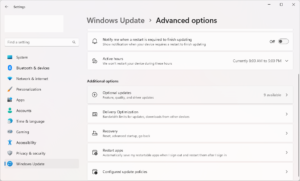
- Scroll down, and then click on Optional Updates.

- Next, expand the available Driver updates by clicking on the arrow icon to the right. Select all of the available updates for Intel drivers, and then click on the Download & install button.

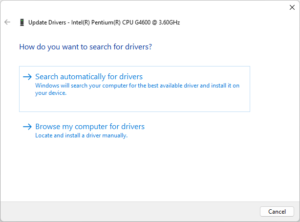
Explore the option of using automated driver update tools for a hassle-free experience.
-
Periodic Verification:
It’s prudent to periodically verify driver updates on the official Intel website. By staying informed about the latest releases, you can proactively ensure that your system benefits from the most recent enhancements and optimizations.
Common Issues and Troubleshooting:
-
Driver Compatibility Concerns:
Address potential issues related to driver compatibility and how to resolve them.
-
Backup and Rollback Procedures:
Learn how to backup existing drivers and rollback to a previous version if needed.
Conclusion:
In conclusion, the proactive maintenance of Intel drivers is pivotal for maximizing the capabilities of your hardware. Neglecting this aspect may lead to performance bottlenecks and potential security risks. Therefore, make updating Intel drivers a regular part of your system maintenance routine.
Intel drivers, Intel drivers, Intel drivers, Intel drivers, Intel drivers, Intel drivers, Intel drivers, Intel drivers, Intel drivers, Intel drivers.
Regularly updating Intel drivers on your Windows 11 system is a fundamental aspect of ensuring optimal performance, compatibility, and security. This guide equips you with the knowledge to navigate the process seamlessly, allowing you to harness the full potential of your Intel hardware. Keep your system up to date, and experience Windows 11 at its best with the latest Intel drivers.