10 Advanced Tips in Using Microsoft Word for Business
Microsoft Word has been a staple tool in the business world for decades, offering a range of features like drafting a business proposal, creating templates, or managing feedback on documents, Word’s versatility makes it indispensable for business operations. In this article, we will teach you advanced tips for maximizing Word’s potential in a business setting.
Microsoft Word Overview in Business Role
Microsoft Word plays an important role in modern business operations. Word aids in creating reports, proposals, manuals, and marketing documents. Its comprehensive formatting tools ensure consistency and professionalism, while integration with other MS Office applications (like Excel, Outlook, and Teams) streamlines workflows. Additionally, Word function features make it easy to co-edit Word documentation in real time, enhancing productivity and ensuring that teams are always aligned.
Optimizing Word’s Interface for Business Users
Efficiency starts with a well-optimized Word interface customization that helps users quickly settings up the tools they use most often. Here’s how to personalize the interface:
- Adjust the Quick Access Toolbar: Add frequently used commands, such as “Save,” “Undo,” or “Track Changes,” to the toolbar for easy access.
- Create Custom Tabs: Use the “Customize Ribbon” feature to create new tabs or rearrange existing ones, grouping tools according to specific tasks.
- Utilize the ‘Tell Me’ Feature: For faster navigation, use the “Tell Me” search box at the top of the window to quickly locate functions or commands.
By using a personalized Word layout to your needs, you can reduce time spent searching for functions, making your workflow smoother and faster.
You Might Also Want To Read Our Blog on How to Collaborate in Microsoft Word
Using Word Styles for Consistent Branding
Consistency in document formatting is essential for maintaining a professional brand image. Word’s “Styles” feature allows you to create and apply formatting standards across all documents:
Set Up Predefined Styles: Customize headings, subheadings, and paragraphs with specific fonts, sizes, and colors that reflect your brand identity.
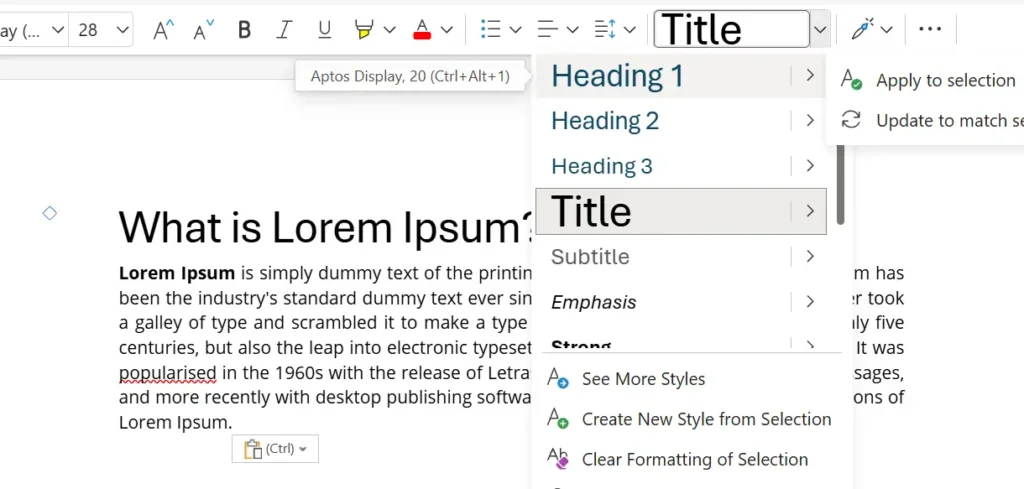
Maintain Corporate Colors and Fonts: Define and save a color palette and font style to ensure consistent branding across all documents.
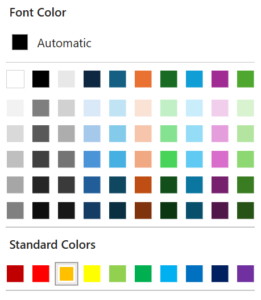
- Apply Styles for Professional Look: Using styles not only ensures uniformity but also simplifies the process of formatting updates and revisions.
Consistent branding reinforces a professional image and saves time by eliminating repetitive formatting tasks.
You Might Also Want To Read Our Blog on how to save document files into Onedrive
How to Convert Image into Word?
Creating and Managing Microsoft Word for Business Templates
Word Template management helps streamline document creation while ensuring consistency. They can be customized to fit business-specific templates, from proposals to reports:
- Create Templates for Recurrent Documents: Set up templates with predefined headers, footers, fonts, and text placeholders for reports, invoices, or contracts.
- Use Placeholders for Key Information: Incorporate placeholders for common elements like dates, client names, and project details to make template customization easier.
- Modify and Save Templates for Reuse: Templates can be modified and saved as “Word Template” (.dotx) files, allowing for easy access and updates.
Using templates not only speeds up document creation but also maintains a uniform look across all business documents.
Efficient Document Review and Feedback Management
Efficient document review is critical in a business environment where feedback needs to be gathered and implemented quickly. Word’s built-in review tools can streamline this process:
Word Tracking: Enable “Track Changes” to make edits visible to all collaborators, making it easy to review suggested changes and accept or reject them.
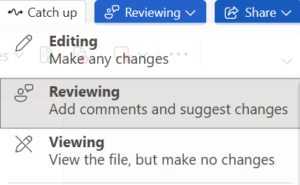
- Comments Management: Use the “Comments” feature to provide feedback or ask questions within the document. Comments are visible to all collaborators, making communication seamless.
- Use the Review Pane: This feature offers an overview of all edits, comments, and revisions, making it easier to manage multiple contributions.
- Compare Documents: The “Compare” feature allows you to view differences between versions of the same document, ensuring that all edits are accounted for.
These tools make collaborative editing smoother, faster, and more transparent.
Managing Tables and Charts in Word Documents
Tables and charts are essential for presenting business data clearly and effectively. Microsoft Word offers easy-to-use tools for integrating these elements into documents:
Word tables: Use the “Insert Table” function to create tables for data organization. Adjust the number of rows and columns as needed and apply table styles for a polished look.
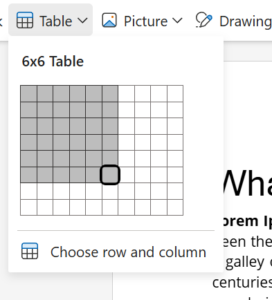
- Create Charts for Better Visualization: Insert various chart types (bar, pie, line) using the “Insert Chart” feature to display data visually.
- Format Tables and Charts: Utilize Word’s formatting tools to add colors, borders, and styles that align with your document’s design.
Proper use of tables and charts enhances readability and helps communicate complex information more effectively.
Protecting Business Documents in Word
Document security is crucial in business to protect sensitive information:
Password Protection: Set passwords to restrict access to documents. This adds an additional layer of security to prevent unauthorized access.
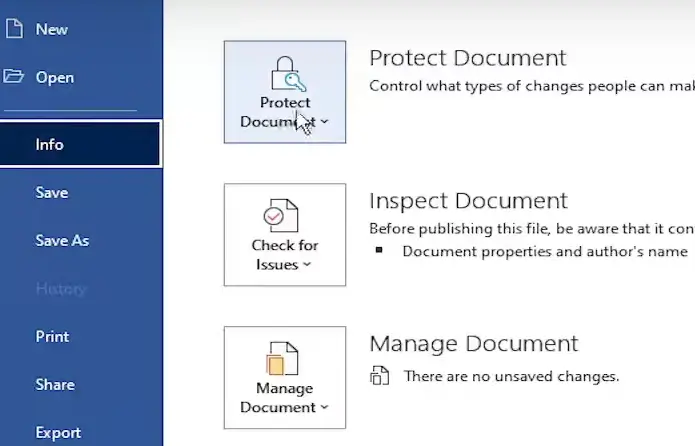
- Use Encryption: Encrypt documents to secure their content, ensuring confidentiality.
- Implement Read-Only Mode: Convert documents to “Read-Only” to prevent unintended edits.
- Information Rights Management (IRM): Control permissions to allow or deny printing, copying, or editing of documents.
By using these tools, you can ensure that confidential business information remains secure.
Creating Microsoft Word for Business Proposals
Creating structured business proposals is one of Word’s strengths:
- Set Up Proposal Templates: Use Word’s templates to create sections for summaries, objectives, deliverables, timelines, and budgets.
- Apply Styles for Consistent Formatting: Use Word styles to maintain a professional look across sections.
- Enhance with Visual Aids: Add SmartArt and other graphics to illustrate ideas clearly, making proposals more engaging and easier to understand.
Structured proposals not only look professional but also communicate ideas clearly and effectively.
Advanced Collaboration in Word
Advanced Word collaboration features enable seamless teamwork:
- Co-Authoring: Multiple users can edit the same document simultaneously, making it easier to collaborate in real-time.
- Integrate with OneDrive: Share documents through OneDrive for easy access and version control.
- Real-Time Edits: Enable real-time editing to ensure that changes are immediately visible to all collaborators.
These features are especially useful for remote teams and contribute to more efficient workflows.
Tips for Efficient Word Use in Business Meetings
Microsoft Word is a practical tool for managing meeting agendas and minutes:
Create Meeting Templates: Use predefined templates for setting agendas and documenting meeting minutes.
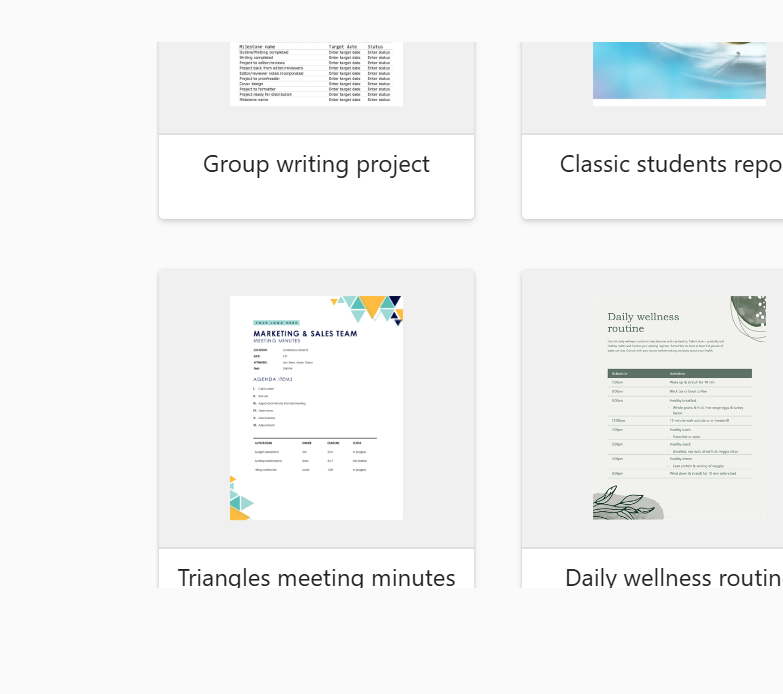
- Organize Points with Tables and Lists: Structure discussion points using tables or bullet lists for clarity.
- Use Comments and Track Changes: Capture meeting agendas in Word notes and follow up on action items effectively by utilizing these features.
Using Word effectively in meetings ensures clear communication and accountability, enhancing overall productivity.

Bottomline
Microsoft Word offers numerous features that enhance business document creation, management, and collaboration. By optimizing the interface, using styles for branding, creating templates, managing feedback, and protecting documents, businesses can improve efficiency and maintain professionalism. Leveraging Word’s advanced features enables teams to work smarter and collaborate seamlessly, supporting business growth and success. For more help in Windows issues, Contact our 24/7 Help Center for assistance.




