Easy to Follow PC Building Guide
Ever through about getting a complete PC building guide? You’re in the right place.
Building your own PC is an exciting and rewarding endeavor. You’ll be able to customize your machine to suit your specific needs. But, before you build your own PC, you’ll need to get the right components.
Want to build a beast of a PC that crushes games, edits videos like butter, and doesn’t burn a hole in your wallet?
In this ultimate PC building guide, we will walk you through the step-by-step process to build your own PC. We’ll focus on a gaming PC in this guide.
Whether you’re a first-timer or a seasoned builder, this ultimate PC building guide will walk you through every step—from picking the perfect parts to powering it on for the first time. Say goodbye to guesswork and hello to your dream machine.
Let’s build something epic.
How to Build a PC: Steps to Building a PC
A complete PC building guide giides you through the steps to build a PC, which include:
- Preparation
- Choose and find components
- Motherboard
- CPU or processor
- Memory (RAM)
- Graphic card (GPU)
- Storage (SSD or HDD)
- Power supply unit (PSU)
- Cooling system
- PC Case
- Operating system
- Put everything together and install components.
Part 1: Planning Your PC Building: What Do You Need?
Before diving into the actual building process, it’s crucial to plan your PC build meticulously. Start by determining your budget and understanding your requirements.
What will you primarily use the PC for? Do you need a powerful graphics card for gaming or a robust processor for video editing?
These questions will help direct you to the right components.
Before buying anything, define your purpose—gaming, content creation, or everyday use. Set a realistic budget and list the key components: CPU, GPU, motherboard, RAM, storage, power supply, case, and cooling. Don’t forget peripherals like a monitor, keyboard, and mouse. Also, check compatibility between parts to avoid costly mistakes. Planning is the foundation of a smooth, successful build.
The next section of this PC building guide ill take you through choosing the right components.
Part 2: PC Building Guide: Choosing the Right Components
Once you have a clear vision of what you need to build your own PC, it’s time to choose the right components for your needs.
Research each component and consider factors such as compatibility, performance, and future upgradability. Additionally, pay attention to the managed XDR capabilities of the components to help enhance your system’s security and threat detection capabilities.
Regardless of what type of PC you’re building, the components you need are often the same, and they include the following:
1. Motherboard
The motherboard is a large circuit board that connects all the other PC components. It allows communication and collaboration between all the different PC hardware.
Motherboards come in different sizes and configurations, and the type you’ll get will depend on what CPU you purchased, the features you want, and the PC case.
The key thing to know about motherboards is what kind of socket it has: Intel LGA and AM. You’ll see it listed with a number after it, such as “LGA1150” or “AM3.”
The most common motherboard size is ATX (or “full size”).
2. Processo or Central processing unit (CPU)
The CPU or processor is the brain of the computer and sockets directly into the motherboard. It controls everything that the computer does.
The two popular manufacturers of CPUs for consumer PCs are:
- Intel
- AMD
AMD will currently give you the third generation AMD Ryzen and Threadripper for high-end PCs. Intel’s Core i CPUs are all great choices. As a gamer you might need to go for i5, i7 or i9.
3. Graphics card (or GPU)
A GPU is a specialized processor that handles and optimizes visual data like games, as well as video or photo editing. It helps make your games look so good.
The GPU (graphics processing unit/video processing unit) has the most impact on your entire gaming experience.
The two famous graphics card manufacturers you can choose from are AMD and Nvidia.
4. Memory (RAM)
Random Access Memory (RAM) is your machine’s short-term memory. It stores (caches) temporary data/information you use and is often quickly accessible. This means your PC or CPU doesn’t have to reach out to the main storage first every time you search or need any data.
RAM restarts everything when your system doesn’t have power (e.g. shutdown), so you’ll still need a larger storage drive on your PC.
RAM varies in speed, size, and design. The larger RAM you have the better.
RAM begins from 2GB but most gaming PC’s need 8GB, 16GB, 32GB or more for better performance.
5. Primary Storage (SSD or HDD)
The primary storage is where you store all your files, data, games, movies, documents, photos, and everything. There are two main types of computer storage solutions:
- HDD (hard disk drive)
- SSD (solid state drive)
Initially, storage was mostly hard disk drives (HDDs). Now, SSDs (solid state drives) are widely available. SSDs are smaller, quieter, faster, more durable, versatile and provide better performance. But they’re also more costly.
The right storage varies, but the common configurations are smaller NVMe or SATA SSDs.
6. Power supply unit (PSU)
Your PC’s power supply unit supplies the PC with power. It is a little box that keeps the electricity running to every other PC component and determines how powerful and quick your PC can be. The faster your PSU is, the more power it needs. If you’re using high-end PC video cards, you’ll want a Power Supply Unit with enough wattage. A good example of well-performing PSUs is Seasonic PRIME GS-1000 1000W or Rosewill HIVE 550S 550W.
7. CPU Cooling System
Your CPU needs a cooler because it works very hard, which creates heat.
The cooling system helps cool your CPU to keep the system/PC running properly.
Though most CPUs have a built-in cooler, if you’re building a new PC with more power, you’ll want a cooler that is a bit more powerful.
Cooling systems can be simple fans or more advanced liquid cooling solutions (or All In One (AIO).
Installing the cooling solutions may vary, but often involve attaching it to the PC’s motherboard. You may also need to use a thermal paste to ensure heat dissipates well from the CPU.
8. PC case
Your case is just what it sounds like — a metal box that covers all the other components. It’s what most people think of when they imagine a PC.
PC Cases are highly customizable, so you can get them in every shape and size you can imagine.
Make sure you match the case with your motherboard size. For instance, if you have an ATX motherboard, go for an ATX (or “full-size”) case.
Also, many PC cases come with fans already installed, which can be useful. So, only find a cooling system if your case doesn’t come with one or if low temperatures are important to you.
10. Operating system
Finally, you’ll need an operating system for your PC to run and allow you to install other programs on the PC like games, etc.
There are several operating systems to choose from. The most popular for the average person gamer is Microsoft Windows (now Windows 11) due to its straightforward user experience.
Linux is popular and has the added advantage of being free, but it isn’t straightforward to use.
Part 3: PC Building Guide: Assembling Your PC
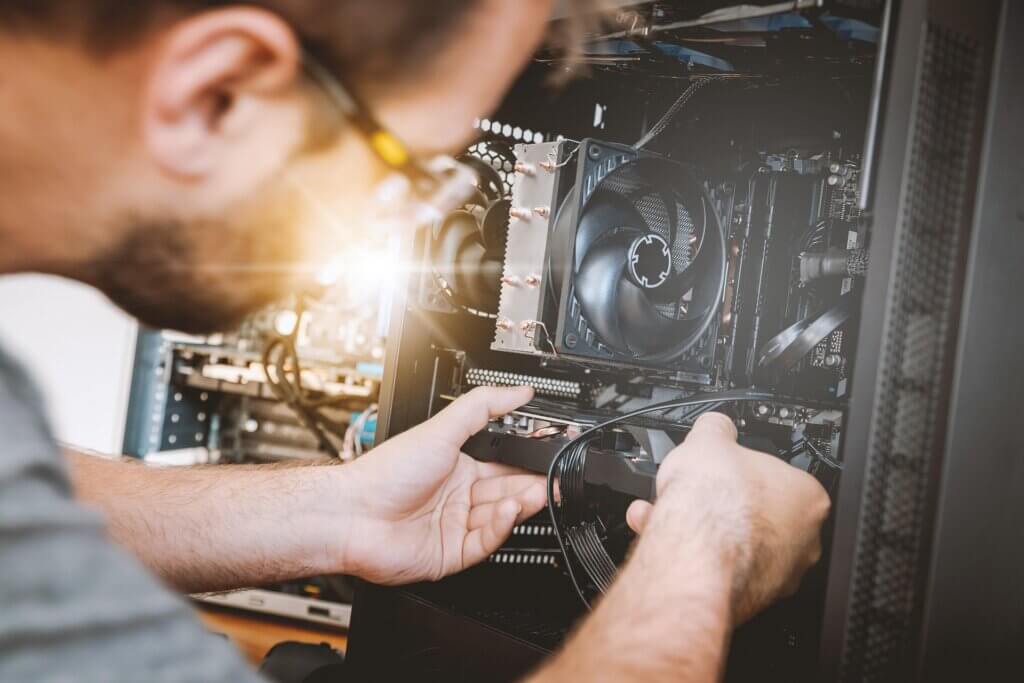
Now comes the fun part: assembling your PC. Since you’ve got all the components you need.
During installation, make sure you screw in everything that needs to be screwed and fix everything compactly to ensure proper functionality.
Here is the final part of the PC building guide. Assemble your PC in the following steps:
- Put your motherboard into place.
- Install the RAM by pushing the RAM stick into place.
- Install the CPU by connecting the four holes closest to the CPU socket.
- Plug the CPU cooler into the motherboard to give it the power it needs to function.
- Prepare the case. Get the motherboard in the case by installing standoffs.
- Install the power system following the instructions.
- Put the motherboard’s I/O shield together.
- Install the motherboard while being careful not to damage anything.
- Install the GPU on the PCIe slot.
- Install the storage (M2 SSD) into the appropriate slot on your motherboard.
- Plug in all other accessories, gaming chair, mechanical keyboard, mouse, etc.
Conclusion
Congratulations! You have successfully followed the PC building guide and built your own PC, and integrated the powerful security capabilities of managed XDR.
By following this ultimate PC building guide and harnessing the benefits of managed XDR, you have created a high-performance machine.
Your machine now meets your computing needs but also provides robust protection against cyber threats.
Don’t let your new build run on anything less than the best. Head over to FastSoftwares.com for unbeatable deals on genuine Windows OS, Microsoft Office, antivirus, and more—delivered instantly and securely. Your ultimate PC deserves ultimate software.
???? Shop now and complete your setup with confidence!