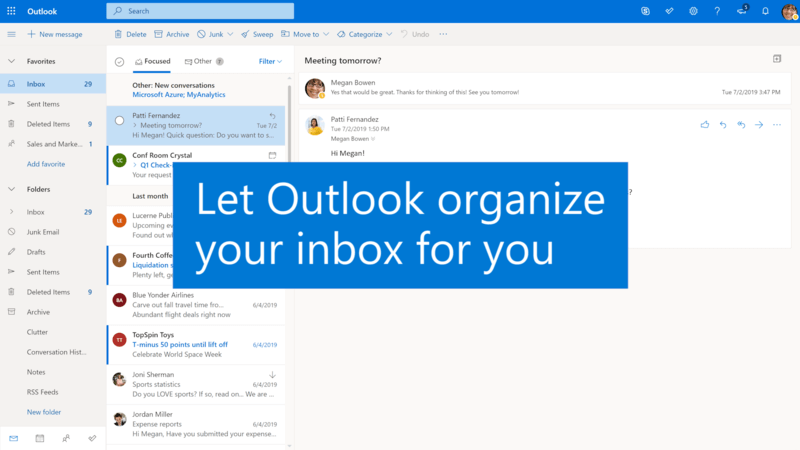

Outlook Email Organizer: Boost Your Inbox Efficiency
Does opening your email feel like walking into a hurricane of messages? Maybe you’ve not tried the Outlook email organizer. And, you’re not alone.
An endless stream of emails — newsletters, notifications, work requests, and personal messages — can feel overwhelming. This digital clutter doesn’t just look messy; it drains your energy and kills your productivity.
But what if you could turn that chaos into calm, organized control?
Welcome to the world of the Outlook email organizer. This isn’t about some fancy, complicated software you need to buy. It’s about using the powerful tools already built into Microsoft Outlook to create a smart system that works for you, not against you. By learning how to set up folders, create automated rules, and prioritize what’s important, you can transform your inbox from a source of stress into a powerhouse of productivity.
This guide will walk you through everything you need to know, step by step. Get ready to clean up your Outlook inbox and get back to focusing on what truly matters.
Introduction to Email Management
Effective email management is more important today than ever. With inboxes overflowing with incoming messages, it’s easy to feel overwhelmed by inbox clutter and lose track of important information.
That’s why having a structured approach to organizing your email inbox is essential for staying productive and stress-free.
Email management starts with simple steps like sorting your inbox through folders and categories. It also involves using automated rules and advanced filtering to keep your inbox clean and manageable.
Benefits of Email Organization in Outlook
Before we dive into the “how,” let’s talk about the “why.”
Email organization gives control of your email flow and ensure that high-priority messages never get lost. It also rdeduces distractions and increases your productivity.
- Reduce Clutter, Boost Productivity: Think of your inbox like your desk. When it’s covered in papers, it’s hard to find anything or focus. When it’s clean and organized, you know exactly where everything is.
- Automate the Boring Stuff: How much time do you spend deleting junk mail or moving the same newsletters into a folder every week? With an email organizer system, you can use automation—a feature of Outlook—to handle these repetitive tasks.
- Prioritize Like a Pro: Not all emails are created equal. A message from your boss is probably more urgent than a 20% off coupon. An effective system helps you instantly see what needs your attention right now, what can wait, and what you can ignore.
- Find Anything in Seconds: Remember that one email from three months ago with the important attachment? Instead of frantically searching, an organized system with clear folders and categories offers the easiest way to locate it.
- Lower Your Stress: Constantly seeing a high unread email count creates a persistent background anxiety. Managing your inbox gives you control and reduces stress.
Setting Up Outlook for Maximum Organization
Ready to get started? Let’s build the foundation of your new, organized inbox. These first steps are simple but incredibly powerful.
- To begin, create a new folder in Outlook to organize your emails.
- Note: For more granular organization, you can create subfolders within your main folders to further categorize your messages.
- After creating your folders, consider using tags and labels to add another layer of categorization, making it easier to visually identify and group emails.
- You can also set up filters to automatically direct incoming emails to a specific folder, reducing manual sorting and ensuring that specific emails are always organized as they arrive.
- Use bulk actions to quickly move or organize multiple specific emails into a specific folder, streamlining your workflow and saving time.
Similar organization strategies, including the use of labels, filters, and bulk actions, can be applied in Gmail for users who want to optimize their inbox management in that platform.
How to Create a New Folder in Outlook:
- In the left-hand pane where your folders are listed, right-click on your Inbox or your email address.
- Select New Folder from the dropdown menu.
- A box will appear. Type in a descriptive name for your folder (e.g., “Project X,” “Weekly Reports,” or “Newsletters”).
- Press Enter, and your new folder will appear in the list!
Note: For more detailed organization, you can create a subfolder by right-clicking on an existing folder and selecting “New Folder” to nest it as a subfolder within the parent folder.
Now you can drag and drop emails from your inbox into a specific folder or subfolder to keep things tidy. You can also use bulk actions to move multiple emails at once into a specific folder, saving time and effort. For even better organization, consider using tags and labels to categorize emails within your folders.
Note: Setting up filters allows incoming emails to be automatically sorted into the right folder, reducing manual work and keeping your inbox organized.
Set Up Your First Rule
Rules are the secret weapon of your Outlook email organizer. You can create rules and filters to automate the organization of your inbox. A rule is an instruction you give Outlook to automatically process emails as they arrive, such as marking them or moving them to a specific folder.
How to Set Up a Simple Rule:
- Find an email you want to create a rule for (for example, a newsletter).
- Right-click on the email.
- Hover over Rules and then select Create Rule.
- A dialog box will appear with options. You can create a rule based on who sent it, the subject line, or who it was sent to.
- Check the box for the condition you want, for example, From [Sender’s Name].
- Next, tell Outlook what to do. Check the box for Move the item to folder: and select the specific folder you created earlier (e.g., “Newsletters”).
- Click OK. Outlook will even ask if you want to immediately run this rule on messages already in your inbox.
You can also use bulk actions to apply rules to specific emails or move them to a specific folder, making it easy to organize large groups of messages efficiently.
Congratulations! You’ve just automated your first task.
Organize Your Inbox Like a Pro
Transforming your inbox into an organized workspace doesn’t have to be complicated.
Start by creating folders that reflect your workflow—think folders for specific projects, clients, or types of incoming messages. For example, you might create a folder for all emails from a specific sender or set up categories for high-priority messages that need your immediate attention.
Once your folders and categories are in place, use automated rules to direct emails into the right spot as soon as they arrive. With just a few simple clicks, you can set up rules to filter messages from certain senders or with specific keywords, ensuring your organized inbox stays clutter-free.
Advanced filtering options let you fine-tune your system even further, so you can prioritize emails that matter most and manage your messages with ease.
Automating Your Email Management
Creating one rule is just the beginning. The real power comes from using automation to manage the flow of your inbox without you even thinking about it. Automation allows you to immediately organize emails and mark important ones for follow-up, streamlining your workflow.
- Filter Out the Noise: Set up filters to automatically organize emails where you are only CC’d into a folder called “CC / Low Priority.” You can check this folder once or twice a day instead of letting it interrupt you.
- Junk Mail Patrol: While Outlook has a good junk filter, you can create your own rules and use bulk actions to process persistent spam from specific senders or with specific keywords, sending them directly to the Junk or Trash folder.
- Use Advanced Filtering: In the Rules wizard, you can find more advanced options to automate the process of email management. You can filter emails by size (to file away large attachments), by specific words in the body, or by its level of importance. This level of control allows you to organize emails efficiently and mark messages for priority, building a truly intelligent inbox.
How to Prioritize Your Emails Effectively
Organization isn’t just about filing; it’s about knowing what to work on first. In Outlook, you can mark emails from your manager or team as flagged for priority, making it easier to identify which messages need your attention. Using labels and tags can help you quickly identify specific emails that require a response, ensuring nothing important is missed. Outlook has great tools to help you prioritize, and responding to flagged emails from your manager or team should be a top priority.
Use Categories for Visual Cues
Categories in Outlook act as labels or tags, allowing you to mark specific emails for easy identification and organization. You can assign different colors to different types of messages.
- Red: Urgent – Must reply today
- Blue: From a specific client
- Green: Related to a specific project
- Yellow: To-Do item for later
To assign a category, right-click an email, hover over Categorize, and pick a color. You can even rename the categories to match your system.
Flag for Follow-Up
When you see an email that requires an action, don’t just leave it in your inbox. Mark specific emails as flagged! Right-click the email and select Follow Up, or simply click the flag icon next to the message. This adds the email to your To-Do list and serves as a visual reminder that something needs to be done, helping you track which specific emails require a response.
Email Productivity Tips for Busy Professionals
If your day is packed with meetings, deadlines, and dozens of emails, staying organized is key to keeping your productivity on track. One smart strategy is to create a new folder dedicated to incoming messages from a specific sender or project—this way, related emails are grouped together and easy to find. Automated rules can help you filter emails into these folders automatically, cutting down on inbox clutter and saving you valuable time. Don’t forget to use advanced filtering to highlight or prioritize emails that are urgent or require immediate action. By setting up these systems, you can quickly scan your inbox for high-priority messages, delegate tasks, and keep your workflow running smoothly. With a little planning, you’ll be able to manage your messages efficiently and focus on the tasks that matter most.
Advanced Outlook Features for Power Users
Once you’ve mastered the basics, you can explore some of Outlook’s more advanced features to become even more efficient.
- Integration with Microsoft To Do and Calendar: One of the best features of the Microsoft ecosystem is how the tools work together. You can drag an email directly onto the To Do icon to create a task from it, or drag it onto the Calendar icon to schedule a meeting about it. You can also create tasks from draft emails or manage drafts more efficiently by linking them to your tasks and calendar events, streamlining your workflow across multiple accounts.
- Clean Up Conversation: Is an email thread getting too long with tons of back-and-forth replies? Use the Clean Up tool on the Home tab. This feature analyzes the thread and deletes all the redundant messages, leaving you with only the final, complete conversation and helping you focus on the most important details.
- Managing Conversation Threads: To make long threads easier to read, go to the View tab and check the box for Show as Conversations. This groups all related emails into a single, expandable item in your inbox, dramatically reducing clutter.
- Select Sweep: Use the Select Sweep feature to quickly move or delete emails from specific accounts or senders. This is especially useful for managing bulk messages and keeping your inbox organized.
- Tags and Labels: For advanced organization, use tags and labels to categorize, group, and visually identify emails. Assign colors and names to labels for quick recognition and improved workflow.
Best Practices for Email Management
Achieving an organized inbox requires more than just good intentions — it necessitates a combination of effective strategies and the right tools.
Start by creating a clear system for organizing your inbox, using folders, categories, and automated rules to keep emails sorted and prioritized. Take advantage of advanced filtering to block spam and unwanted messages, which helps reduce inbox clutter and keeps distractions to a minimum.
Explore the features of your email client or try out apps designed to help you manage your emails more efficiently, such as tools that offer automated sorting, reminders, and prioritization.
Using AI Email Assistants
Artificial Intelligence (AI) is the next frontier of email management. Microsoft is integrating its AI, called Copilot, directly into Outlook. An AI assistant can act as your smart helper by offering features that automate time-consuming processes and make it easier to respond to emails.
- Summarize Long Emails: Received a massive email thread? AI can give you a bullet-point summary of the key points and extract important details from messages.
- Draft Replies: AI can help you write replies, draft emails, and manage your drafts. You can give it a simple prompt like “Write a polite email saying I’ll review the document by Friday,” and it will generate a professional draft for you.
- Personalized Recommendations: Over time, AI can analyze your email habits and suggest rules or actions to help you become even more efficient.
Top Email Organization Apps (If You Want More)
While the built-in Outlook email organizer tools are fantastic, some third-party apps can offer additional features and help organize emails more efficiently. Here are the details on some top options:
- SaneBox: This app uses AI to analyze your emails and decides what’s important. It can manage multiple accounts, making it ideal for both individuals and businesses, as well as teams that need collaborative inbox management. SaneBox moves unimportant emails into a “SaneLater” folder, so your inbox only contains what you need to see now. Key features include automated sorting and account management. A free trial is available to let you experience its features before subscribing.
- Clean Email: A powerful tool for bulk cleaning, Clean Email offers bulk actions that let you delete, archive, or move thousands of emails at once, helping you quickly achieve a clean inbox. It groups emails by type, sender, or date, streamlining the process of inbox organization. Its features are designed to help both individuals and businesses organize emails efficiently. You can try Clean Email with a free trial to explore all its details and capabilities.
- Mailstrom: This app is compatible with Gmail and other major email providers. Mailstrom helps you get to “Inbox Zero” by bundling related mail and making it easy to unsubscribe from lists or archive old messages in bulk. Its features include powerful bulk actions and automation to organize emails and speed up the decluttering process. Mailstrom offers a free trial so you can review its details and see how it fits your workflow.
Your Journey to an Organized Inbox Starts Now
You now have all the knowledge you need to transform your relationship with email. Start small. Create one or two folders and a simple rule.
As you get comfortable, you can build a more complex and personalized Outlook email organizer system.
The goal isn’t to spend hours organizing your email every day. It’s to spend a little time setting up a system that saves you hours of work and stress in the long run.
Setting up an organizer system makes sense for anyone looking to save time and reduce stress.
Take back control of your inbox, boost your productivity, and free up your mind for the things that really matter.
Leran more about managing your Outlook at FastSoftwares.