How to Install Office 2016 on MacBook Air: Step-By-Step Guide
Installing Office 2016 on MacBook Air offers Mac users access to familiar Microsoft productivity tools tailored for their devices.
This guide benefits students, home users, and anyone seeking an efficient way to get started with Office 2016 on their MacBook Air.
Whether you are setting up your software for remote learning, work, or personal projects in 2025, knowing how to install Office 2016 correctly ensures a trouble-free experience.
MacBook Air owners who understand this process will save time and avoid common pitfalls.
This article shows you exactly how to navigate the Microsoft Office 2016 on Mac Air installation and get your system ready.
Preparing Your MacBook Air for Installing Office 2016
Before installing Office 2016 on Macbook Air, you must prepare your MacBook. Getting your device ready is the first crucial step of every Microsoft Office for Mac installation.
Check System Compatibility and Requirements
Office 2016 requires a MacBook Air running macOS version 10.10 Yosemite or later.
Ensure your MacBook Air’s hardware includes at least 4 GB of RAM and 6 GB of available disk space.
Your processor should be an Intel-based CPU, as Office 2016 does not support Apple Silicon natively without Rosetta 2 emulation.
Confirm the system’s specifications by clicking the Apple icon, then ‘About This Mac’ and reviewing your macOS version and hardware details.
If your MacBook Air does not meet these criteria, Office 2016 may not install or work reliably.
Checking compatibility ahead of time helps prevent wasted effort and frustration.
Backup Important Files Before Installation
Backing up your important files protects your data if any issues arise during installation.
Use Time Machine, the built-in macOS backup tool, to create a full system backup.
Alternatively, consider cloud services like iCloud, Google Drive, or external hard drives for safeguarding your documents.
This step is essential because installation processes might occasionally require disk formatting or cause unexpected errors.
Backing up ensures that none of your work, photos, or settings are lost.
After backup completion, verify that the saved files are accessible.
Having a reliable backup gives peace of mind before proceeding with how to install Office 2016 Mac on your machine.
Step-by-Step Installation Guide for Office 2016 Office 2016 on MacBook Air
This section presents a full tutorial on the steps necessary to install Office 2016 on MacBook Air. The guide is specific for Office 2016 Home and Student.
Following this detailed guide will help you complete the process smoothly.
1. Downloading Office 2016 Home and Student
- First, acquire the official Office 2016 Home and Student installer designed for Mac.
- Purchase the product from trusted vendors like Fastsoftwares or Microsoft directly to ensure you receive a legitimate version.
- Upon purchase, you will receive a product key and a download link or instructions to access your Microsoft account.
- Download the installer file, typically a .pkg or .dmg file, from the official source.
- Avoid third-party sites or torrents to reduce risks of corrupted or malicious software.
- Make sure your internet connection is stable throughout the download to prevent errors.
2. Running the Installation Wizard
- Once downloaded, open the Office 2016 installer package.
- Double-click the file to launch the Installation Wizard.
- You will see a welcome screen; click ‘Continue’ to move forward.
- Carefully read the End User License Agreement and click ‘Agree’ to accept.
- Select the destination drive, usually your main hard drive, then click ‘Install’.
- The installer will request your Mac password to authorize changes; enter it to proceed.
- The progress bar shows installation status, which usually takes 10 to 20 minutes.
- If an error appears, ensure your Mac meets all requirements and try restarting the process.
- After installation finishes, click ‘Close’ to exit the wizard.
3. Activating Your Microsoft Office 2016 License
- After installation, open any Office application like Word or Excel.
- The software will prompt you to activate your product.
- Enter your 25-character product key carefully from your purchase confirmation.
- The activation connects your copy with Microsoft’s servers to unlock all functions.
- You must be online to complete this step.
- If activation fails, double-check your key for typos or contact
Microsoft support for Office 2016 Mac installation issues for help. Once successful, you can use all Office 2016 Home and Student features without restrictions.
Post-Installation Setup and Troubleshooting
After installing and activating Office 2016 on MacBook Air, some final setup and troubleshooting will optimize your Office experience.
Customizing Office 2016 Settings on Mac
- Open any Office app and go to the Preferences menu to tailor the software for your needs.
- Set your default file save location to iCloud or your local disk.
- Enable automatic updates in Microsoft AutoUpdate to keep your apps secure and equipped with new features.
- Adjust language, proofing tools, and privacy settings according to your preferences.
- Personalizing these options streamlines your workflow and enhances productivity.
Common Installation Problems and How to Fix Them
- Some Mac users may encounter issues like Installer freezing, error messages, or activation failures.
- If the installation freezes, restart your MacBook Air and try installing in Safe Mode by holding Shift during startup.
- For activation errors, verify your product key and internet connectivity, then retry.
- If an app crashes on launch, update your macOS to the latest supported version and reinstall Office.
- Clearing cache and uninstalling previous Office versions before installing helps resolve conflicts.
Contact Microsoft support or consult forums for complex problems. Being prepared for these hiccups improves your overall experience.
Comparing Office 2016 Home and Student with Alternative Microsoft Office Versions for Mac
Choosing between Office 2016 and newer versions depends on features, price, and compatibility.
Office 2016 vs. Office 2019 and Microsoft 365
Office 2016 offers essential apps like Word, Excel, and PowerPoint with a one-time purchase.
Office 2019 includes updated features and better support for newer macOS versions.
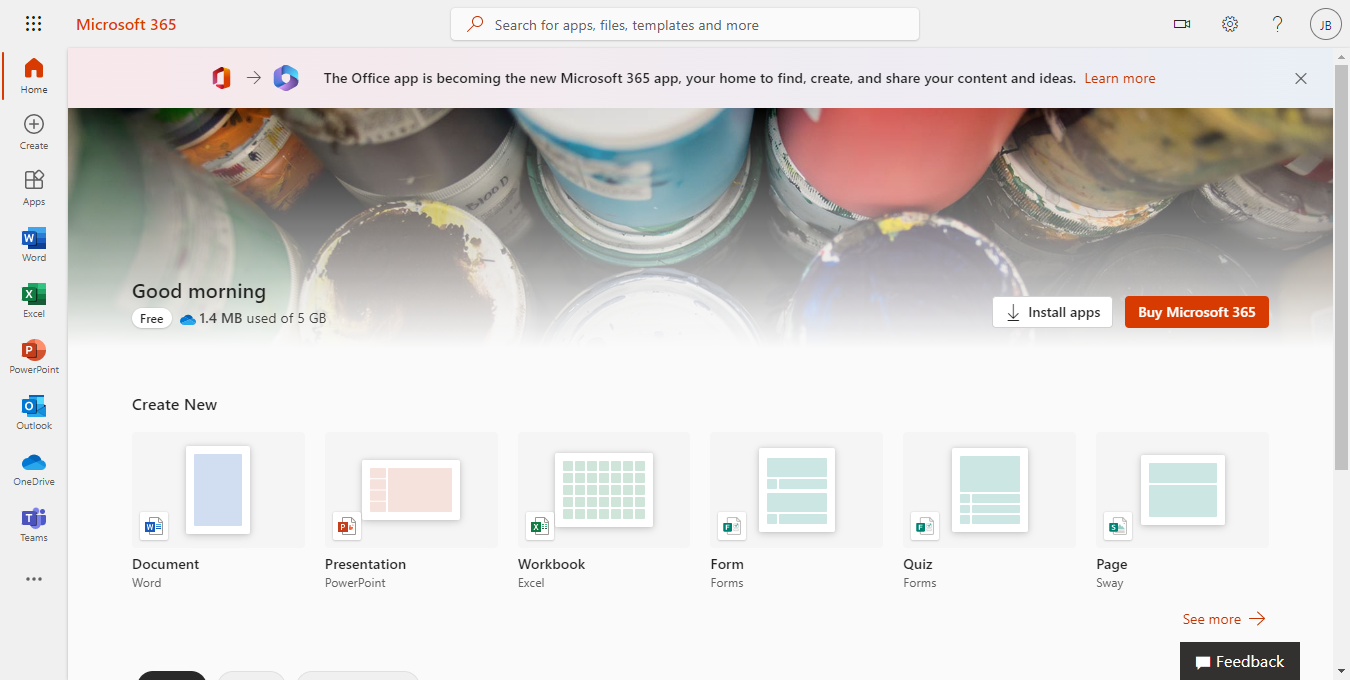
Microsoft 365 is subscription-based, provides continuous updates, cloud storage with OneDrive, and additional apps.
If you prefer no recurring fees, Office 2016 remains a cost-effective option for MacBook Air users.
For latest tools and cloud integration, consider Microsoft 365.
Where to Buy Office 2016 Home and Student for Mac
Reliable sellers like Fastsoftwares offer genuine Office 2016 Home and Student at competitive prices.
Purchasing through trusted outlets ensures valid product keys and customer support.
Avoid unauthorized resellers that may provide counterfeit or expired licenses.
Fastsoftwares also provides quick download links and installation assistance.
Buying from verified sources protects your investment and guarantees software authenticity.
Conclusion
This comprehensive Office 2016 on MacBook Air installation guide explained how to install Office 2016 on MacBook Air step-by-step.
You learned how to prepare your Mac, download and run the installer, activate your license, and troubleshoot common issues.
Following this tutorial ensures a smooth and reliable Office setup tailored for students and home users.
Get your Microsoft Office 2016 Home and Student for Mac from Fastsoftwares today and start your seamless installation experience.
Explore Office’s powerful features to enhance your productivity or contact support if you encounter challenges.
This clear process keeps your MacBook Air running efficiently with Office 2016 ready for all your projects.