How to Take Mac Scrolling Screenshot

mac scrolling screenshot

A handy method for capturing extensive content, such as documents or web pages, in a single image is to use scrolling screenshots. Scrolling screenshots are perfect for professionals, educators, and anyone else who needs thorough visual references since they enable Mac users to record entire pages or documents, unlike regular screenshots that just capture visible bits. This tutorial provides detailed instructions and troubleshooting advice for both native (if available) and third-party applications for taking scrolling screenshots on a Mac.

The Benefits of Scrolling Screenshots on a Mac

Scrolling screenshots are an effective substitute for assembling numerous photos for people who regularly work with large amounts of data or web material. Scrolling snapshots make it easier for remote workers, educators, and freelancers to capture, share, and annotate visual data without losing important context.

Tools for Mac Users to Take Scrolling Screenshots

Although there isn’t a scrolling screenshot capability in macOS, there are a number of programs that make it simple. Here, we’ll discuss two primary categories that offer flexibility according to your needs: browser-based solutions and third-party apps.

Scrolling screenshot on MacOS

1. Employing Browser-Based Tools (for Chrome's Fast Full-Page Screenshots)

If you’re using Google Chrome on your Mac, you can quickly take full-page screenshots using the built-in Developer Tools.


  1. Go to the webpage you wish to capture in Google Chrome.
  2. To access the Developer Tools, press Cmd + Option + I.
  3. To access the command menu, press Cmd + Shift + P. Then, type “Capture full size screenshot.”
  4. Choose the command “Capture full size screenshot” from the list.
  5. Chrome will automatically take a screenshot of the full website and store it as a PNG file in your Downloads folder.

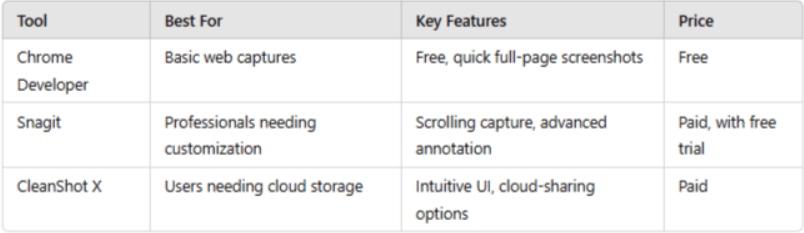
Advantages: Free, fast, and capable of capturing full webpages. Cons: Only compatible with Google Chrome; no annotation or sophisticated editing features are available.

2. Using Snagit to Take Scrolling Screenshots

Snagit is a robust program that provides a number of editing and annotation options in addition to enabling users to take scrolling screenshots. Despite being a premium program, Snagit comes highly recommended for professionals who need customisable and detailed screenshots.


  1. Launch Snagit after installing it.
  2. After selecting “Capture,” choose “Scrolling Window.”
  3. Choose the scrolling capture option after navigating to the page you want to take a picture of. The content will be automatically scrolled through by Snagit, which will then take a single picture.
  4. After taking a picture, you can edit, annotate, and save it using Snagit’s built-in capabilities.


Advantages: Offers strong annotation capabilities and is quite adaptable. Cons: Paid app; for novice users, it can be too much.

3. Taking Scrolling Screenshots with CleanShot X

Another premium app with a simplified user interface, strong scrolling capture features, and cloud storage choices is CleanShot X. For those who want a simple, minimalistic appearance and convenient sharing options, this app is ideal.


  1. On your Mac, download and launch CleanShot X.
  2. Click on the menu and choose “Scrolling Capture.”
  3. You can follow CleanShot X’s instructions to capture the full scrolling window. The program will combine the pictures into a single screenshot if you follow the directions.
  4. You can comment, crop, or save the image using CleanShot’s built-in editor. Additionally, you can share it by uploading it straight to CleanShot Cloud.


Benefits include an easy-to-use interface and cloud storage choices for sharing. Cons: Costly app; needs knowledge of CleanShot X’s features.

Solving Typical Problems for Mac Scrolling Screenshot

  1. Compatibility Issues: various browsers and macOS versions may not be compatible with various scrolling screenshot tools. Verify that your tools and browser are up to current, and if you experience problems, check compatibility.
  1. Saving Errors: Try restarting your Mac or cleaning the app cache if screenshots aren’t saving properly. Make sure your Downloads folder has enough storage space for web-based screenshots. If your device feels sluggish during these actions, performance issues may be the cause and these Mac slow startup fixes can help restore speed and responsiveness.
  1. Incomplete Scrolling Capture: Tools sometimes fail to capture some parts of the page. Try refreshing the website and starting the capture again if this occurs.

Extra Advice for Improving the Quality and Usability of Screenshots

Take into account these basic practices to get the most out of your scrolling screenshots:


  • Highlight Crucial Sections: Both Snagit and CleanShot X provide powerful annotation features that let you add comments or highlight important portions for improved communication.
  • Enhance the Resolution of Images: A higher resolution should be captured by your settings, particularly if you intend to print or enlarge the screenshot.
  • Streamline Screenshot Organization: For convenience and organization, save your screenshots on cloud-based services like Microsoft OneDrive. This is particularly useful if you deal with a lot of visual data on a regular basis.


What’s the Best Tool for You?

macos features in table

In brief

Mac users may effectively take scrolling screenshots with a variety of apps that fit various demands and price ranges by following this instructions. These techniques will guarantee a smooth procedure whether you’re sharing full-page web content, improving your visual presentations, or gathering thorough visual data for projects. You’ll have a comprehensive arsenal for optimizing productivity with scrolling images on a Mac, along with extra organization and annotating techniques.

Unlock the full potential of your Mac screenshots! Visit FastSoftwares to discover the best tools and tips for capturing high-quality scrolling screenshots and take your visual documentation to the next level.


Written by:

Similar Articles

Sign up for our Newsletter

Enter your email address to subscribe to this blog and receive notifications of new posts by email.

Sitewide Coupon Code: SAVE25FAST to Get 25% OFF on Checkout!

Shop

Need Help?