

Inserting Line Breaks in Excel for Improved Data Presentation
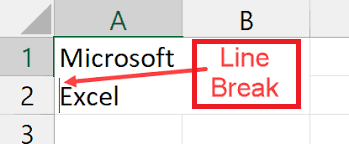
Using line breaks in Excel, you can store more information in one cell, which could be helpful for some Excel projects. For instance, you need line breaks to make unique and artistic worksheets. Today, you will learn how to start a new line of text in an Excel cell.
Mailing labels, business information, or personal information are all examples of things that need more than one line of text in a cell. Bills and other business papers are often required.
The good news is that Excel can do more than handle the math on your files. It also gives you many ways to make it your own. You can make customised spreadsheets using Excel’s potent formulas, charts, and other tools with line breaks.
How to make a new line in an Excel cell
If you use Excel, you may notice that the computer shortcut Shift + Enter doesn’t work with this program. To get your data to look how you want it to, you need to use different ways to start a new line.
All PC versions of Excel can use the steps below. This guide will utilize the most recent version of Microsoft Excel 2019 2019. For steps on the phone, see below.
Step 1: Use a quick key combination
The fastest way to start a new line of text or add space between words in a chart cell is to use a shortcut. In Excel, “Shift + Enter” doesn’t work either. You’ll need to use a different set of keys to make your lines stretch out.
- First, double-click the cell where you want to add line breaks in Excel. This cell could be blank or already have information in it.
- Find the spot inside the chosen cell where you want to break the line with the blinking arrow.
- Press the Alt and Enter keys together. You should immediately see that the line break in excel is already there.
Step 2. Use the Find and Replace tool
Adding line breaks in excel might sometimes be possible with the old-fashioned “find and replace” tool. This helps if you have data consistently formatted the same way and need to break it up quickly.
In this case, a comma (,) is at the beginning of each line breaks in excel. However, you can also use other signs. Keep in mind that this will change the symbol on your whole paper.
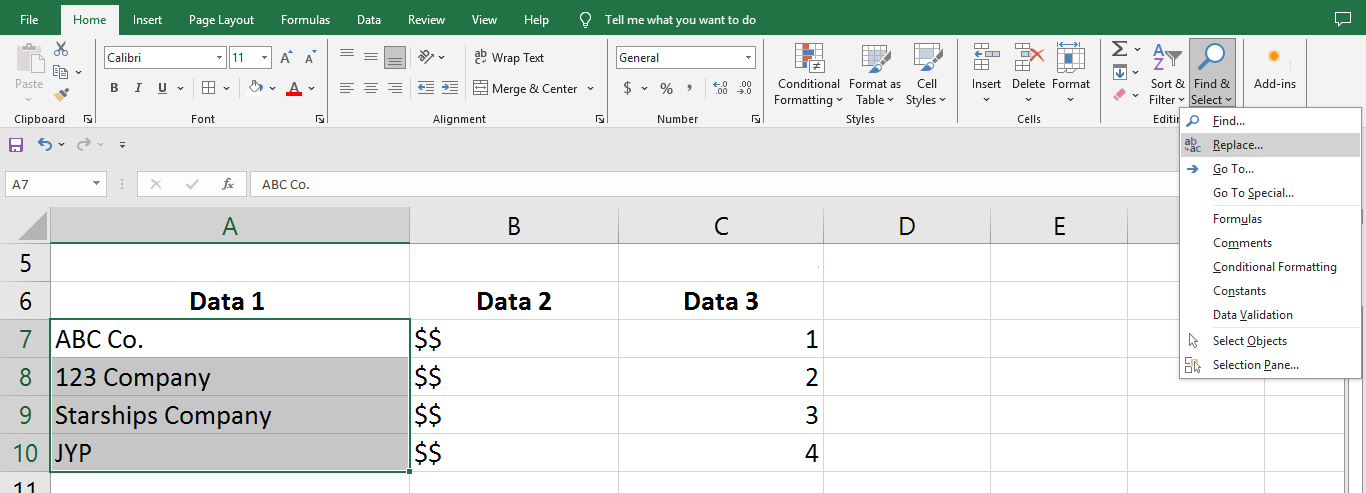
- Pick out all the cells with data you want to split into new lines.
- Go to the Home tab and click the Find & Select button in the far right corner of the Editing area.

- Click on Replace in the box that appears. A new window will pop up.

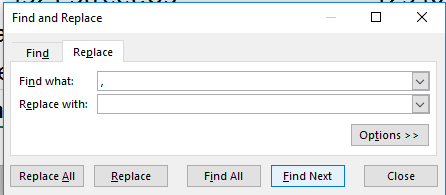
- There should be a pop-up window on your screen. In the “Find what:” field, type a comma (,) and then a space ().

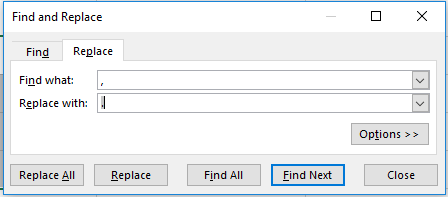
- To add a carriage return, press Ctrl + J in the “Replace with:” field. If you want to keep the commas, type a comma (,) and press the
button.
- When you click the Replace All button, all the chosen fields will be formatted immediately, and line breaks in excel will be added.

Tip: Don’t worry if you don’t see any changes after following the steps above. Text wrapping may not be turned on. Go to the next part to learn how to wrap text in Excel.
Step 3: On Android, press the “New Line” button.
Android users can get the most out of line breaks in excel. These steps will show you how to add a line break to Excel on an Android mobile device.
- First, double-tap the cell where you want to add a line breaks in excel. This cell could be blank or already have information in it.
- To add a new line break, tap the spot once and then tap the blue pointer that appears.
- From the choice that pops up, tap “New Line.”
Step 4. Use a line break for iOS
As of this writing, Excel for iPhone doesn’t let you start a new line of text in the same cell.
We’ll immediately add a new method to this article if a new process is developed. Come back for more information on the subject, or sign up for our newsletter to read our latest stories before anyone else!
How to get Excel to wrap text
You need to turn on text wrapping in Excel for line breaks to show up correctly. Even if you’ve split the text into multiple lines, the cells will only show the first line without it.
This easy step could save you a lot of trouble. Read the steps below to learn how to make text wrap in Excel.
- First, pick the cell with your data or the groups of cells to which you added line breaks.
- In your menu, go to the Home tab. This is the first tab you see after clicking the File button. Click on the button “Wrap Text,” shown in bold below.
Last thing
We hope this post taught you how to add a line break in Excel. You can make your info even more unique or better in several ways. You can still sort, examine, and work with cells, even with blank lines.
Before you leave
Our customer service team is here to help you 24 hours a day, seven days a week, if you need more help with Excel. Come back to our site for more helpful pieces about being productive and using modern technology!
Sign up with us to get deals, discounts, and promotions on our goods if you like them. Get the newest tech news sent straight to your email and be the first to read our tips on how to get more done. Type in your email address!