[Guide] How to Find Your Windows Product Key

Windows activation is a process that pairs your Windows product key or digital entitlement with your device’s hardware configuration.
Understanding Windows activation is essential to ensure your Windows operating system is genuine and authorized by Microsoft.
Since Microsoft, as the company behind Windows, sets the activation and licensing policies that users must follow, you must find your Windows product key before activating it.
Activation is necessary for receiving automatic updates and downloads from Microsoft.
Let’s dive in to understand how to find your Windows product key and how to activate Windows product key.
Understanding Windows Product Keys
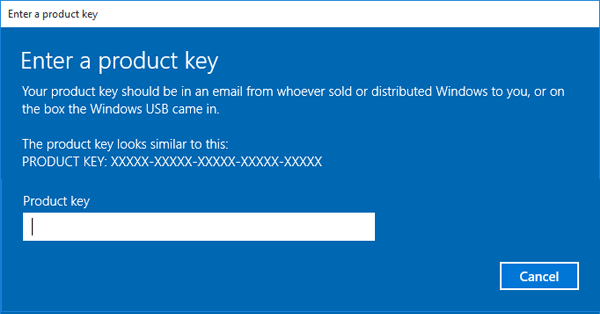
A Windows product key is a unique 25-character code required for activating Windows operating systems.
Here is an example of what a product key looks like: XXXXX-XXXXX-XXXXX-XXXXX-XXXXX.
A version product key Windows is used to verify the legitimacy of your Windows software and enable full Windows activation and support.
There are different types of Windows product keys, including retail, OEM, and volume licenses, each with its own set of rules and restrictions.
For example, a retail product key is purchased directly from Microsoft or an authorized reseller, an OEM product key comes pre-installed on a new device, and a volume license key is used by organizations to activate multiple devices.
- Retail product keys are purchased directly from Microsoft or authorized retailers. These keys can be transferred to a new PC if you uninstall Windows from the old device, making them ideal for users who may upgrade hardware or switch computers.
- OEM (Original Equipment Manufacturer) product keys are pre-installed on new PCs by manufacturers. These keys are tied to the original hardware and cannot be transferred to another device. If you replace major components like the motherboard, you may need a new license.
- Volume license keys are used by businesses, schools, and organizations to activate multiple computers. These keys are managed by IT departments and are not intended for individual consumer use.
Knowing your version product key Windows type helps you understand your rights regarding activation, support, and hardware changes. Always check which type you have before upgrading or reinstalling your operating system.
Check Your Windows Activation Status
To check your activation status, click Start > Settings > System and select Activation in Windows 11/10.
Activation messages indicate if Windows is activated, linked to a Microsoft account, or not activated.
If not activated, you may need to purchase a Windows 11 license or try other activation methods.
Always verify your Windows activation status to ensure your device is properly licensed and receiving automatic updates.
Link Your Microsoft Account
If you have a digital license, linking your Microsoft account to your digital license is essential for reactivation after hardware changes.
The Activation troubleshooter uses this link to help reactivate Windows after significant hardware changes.
To link your Microsoft account, sign in as an administrator and add your account in Settings > Accounts > Your info.
Confirm your account is a Microsoft account by checking for an email address above Administrator.
Activate Windows
To activate your Windows product, you can use either a digital license or the 25-character Windows product key.
A digital license activates Windows without entering a product key, while a product key is used to activate Windows manually.
You can use a Windows key to transfer a license from an older device or to activate a new installation.
Make sure you have a valid product key or digital license linked to your Microsoft account.
Windows Activation Requirements
To activate Windows product, you need the following:
- A valid product key or a digital license linked to your Microsoft account. You may also need installation media.
- An internet connection is required for activation, especially when using a digital license or activating after a hardware change.
- For new PCs, activation is often automatic if Windows was pre-installed by the manufacturer, using an OEM product key. But you should still verify your activation status in Settings.
- Upgrading from Windows 10 to Windows 11 requires a genuine Windows 10 license and compatible hardware. The upgrade process will automatically check your activation status.
If you’re reinstalling Windows, ensure you have your product key or your digital license is linked to your Microsoft account to avoid activation issues.
Always use installation media from Microsoft or an authorized retailer to ensure you’re installing a genuine version product of Windows.
How to Find Your Product Key
A product key is a 25-character code consisting of alphanumeric characters, used for activating and licensing a copy of Windows. It looks like this: XXXXX-XXXXX-XXXXX-XXXXX-XXXXX.
Depending on the way you purchased your copy of the Windows product, the product key can be located in the following ways:
- In your email inbox.
- On the retailer’s website from which you purchased your Windows copy.
- On a physical piece of paper or sticker.
- In your system, after activation.
- In your system, if Windows came pre-installed.
For example, if you’ve lost your product key, you can try to retrieve it using Command Prompt or PowerShell. On the other hand, you can also check your purchase materials, such as physical packaging or email receipts, for the product key. The product key may be found on a label attached to the device or its packaging on older computers.
If you purchased a PC or laptop with Windows preinstalled, your product key should be in the packaging the device came in or included in the Certificate of Authenticity (COA) attached to the PC. Sometimes, manufacturers leave the product key as a sticker on the device.
If you cannot find your product key, contact Microsoft Support for assistance. If you purchased a physical copy of Windows, the product key may be included inside the retail box.
Digital License Product Key Windows
A digital license is a type of license that activates Windows without entering a product key.
Digital licenses are linked to your Microsoft account and device hardware, making it easy to reactivate Windows after hardware changes.
If you purchased a digital copy of the Windows operating system from a retailer, you can find the product key in your email inbox or the digital locker accessible through its website. If you need assistance, make sure to reach out to the customer service agents on the retailer’s website.
If you buy a digital license from the Microsoft website, the product key can be found in the confirmation email you received after completing your purchase, or in the Microsoft account’s Order History.
To use a digital license, connect to the internet and sign in to your Microsoft account to activate Windows.
No product key is needed if you have a digital license associated with your device.
How to find your original Windows 11/Windows 10 product key using the command prompt
- Press the Windows + R keys on your keyboard. This is going to bring up the Run utility.
- Type in “cmd” and press the Ctrl + Shift + Enter keys on your keyboard. By doing so, you’re launching the Command Prompt with administrative permissions.
- If prompted by the User Account Control (UAC), click Yes to allow the Command Prompt to make changes on your device. If you don’t have administrative permissions, you might need to ask for help from your admin.
- Type in one of the following commands, then press the Enter key to execute them:
wmic path softwarelicensingservice get OA3xOriginalProductKey
or
PowerShell “(Get-WmiObject -query ‘select * from SoftwareLicensingService’).OA3xOriginalProductKey” - Windows will automatically display your product key in the Command Prompt window.
How do I activate Windows over the phone?
To activate Windows 10 by phone:
- Press Windows key + R to open the Run utility.
- Type: slui.exe 4 then hit Enter
- Select your country from the list menu
- Select the option phone activation then wait for an agent to assist you.
Reinstalling Windows
If you need to reinstall Windows, you can use the same product key or digital license. Make sure to link your Microsoft account to your digital license before reinstalling. During reinstallation, select “I don’t have a product key” and enter your Microsoft account to activate Windows.
After the installation is completed, Windows will automatically attempt to activate online if linked to your Microsoft account.
Windows Installation Process [NEW]
- Before installing Windows, back up your important files and ensure your PC meets the system requirements for your chosen version.
- Download the official Windows installation media from Microsoft’s website or use a USB flash drive or DVD provided by an authorized retailer.
- Insert the installation media and restart your PC. Enter the BIOS or UEFI settings to set your device to boot from the USB or DVD.
- Follow the on-screen instructions to begin the installation process. You’ll be prompted to enter your product key or select “I don’t have a product key” if you plan to activate later with a digital license.
- Choose your language, region, and partition where Windows will be installed. The setup will guide you through the rest of the process, including creating a user account and connecting to the internet.
- Once installation is complete, Windows will attempt to activate automatically if a valid product key or digital license is detected.
How to Reactivate Windows after Hardware Change
Significant hardware changes like motherboard replacement may deactivate Windows 11 or 10.
To reactivate Windows after a hardware change, use the Activation troubleshooter or contact Microsoft Support.
You may need to identify the correct product key or digital license to successfully reactivate Windows after significant hardware changes.
Make sure to link your Microsoft account to your digital license before making any hardware changes.
Keep your product key secure to avoid complications during reinstalls or upgrades.
Purchase Windows Product Key from an Authorized Retailer
When purchasing a Windows license, make sure to buy from an authorized retailer, such as FastSoftwares.
Authorized retailers can provide you with a genuine Windows license and product key. And they can also give you Windows installation or activation support.
Be cautious of third-party sellers who may offer counterfeit or invalid product keys.
Always check the product key and activation status before purchasing a Windows license.
Windows Activation on a New PC
When buying a new PC, make sure it comes with a genuine Windows license and product key. Check the product key and activation status before purchasing the PC.
Make sure the PC meets the system requirements for the version of Windows you want to install.
Consider purchasing a PC from an authorized retailer to ensure you get a genuine Windows license.
Troubleshooting Activation Issues
If you’re experiencing activation issues, try troubleshooting using the Windows Activation troubleshooter.
- Make sure your product key is valid and correctly entered.
- Check your internet connection and ensure you’re signed in to your Microsoft account.
- You may also need to log into your Microsoft account or review command line logs to help diagnose activation problems.
- Contact Microsoft Support if you’re unable to resolve the issue.
Product Key Security
Keep your Windows product key secure to avoid complications during reinstalls or upgrades. Do not share your product key with anyone, as it can be used to activate Windows on another device.
Also, store your product key in a safe place, such as a secure note or a locked cabinet. You can consider using a password manager to securely store your product key.
Post-Installation Tasks
After installing Windows, you can do the following:
- Immediately check your activation status by going to Settings > System > Activation to ensure your operating system is properly licensed.
- Link your Microsoft account to your digital license to simplify future activations, especially if you plan on upgrading hardware or reinstalling Windows.
- Install the latest Windows updates to keep your system secure and benefit from new features and automatic updates.
- Download and install essential drivers for your hardware, either through Windows Update or the manufacturer’s website, to ensure optimal performance.
- Secure your product key by storing it in a safe place, such as a password manager or a secure note, to avoid trouble during future upgrades or troubleshooting.
- Set up your preferred security settings, including Windows Defender or another antivirus solution, to protect your new installation from threats.
If you encounter any activation issues, use the Activation troubleshooter or contact Microsoft Support for assistance.
Conclusion
Finding your Windows product key is essential for activating and reinstalling Windows.
Understanding the different types of product keys and licenses can help you avoid complications.
Make sure to link your Microsoft account to your digital license and keep your product key secure.
If you’re experiencing any issues, contact Microsoft Support for assistance.
Similar steps can be followed to find and manage product keys for Microsoft Office applications, ensuring you have access to your Office software when needed.
One more thing
If you’re looking for a Microsoft Office key or a Windows product key? You’re in the right place.
Check out the store at FastSoftwares and get your preferred Microsoft Office Key or Windows product key.
Buy your Windows product key at affordable prices.