Demystifying Excel Compatibility Mode: A Comprehensive Guide
All the Information You Need to Know About the Compatibility Mode in Excel
The presence of compatibility mode and its correct usage often need to be discovered by users. It can save you time and work by collaborating with individuals utilizing different Excel versions.
This article details all the information you require about the compatibility mode view.
What is the compatibility mode for Excel?
Excel has a viewing mode called compatibility mode that makes documents readable by all users.
Since Excel has existed for over ten years, numerous versions are available. This implies that documents created with more recent versions might not work with earlier ones. It’s challenging to consider, yet it depends on what’s written in a paper.
For instance, a feature added to Excel 2019 may not work correctly with Excel 2013. The majority of consumers, nevertheless, are unaware of this.

Microsoft updated Excel with Compatibility Mode to address the problem. A worksheet created in compatibility mode will be readable in earlier Excel iterations. Compatibility Mode makes sure you can access workbooks created in more recent releases, even if you’re using an earlier version.
Certain documents could not open at all or display inaccurately if compatibility mode is not enabled. This is typical when software updates alter an application’s core over time. Because it has existed for so long, many of its fundamentals have evolved, and compatibility mode addresses these changes.
How a document is saved in compatibility mode
Excel documents saved in or intended for earlier versions are subject to compatibility mode. This indicates that you must be working with a file made especially for this viewing mode to access it.
When someone with a newer version of Excel views your workbook, all files you create in an older version of Excel will open in compatibility mode. However, people dealing with more current releases must prepare their papers so others can open them correctly.
- To save a document, open it in compatibility mode.
- Navigate to the File menu.
- Select “Save As.”
- Select the drop-down menu, which shows Excel Workbook (*.xlsx) by default. Just select the previous Excel version you want to convert to here.
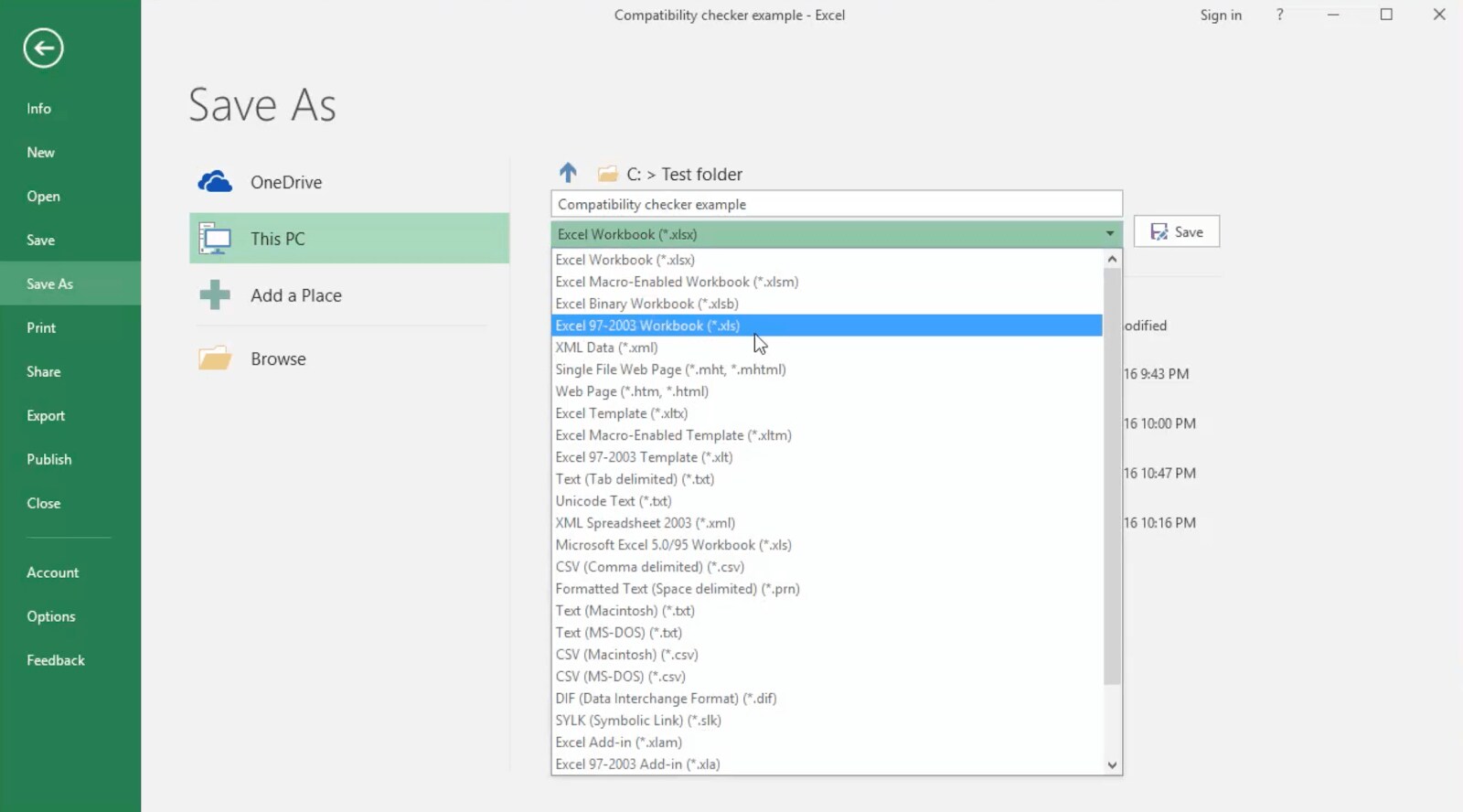 5. Press the “Save” button.
See which compatibility mode your document is using
To find out which mode is being used to view the document you have opened, run the compatibility checker. This is helpful when looking at a paper you got from someone.
- When the document is in compatibility mode, open it. The document name, which ought to seem like this, will indicate this. Workbook.xls [Mode of Compatibility] –
- Select the File option by clicking on it.
- Click the Check for Issues button after selecting the Info tab. You should be able to pick Check Compatibility from a drop-down menu.
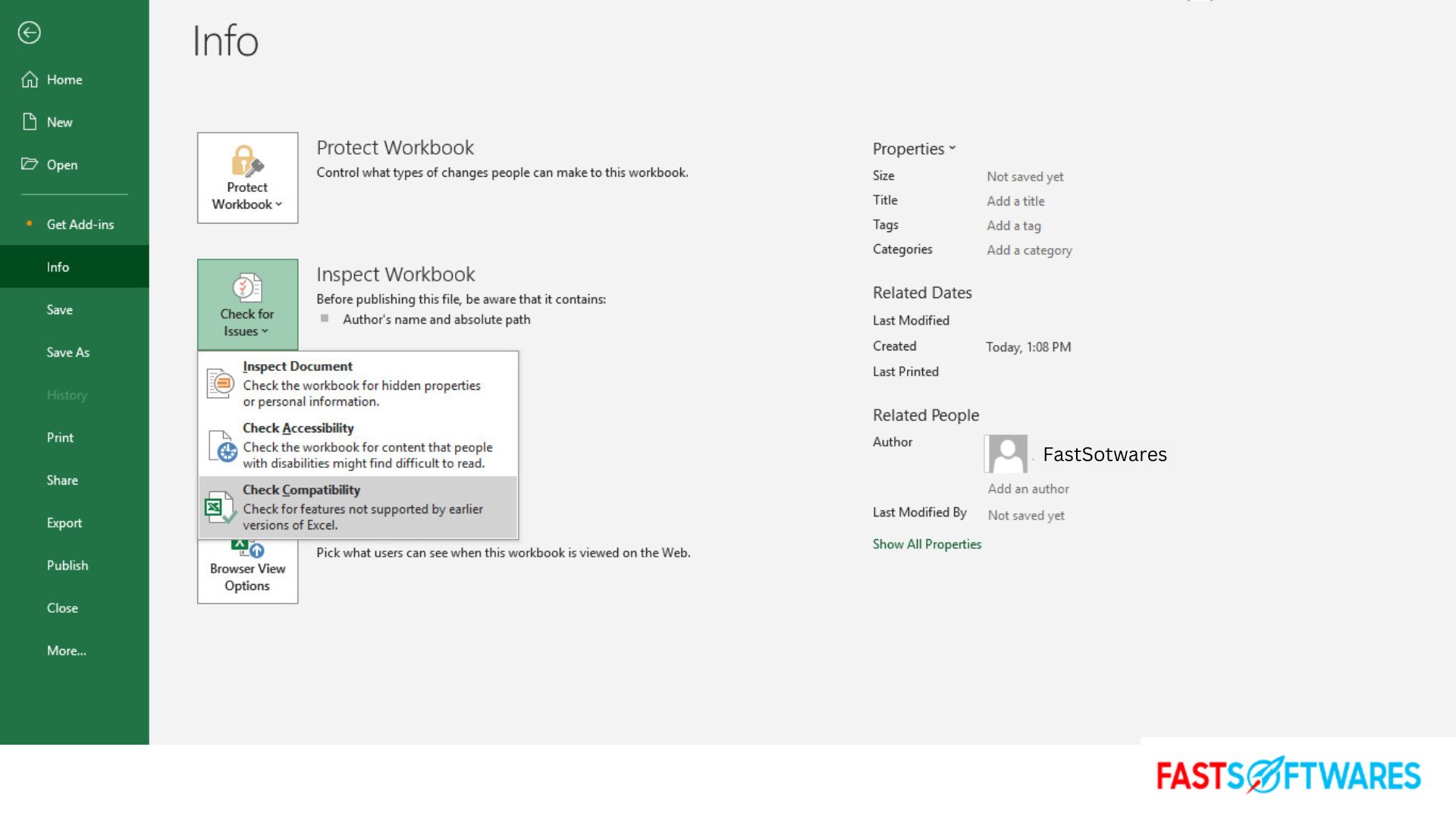
4. A new window should appear and take you back to your document. To find a checkmark, click the Select Version to Show box. The document is now in this compatibility mode.
Ways to Get Out of Compatibility Mode
When you are finished working with a document, you can quickly exit the Compatibility Mode window. Don’t convert a document if you or another person has to use an earlier version of Excel to work with it. In this instance, preserving the previous format will be ensured by maintaining the workbook in compatibility mode.
- To convert a document out of compatibility mode, open it.
- Select the File option by clicking on it.
- Click the Convert button after selecting the Info tab.
Excel will alert you to the possibility that the conversion may change the appearance of your document. If you accept this, the document will no longer be in compatibility mode, and some items may appear differently than they did previously. Make adjustments to reflect these changes if necessary.
Save the document as a contemporary document to complete the conversion. After doing this, you can be sure it won’t open in compatibility mode.
Method for disabling Compatibility Mode
A problem that some users are having is that whenever they start a new document, it opens in compatibility mode. Don’t worry; it’s easy to remedy this. The most likely reason for this is that Excel is using Compatibility Mode by default because you are using an older program version.
- Open Excel and create a new document or open an already-created one.
- Select the File option by clicking on it.
- From the panel on the left, select Options. A new window will open as a result.
- Use the menu on the left to navigate to the Save tab.
- Select “Open files in this format” from the drop-down menu. Verify that Excel Workbook (*.xlsx) is selected, then click OK.

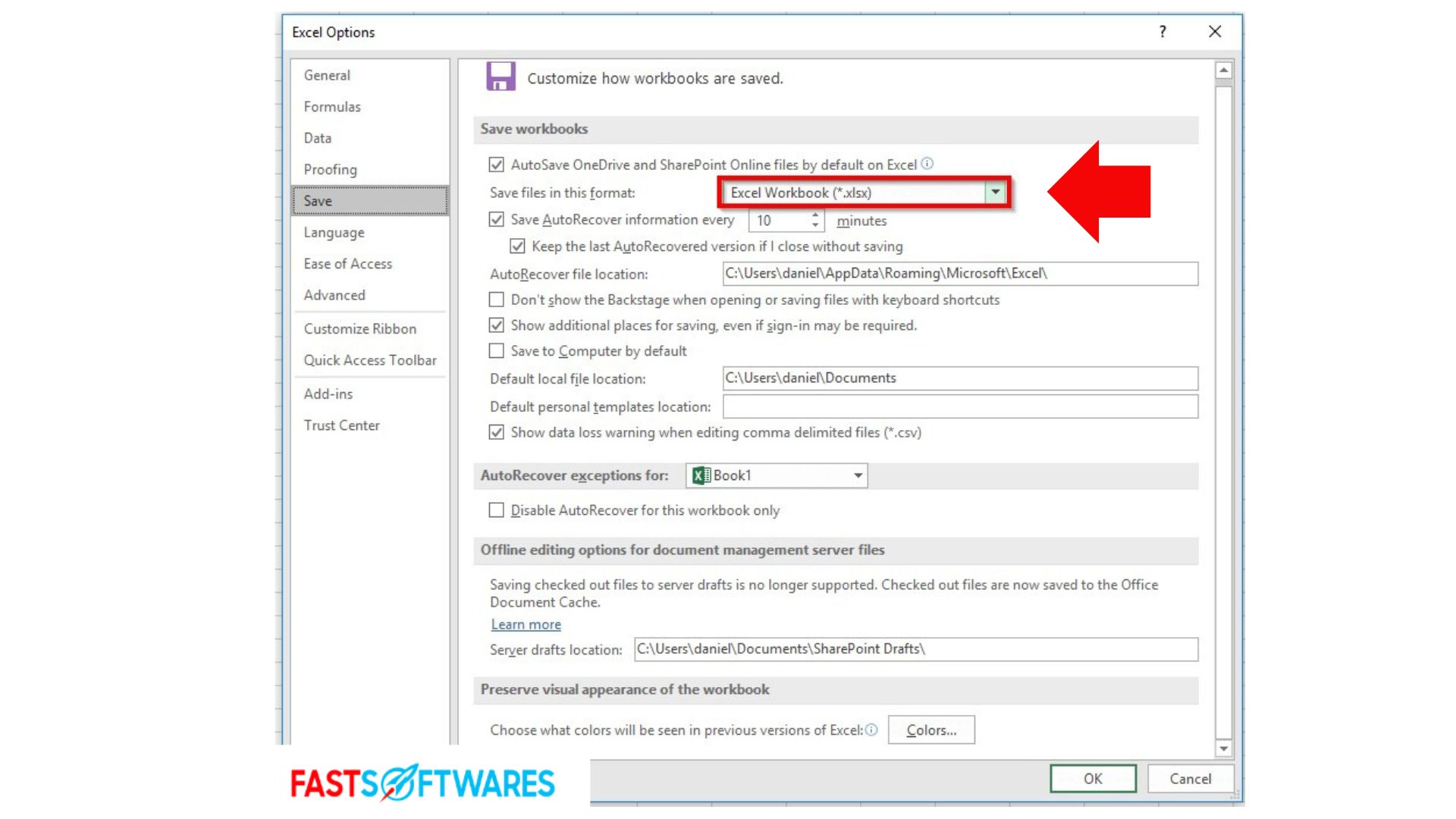
Typically, your papers should now open.
We hope this post has helped you understand Excel’s compatibility mode. Please don’t hesitate to revisit our page if you need additional help with Microsoft’s spreadsheet application.
If you want to read more stories about contemporary technology, sign up for our newsletter. We provide tips, news pieces, and tutorials regularly to assist you in your daily computer life.