How To Change Any Device’s Apple ID Password
Do you have concerns regarding the safety of your Apple ID? This step-by-step tutorial covers changing your password ID and protecting your iOS/macOS data.
The secret to all of your Apple devices and information is your Apple ID. It’s critical to protect your Apple ID password. You should reset your password immediately if it was compromised, showed up in a data breach, or forgot it.
You may quickly and easily change the password for your Apple ID on any device connected to your account. This covers your Mac, PC, iPod, iPad, and iPhone. You must have access to both your preferred new password and your existing password to change it.
If you want to be safe or fear your password may have been compromised, here’s how to change it. To get started, just take the easy steps listed below.
Why It’s Necessary To Frequently Change Your Apple ID Password
Protecting your Apple ID is critical since it serves as your access to all Apple goods and services. Changing your password frequently is one of the most incredible ways to achieve this. This helps keep hackers out of your account and lets you monitor who has access to the information on your account.
Regularly updating your password can help you stay safe online by preventing phishing schemes and other hazards. Changing your password frequently can be a hassle, but you should remember that your Apple ID is among your most valuable online assets.
It only takes a few minutes to safeguard your account and yourself by changing your password regularly. Three solid reasons to periodically update your Apple ID password are as follows:
- To keep your account secure. You need a strong password to protect your Apple ID. You can lessen the possibility of someone accessing your account by changing your password frequently.
- To prevent phishing schemes. Phishing schemes are growing increasingly common and often target owners of Apple IDs. You can make yourself more resistant to these scams by regularly changing your password.
- To maintain the status of your account. To keep your account active, Apple needs you to update your password occasionally. You might discover that your account has been deactivated if you don’t reset your password.
You now have three solid excuses for changing your Apple ID password regularly. By following these simple instructions, you can keep your account safe and secure.
Methods for Changing Your Apple ID Password
Resetting your password is quite easy, assuming you already have an Apple ID and know it. How to do it is as follows:
How to Update Your iOS Apple ID Password
If you use an iOS device, such as an iPhone or iPad, you can change your Apple ID password by launching the Settings app. To do this, take the actions listed below:
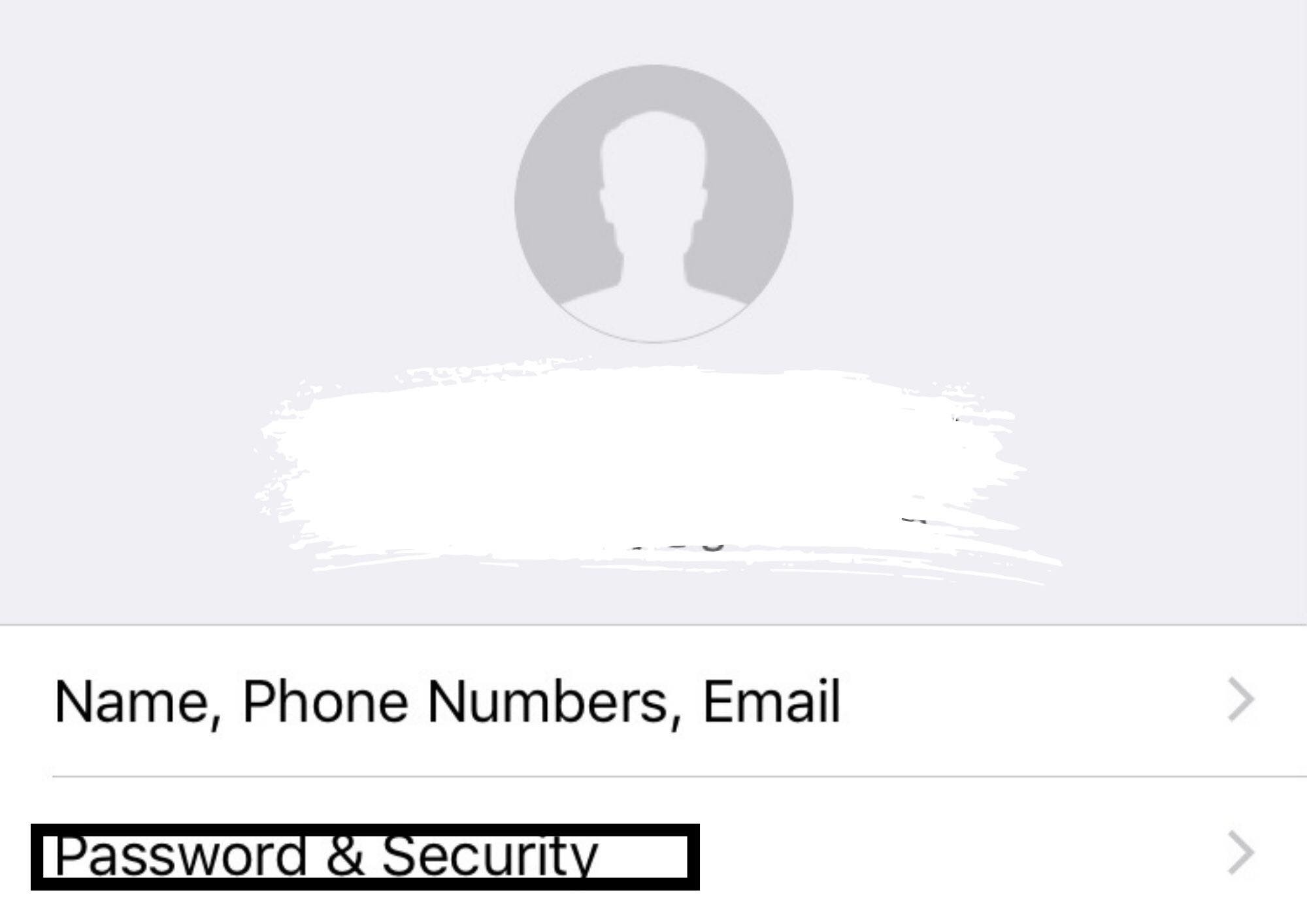
- On your mobile device, launch the Settings app and tap the banner at the top of the screen to access your Apple ID.

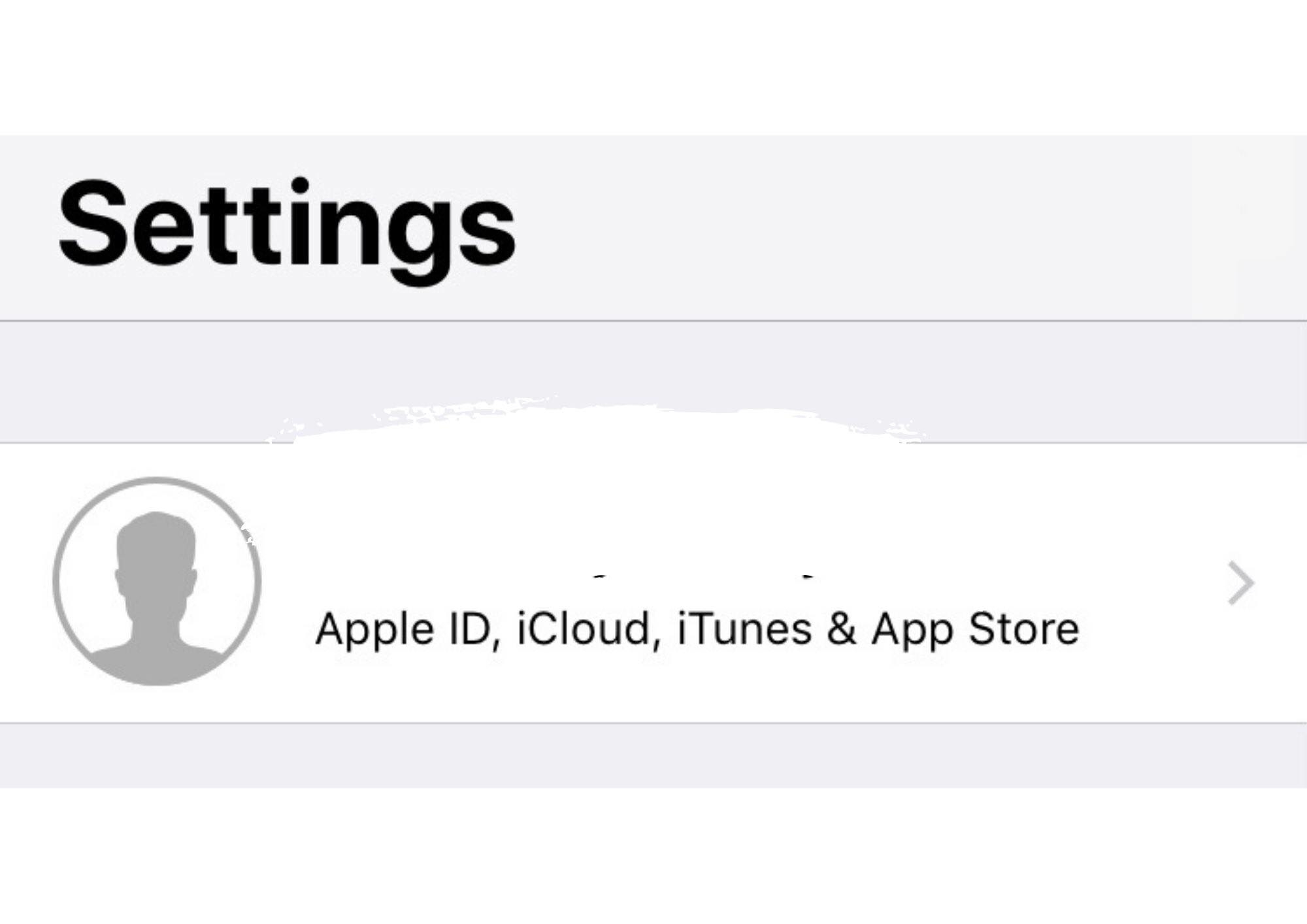
- Click or tap the Security & Password tab.
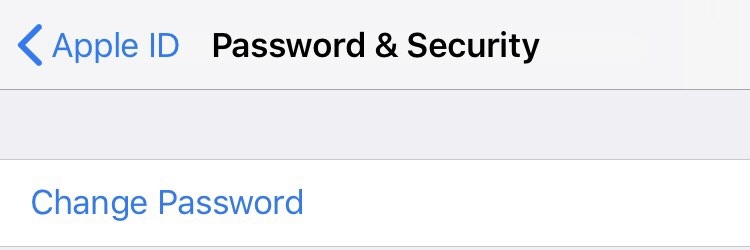
- Press the “Change Password” button at the top of the page.

- To continue, enter your Apple device’s passcode or use your Face ID or fingerprint reader if requested. This is a safety precaution to ensure your Apple ID password isn’t accidentally changed.

- To verify your new password, enter it twice. On specific devices, you could also be asked to provide your existing password to confirm who owns the account.

- To save your changes, tap the Change button.
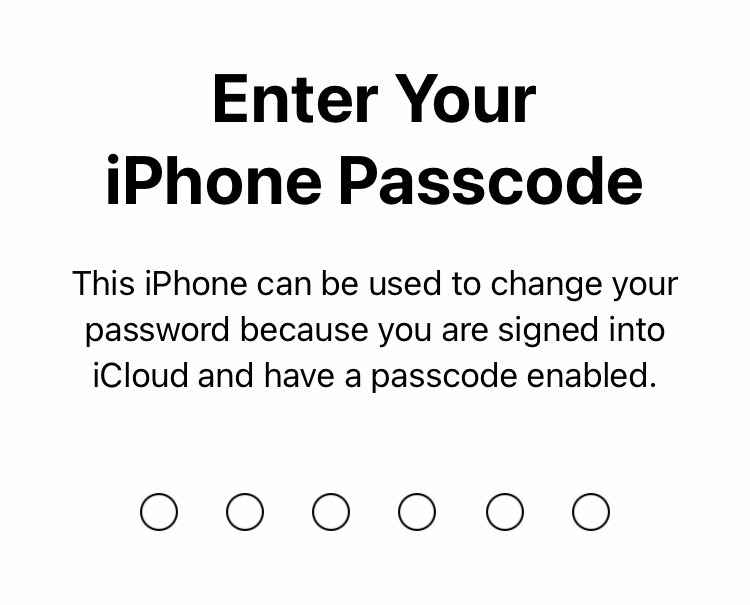
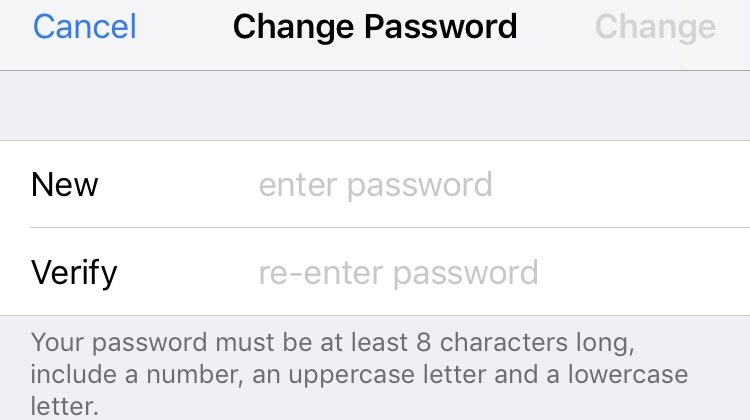
It’s as simple as that! Remember that every time you log in to any of the Apple services (App Store, iTunes, iCloud, iMessage, etc.), you must enter your new password. Thus, make sure the password you select is one you’ll remember!
How to Update Your Desktop Apple ID Password
You can always reset your password without having an Apple device close by if you’re worried about the security of your Apple ID. To do it on a desktop computer, follow the steps:
- Open the web browser of your choice and go to the appleid.apple.com page. Select Sign In, then enter your Apple ID to log in.
- The Manage My Apple ID screen ought to appear. After selecting the Sign-In and Security menu, select Password. You can check the last time you changed your password; if it has been over a few months, you should change it immediately!
- Next, enter a new password you want to link to your Apple ID after entering your current one. Verify that the new password satisfies all the requirements by entering it again.
- If you want to use your previous login credentials to exit current sessions, select the Logging out of Apple Devices and Websites option. To complete the modification, click the Change Password button.
Recall that going forward, you must input your new password each time you log into your Apple ID. Thus, pick something that will be simple for you to recall but also ensure that it is robust and safe.
What To Do if You’re unable to Recall Your Apple ID Password
Don’t worry if you can’t recall your Apple ID password. You may reset it to put it back in your account in a few different ways.
Go over all of your stored passwords first. Your Apple ID password was saved on your device when you last entered it. You can access your Apple ID account using the password you locate in your saved passwords. Users may check if their Apple ID password is saved in their password manager (LastPass, 1Password, etc.).
Don’t panic if your saved passwords don’t contain your Apple ID password. You can try a couple of additional choices.
Next, reset your Apple ID password with Apple’s password reset tool. Inputting your Apple ID and responding to a few security questions are prerequisites. You may utilize Apple’s two-step verification procedure if you have trouble recalling your answers. You can reset your password by receiving a code on your reliable device.
If you need assistance, you may get in touch with Apple Support. They can help you get back into your account and will be able to help lead you through the steps.
Guidelines for Creating a Strong and Secure Apple ID Password
Making a strong, secure password is one of the most crucial things you can do to safeguard your Apple ID. The following tips will assist you in coming up with a strong password that is also simple to remember:
- Use a mix of special characters, numerals, and capital and lowercase letters.
- Make sure your password has at least eight characters in it.
- Don’t use terms like “password” or your name that are simple to figure out.
- Avoid using letter or number sequences (such as abcdef or 123456).
- Regularly change your password, particularly if it might have been compromised.
Following these easy guidelines, you can ensure your Apple ID password is safe and secure.
How do I unlock a locked iPhone and remove the Apple ID?
There are two methods for removing Apple ID from a locked iPhone:
- Use an unlocking tool for iPhones.
- Speak with Apple support for iPhones.
These days, many of these tools are accessible to assist you in unlocking your iPhone. The following 12 iPhone unlockers let you remove different types of locks from your phone:
- TunesKit iPhone Unlocker
- AnyUnlock – iPhone Password Unlocker
- iMyFone LockWiper
- Passvers
- FoneGeek
- EaseUs MobiUnlock
- UkeySoft Unlocker
- Tenorshare 4uKey
- Apeaksoft
- TunesKit iPhone Unlocker
- Dr.Fone – Screen Unlock (iOS)
- ApowerUnlock
The TunesKit iPhone Unlocker is the most effective one. It’s a helpful instrument for factory resetting iOS devices, unlocking Apple IDs, and getting around the screen time passcode. The most recent version also supports iOS 16 and iPhone 14 devices.
The best method for removing Apple ID from your iPhone is to follow each iPhone unlocker’s instructions following the suggestions made by the seller.
Contact Apple support if the iPhone unlockers are unable to help you.
In short
On your iPhone or a desktop computer, changing your Apple ID password is an easy process. It’s a good idea to periodically update your password if security regarding your Apple ID is a worry for you. Additionally, you may guarantee that your Apple ID password is secure and reliable, according to the advice in this post!
This post helped change your Apple ID password. Feel free to post any comments or questions in the space provided below!
I appreciate your reading.
Please take a moment to share this post on your social media accounts; it could help someone else as well.
Just One Last Thing
In need of further advice? See our Help Center and the FastSoftwares Blog for more guides! You may get a lot of information on how to solve your computer problems and troubleshoot different situations.
Access our blog entries, promotions, and discount offers early by subscribing to our email. You’ll also be the first to learn about our newest promotions, guides, and other fascinating updates!